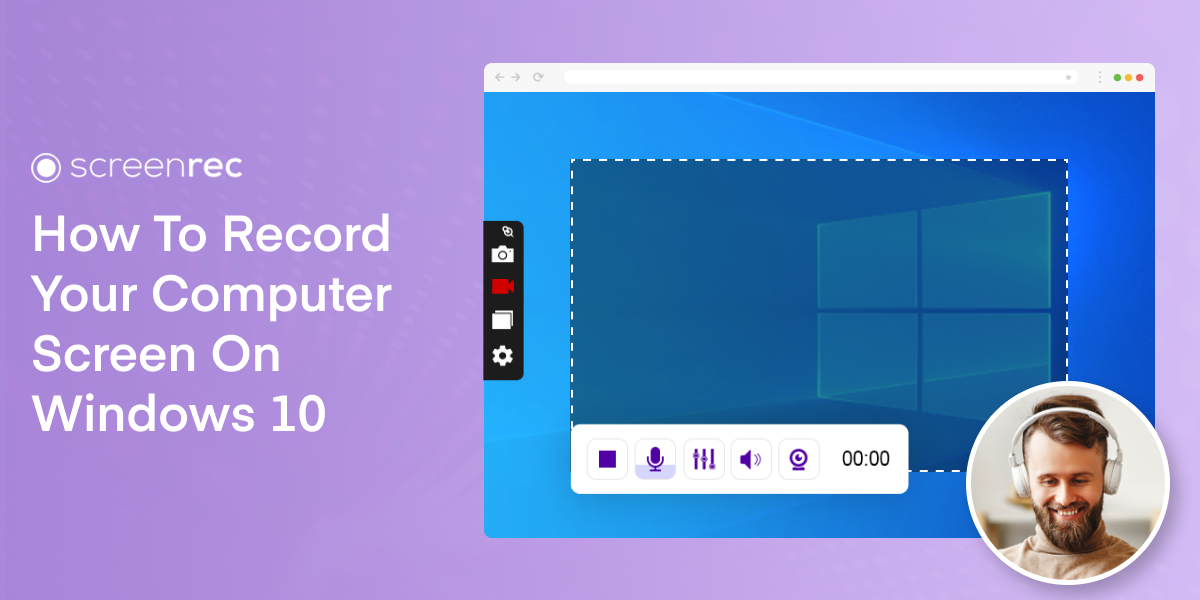
How To Record The Computer Screen

You know that feeling when you’re trying to explain a tech glitch to your mom over the phone, and you end up describing a “blue box with a spinning wheel” like you’re narrating a nature documentary? We’ve all been there. It’s like trying to describe the taste of a banana to someone who’s never eaten one—utterly futile. That’s where screen recording swoops in like a superhero in a pixelated cape, ready to save your sanity.
Honestly, recording your screen is the modern-day equivalent of saying “hold my beer and watch this” to your future self. You get to capture the chaos, the win, or the hilarious fail in real-time. Whether you’re making a tutorial for your grandma or just want to show your buddy the crazy lag in your favorite game, it’s your personal time machine. Let’s dive into the wonderfully simple world of capturing your digital life, minus the headache.
The “Whatever You Have” Starter Pack
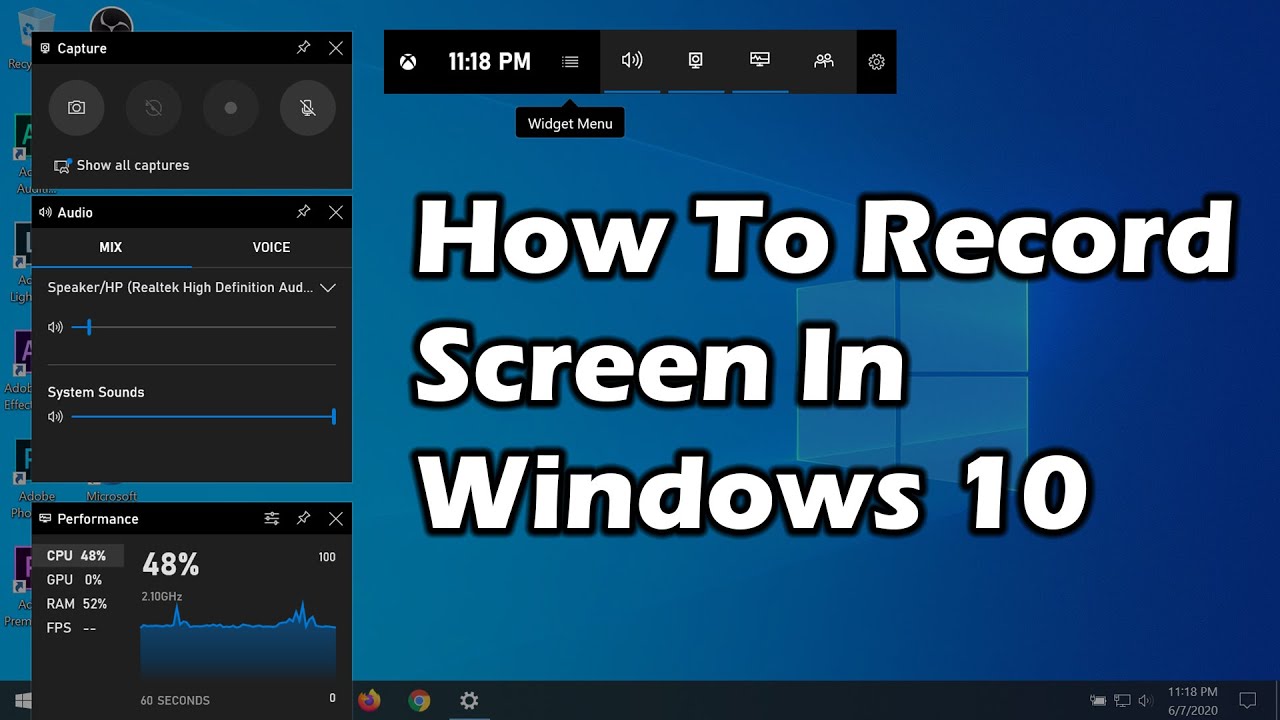
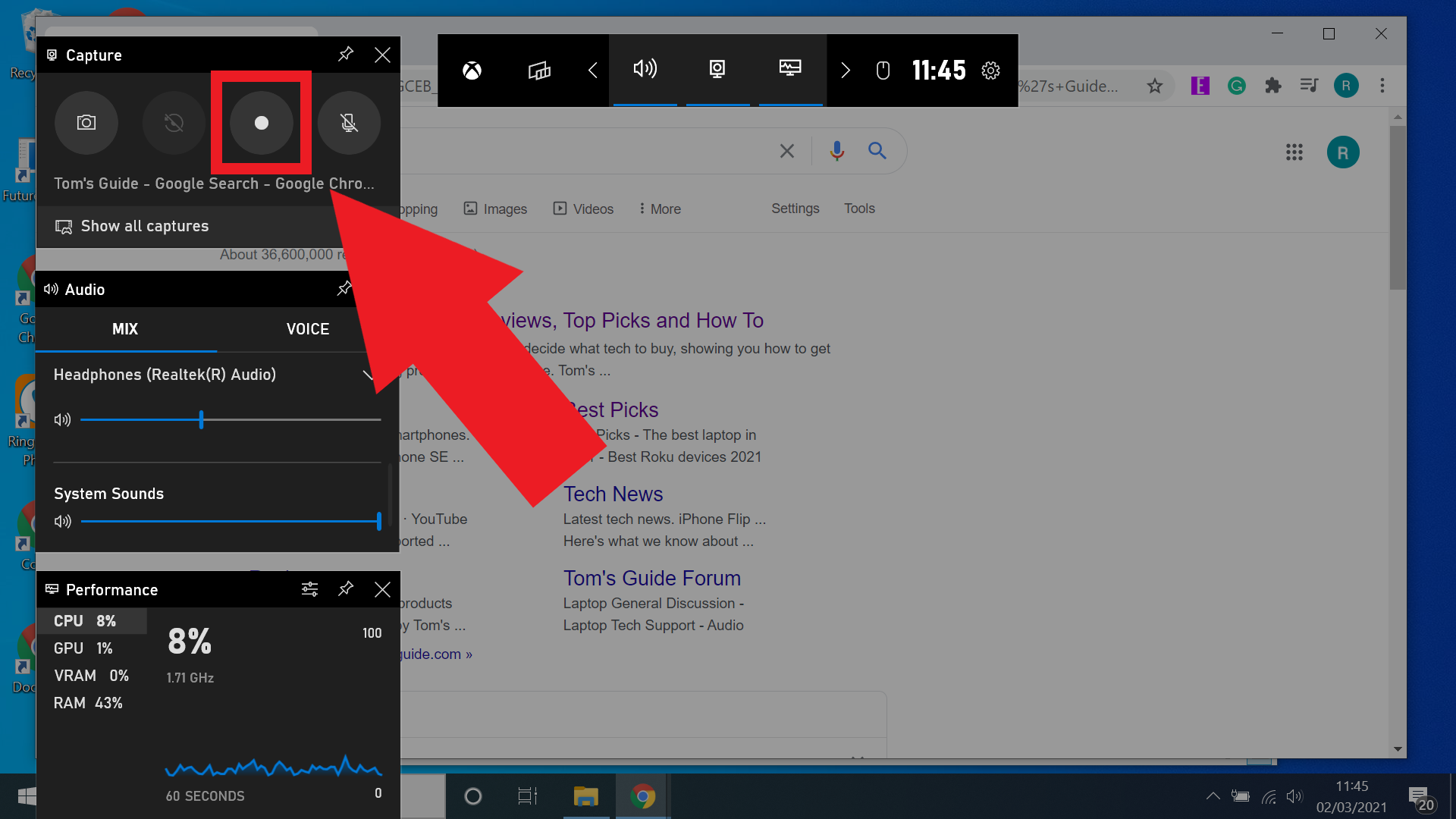
First things first, you don’t need a Hollywood studio to get started. If you’re on a Windows PC, just hit the Windows key + G and a magical game bar pops up like a helpful (but slightly intrusive) butler. It’s been hiding in your machine for years, silently judging your Solitaire skills, and now it’s ready to work.
Must Read
Mac users, you’re not left out in the cold. Simply hit Shift + Command + 5, and boom, a little toolbar appears at the bottom of your screen. It’s like the Swiss Army knife of screen capture—you get options for the whole screen, a specific window, or even just a tiny slice. You’ll feel like a pro sniper picking your target.
If those built-in tools feel too basic, you can always graduate to free apps like OBS Studio. It’s the “enthusiast” route, a bit like swapping your trusty sedan for a tricked-out go-kart. It looks intimidating at first, but give it ten minutes, and you’ll be fiddling with scene transitions like you’re directing a live TV show.
Before You Hit Record: The “Oops” Checklist
Now, here’s where most of us trip over our own shoelaces. Always clean your digital desk first. Close that embarrassing tab with the cat videos you’ve watched three times, and mute those random group chats. Nothing screams “professional” like a notification popping up that says “Karen from accounting liked your photo” right in the middle of your presentation.
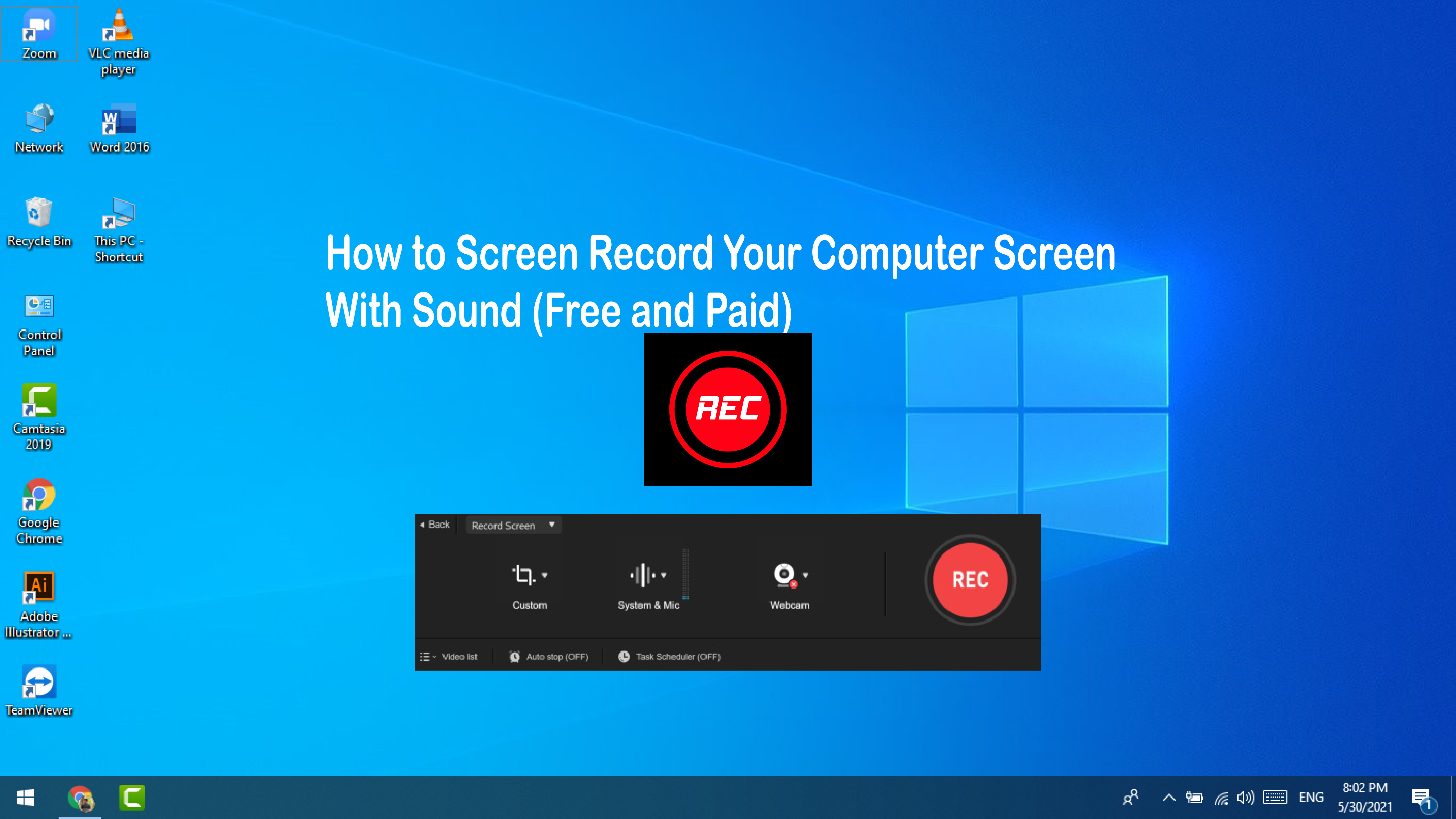
Also, take a second to whisper to yourself, “Is my mic on?” I cannot stress this enough. There’s nothing quite like recording a fifteen-minute masterpiece only to realize you captured pure, glorious silence. It’s the digital equivalent of baking a cake and forgetting the sugar—technically it’s a cake, but nobody wants to eat it.
And for the love of all that is holy, close your email inbox. That little red badge with “1,204 unread” is a distraction for you and your viewers. It’s like filming a movie with a neon sign in the background that says “YOU HAVE NEW MESSAGES.” Nobody needs that pressure.
The Awkward First Take (We All Do It)
You press the record button, and suddenly your brain turns into mashed potatoes. You forget how to move the mouse, and your voice sounds like a robot with a head cold. Don’t panic; this is a rite of passage. I once recorded a full “how-to” video and realized I’d been speaking to a wall because my mic was muted and my camera was pointed at my forehead. Spectacular.

Here’s a pro tip: Just press record and ramble for a few seconds. Say “testing, testing, one-two-three,” and then actually try to move your mouse normally. It’s like stretching before a run—your digital muscles need a warm-up too. After thirty seconds of feeling like a fool, you’ll settle into a groove.
If you completely botch a sentence, don’t stop the recording. Just pause, take a breath, and say “Kitten,” to mark the spot. You’ll edit it out later, and hearing yourself say “kitten” in a deadpan voice will be the comedy highlight of your week. It’s the little things, you know?
When You Hit “Stop” and Hit a Wall
So, you’ve got a raw file that’s longer than a director’s cut of a historical epic. Don’t be scared. Editing is just like cleaning out your closet—you keep the good stuff and throw out the awkward pauses. If you’re on a Mac, iMovie is free and forgiving. On Windows, Clipchamp is your buddy; it’s drag-and-drop simple, like playing with digital LEGOs.
Cut out the beginning where you were breathing heavy, and trim the end where you said “um” fifteen times like a broken metronome. Keep it short and snappy. Your viewers don’t need to see you thinking; they need the answer. Think of it as a pizza—no one wants a thick crust of dead air.
Finally, don’t overthink the final product. You’re not applying for a film festival. If it’s clear and helpful, it’s a win. I once sent a screen recording that had my dog barking in the background, and my friend replied, “Best part was the bass line.” So go on, hit that record button, make a little digital memory, and embrace the beautifully imperfect result.
![How To Screen Record On A Lenovo Laptop [5 Easy Ways]](https://tencomputer.com/wp-content/uploads/2023/02/screen-record-itop-screen-recorder-full-screen-768x383.jpg)