How To Print All Layouts In Autocad

Ever stood in front of your computer, coffee in hand, staring at a pile of AutoCAD layouts and thought, “Do I really have to print these one by one?” We’ve all been there. It’s like being forced to peel a dozen oranges when you just want one glass of juice—tedious, messy, and totally unnecessary.
Here’s the good news: AutoCAD has a built-in superpower that lets you print every layout in your drawing with a single, glorious click. No, it’s not magic. It’s just a couple of settings that your future self will thank you for. Let’s dive into the chill way of doing this, because who needs the stress?
The “Publish” Button Is Your Secret Weapon
Forget the classic “Plot” command for a second. That’s for the lonely, single-sheet lifestyle. The real trick is the Publish command—yep, the one that looks like a little sheet of paper with a blue arrow. You can find it on the ribbon under Output, or just type PUBLISH and hit Enter. It’s like the group chat for your drawings.
Must Read
When the Publish dialog box pops up, it shows a list of all your layouts, from “A1-Floor Plan” to “Detail-3” just sitting there. Notice the little checkbox under “Include.” If you want everything, just click the “All Sheets” button at the top. One click. That’s it.
But wait—there’s a sneaky checkbox that often throws people off. It’s called “Plot Stamp On” or the one about “Reverse Order.” If you don’t check those, you’re fine. Seriously, leave them alone unless you love chaos.
Why Not Just Print One Big PDF?
Here’s where it gets fun. Instead of sending each layout to a physical printer (which costs you paper and your sanity), you can publish all layouts into a single PDF file. Think of it as a digital flipbook of your entire project. You can email it, archive it, or show it off to your boss without carrying a ream of paper.
In the Publish dialog, look for the “Publish To” drop-down. Change it from “Plotter named in page setup” to “PDF.” Then, hit the “Publish” button at the bottom. AutoCAD will ask you where you want to save the PDF. Choose a folder, name it something cool like “Final_Project_ALL,” and let it rip.
While it’s working, you’ll see a little progress bar. It’s like watching bread toast—satisfying, and you know something good is coming. When it’s done, you’ll have one PDF with every single layout as a separate page. Clean, organized, and zero paper cuts.
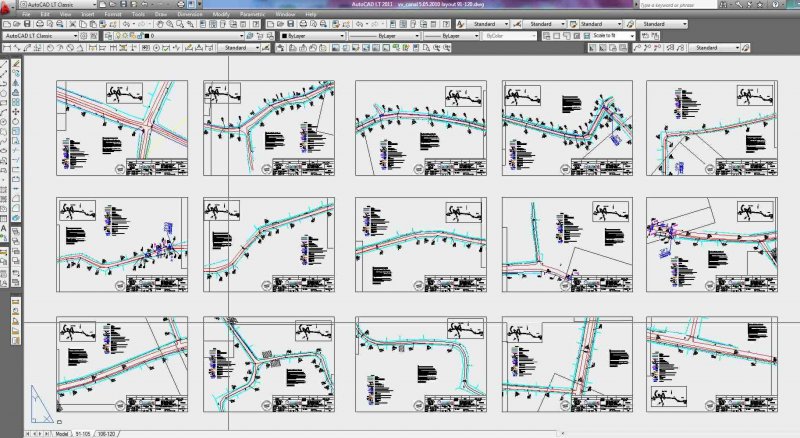
What If You Want to Print on Paper?
Maybe you’re old-school or you need physical copies for a client meeting. No problem. Use the same Publish command, but instead of PDF, pick your actual printer from the “Publish To” menu. Before you press that final button, make sure you’ve set up your page setups correctly (because if your layout margins are off, you’ll get surprise crop marks).
One pro tip: Always do a “Preview” first on just one layout to check if your lineweights look fat and happy or thin and sad. Then, when you’re confident, go for the full batch. It’s like cooking a test pancake before flipping the whole batch—wise move, trust me.
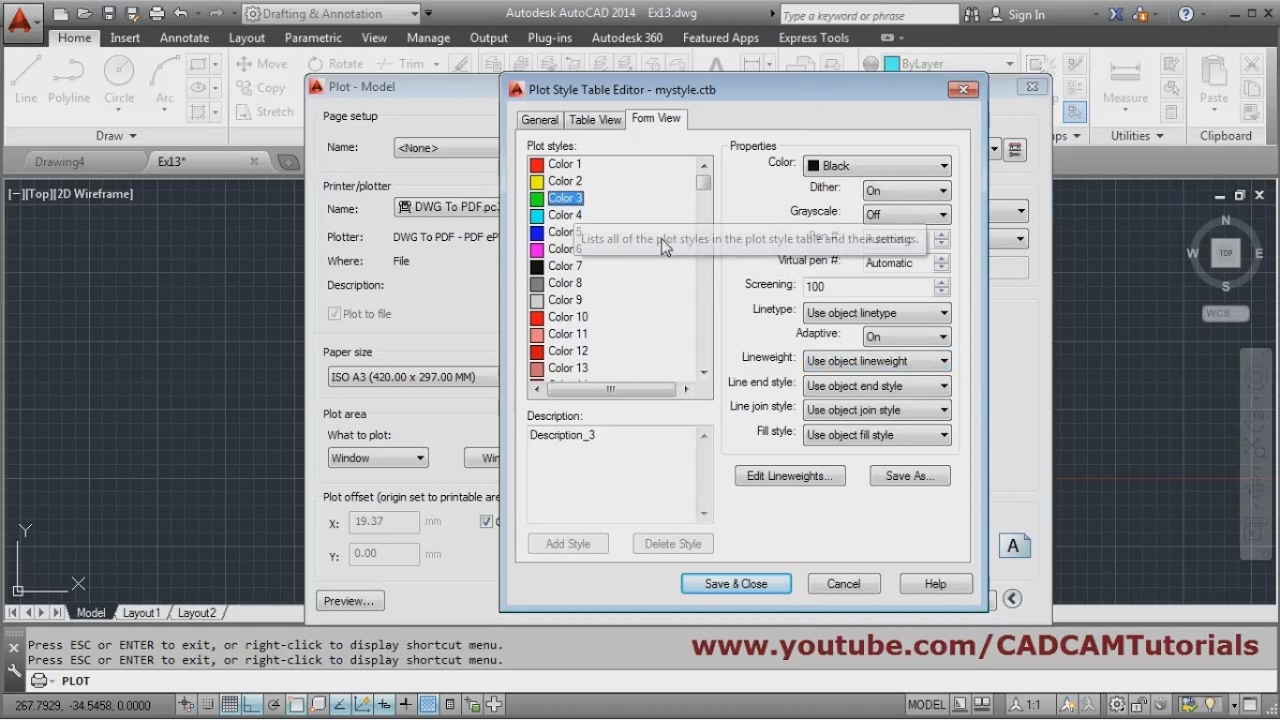
But What About Missing Layouts?
Sometimes you open Publish and notice a layout is unchecked or greyed out. That usually means the layout is set to “Not for output” in the Page Setup. Quick fix: right-click on the layout tab, go to Page Setup, and make sure it’s assigned to a real plotter or PDF. Then, she’s ready to go.
Also, if you have hundreds of layouts? Still works. Publish will happily churn through them like a hamster on a wheel, but faster and with fewer squeaks. You’ll just need to wait a few minutes for the PDF to build.
So next time someone asks how you printed 20 layouts without breaking a sweat, just smile and say, “Oh, I just pressed Publish.” Then walk away like the AutoCAD wizard you are. Honestly, once you learn this, you’ll wonder how you ever lived with the one-by-one grind. Go ahead, try it—your wrist will thank you.