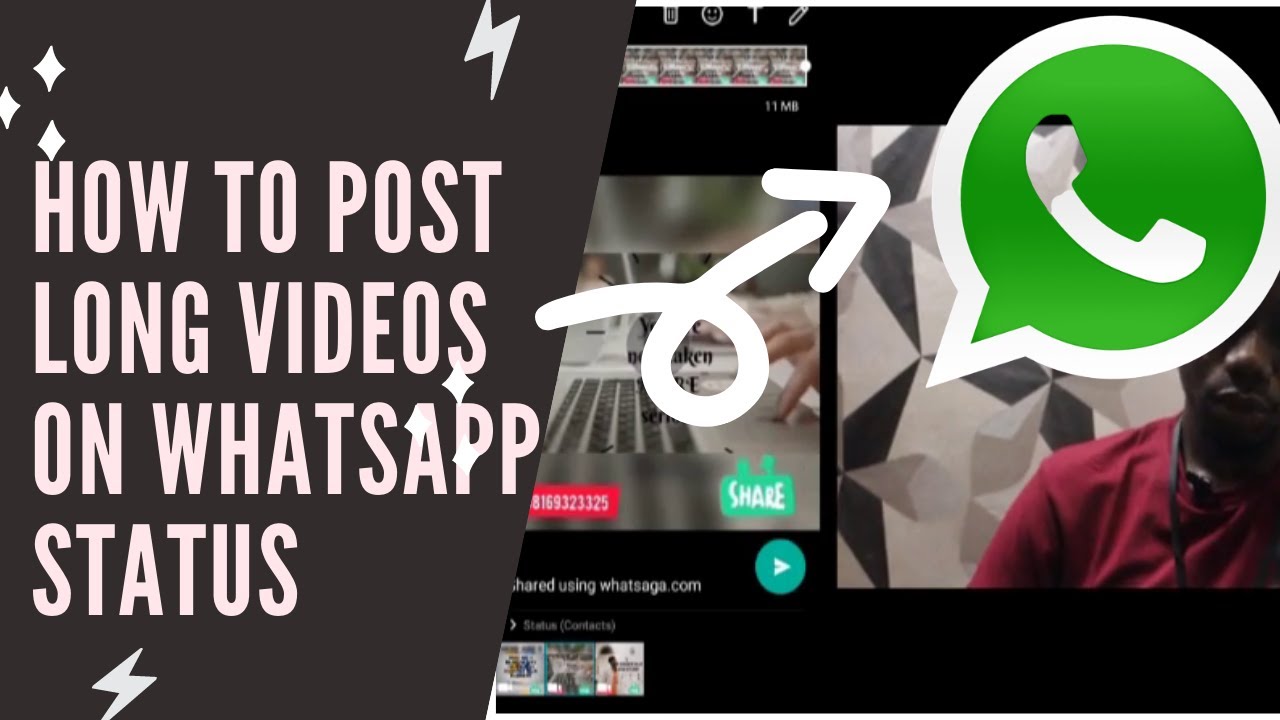
How To Post Video On Whatsapp Status

Let’s be real for a second. Your WhatsApp status is the digital equivalent of a wave through a window—a fleeting, slightly blurry glimpse into your life that disappears before anyone can double-tap. And in the great social media food chain, the video status is the undisputed king of engagement, a mini-movie premiere that plays out in your contact’s private theater.
The good news? Posting one is absurdly simple. The bad news? Most people are still fumbling in the dark, posting 30-second clips that get chopped off or look like they were filmed through a potato. So, grab your iced coffee, put on your comfiest loungewear, and let’s turn you into a WhatsApp status virtuoso.
The 30-Second Sprint (Or, The Art of the Cut)
Here’s the first rule of the club: your status is a sprinter, not a marathon runner. WhatsApp has a hard limit of 30 seconds for a video status, and it will ruthlessly cut off anything longer. This isn’t a technical glitch; it’s a creative constraint, a challenge to say more with less.
Must Read
Think of it as the video equivalent of a haiku. You wouldn’t try to tell your entire life story in a haiku, would you? Instead, capture that single, sublime moment—the dog catching the treat mid-air, the sunset’s final burst of orange, the first sip of an outrageously good martini. Curate, don’t document.
Uploading: The How-To (It’s Easier Than You Think)
Ready for the tech magic? Open WhatsApp, head to the Status tab (that’s the one with the little circular icon, not the chat bubbles). You’ll see a pencil icon if you want to write something, but you want the camera icon—tap it.

Now, you have two choices. You can record directly by holding down the shutter button, but if you want to upload something from your camera roll, tap the gallery icon (usually a square with a mountain inside) at the bottom right. Select your perfect video, and here’s the golden trick: drag the timeline slider at the bottom to trim it to your preferred 30-second slice. Don’t just post the whole thing and hope for the best.
Before you hit that green send button, you get to play dress-up. You can add a cheeky caption, scribble on it with the doodle tool, or add a sticker. Just remember: subtlety is your friend. A single, well-placed emoji is chic; eleven are a cry for help.

Privacy Level: Your Life, Your Rules
This is the unsung hero of the WhatsApp status world—the privacy settings. You can share your cinematic masterpiece with Everyone, which is a terrifyingly bold move, or you can curate your audience. Tap the new privacy icon (the three little people) and select My Contacts Except… to exclude your boss, your ex, or that one guy who only replies with “haha.”
It’s the social equivalent of having a velvet rope at your private party. Use it. We won’t tell anyone you’re silently muting your aunt’s conspiracy theory videos.
Fun fact: your status supports up to 5 minutes of total video time per day. So, you can post a 10-second clip, followed by a 20-second clip, and so on. It’s a mini-vlog, curated for the digital snack era. Just remember, the clock resets at midnight, so use your daily dopamine budget wisely.

Pro-Tips for the Status Aficionado
First, lighting is your BFF. Natural window light makes anything look like a professional production, while that harsh overhead ceiling light screams “cubicle.” Face a window, and instantly your morning coffee looks like a scene from La La Land.
Second, don’t forget the sound. Unlike Instagram, where auto-play is deafeningly silent, WhatsApp defaults to sound on. Use this to your advantage. A loop of your favorite indie track playing over a clip of your weekend road trip is pure digital poetry. Silence is powerful, but a good beat is infectious.

Third, the zoom. Pinch to zoom in/out while recording for that dynamic, kinetic feel. It adds a sense of intimacy, like you’re whispering a secret to your viewer. Just don’t zoom so fast you give everyone motion sickness—we’re going for indie film, not shaky-cam horror.
The Aftermath & The Reflection
Once you hit send, your video will live for exactly 24 hours. It will be viewed, perhaps screenshot, and then vanish into the ether. There’s something beautifully ephemeral about it, isn’t there? It’s a tiny, low-stakes letter to the world that doesn’t require a permanent tattoo of shame.
So, go on. Film that tiny, perfect moment—the rain on your window, the cat’s epic yawn, the crunch of a perfect taco. Post it. Let it live its short, glorious life. And then, when it’s gone, you’ll realize that the real magic wasn’t in the video itself, but in the way it forced you to pause, notice, and share a sliver of your beautiful, chaotic, 30-second-long reality. Because in a world that’s always shouting, a whisper of a well-timed video can be the most refreshing thing you send all day.
![How to Post Long Video on WhatsApp Status | [WhatsApp Trick] (100](https://i.ytimg.com/vi/fSAv5bzXjJA/maxresdefault.jpg)