How To Parental Control Google Search
Ever typed something into Google and immediately regretted that your kids might see it? The internet is a vast, wonderful, and occasionally chaotic place, and a little digital guardrail can save everyone’s sanity. Learning to parental control Google Search isn’t about being the fun police; it’s about creating a safe, calm corner of the web for curious minds.
Think of these settings as training wheels for the online world. Their main purpose is to filter out explicit or violent content before it ever reaches your child’s screen. This gives you peace of mind, but more importantly, it lets your kids explore their interests without stumbling into nightmares.
The benefits go beyond just blocking bad stuff. With parental controls, you’re also reducing the chance of accidental exposure to scams or inappropriate ads. It’s like putting a friendly librarian in charge of every search, quietly steering young eyes toward age-appropriate results.
Must Read
In education, this tool is a game-changer for homework time. Imagine your fifth-grader researching “volcanoes” and getting clear, scientific pages instead of random spam or graphic images. You can also use it to create a shared family Chromebook profile where safe search is always on, so projects stay focused and productive.
For daily life, parental controls on Google Search help with routine moments like checking movie times or looking up a recipe. Your teen might search for a band name, and suddenly you don’t have to worry about explicit lyrics popping up in the results. It’s a simple background layer that makes browsing less stressful for everyone in the house.

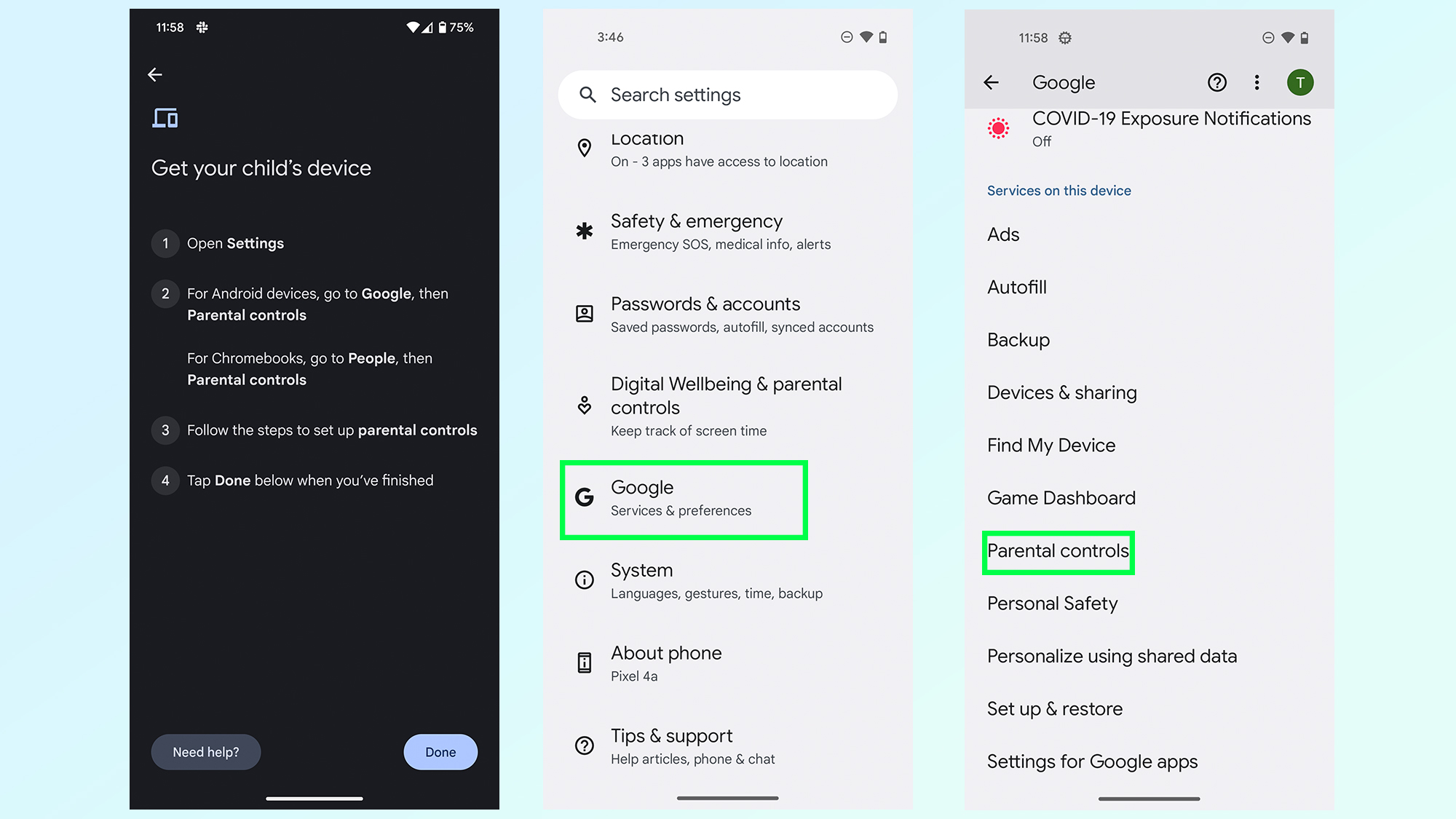
Ready to dip your toes in? The first step is dead simple: open your browser’s settings and look for the “SafeSearch” toggle. On mobile, open the Google app, tap your profile picture, and find “Settings” – then flip SafeSearch to “Strict” or “Filter.”
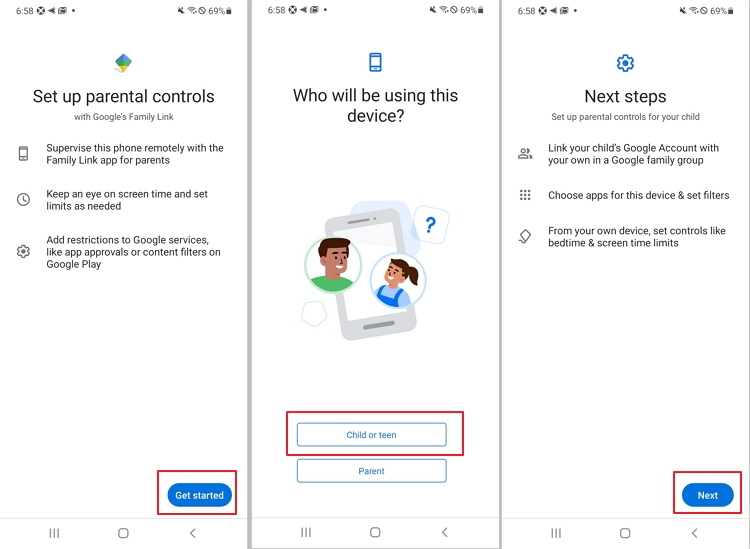
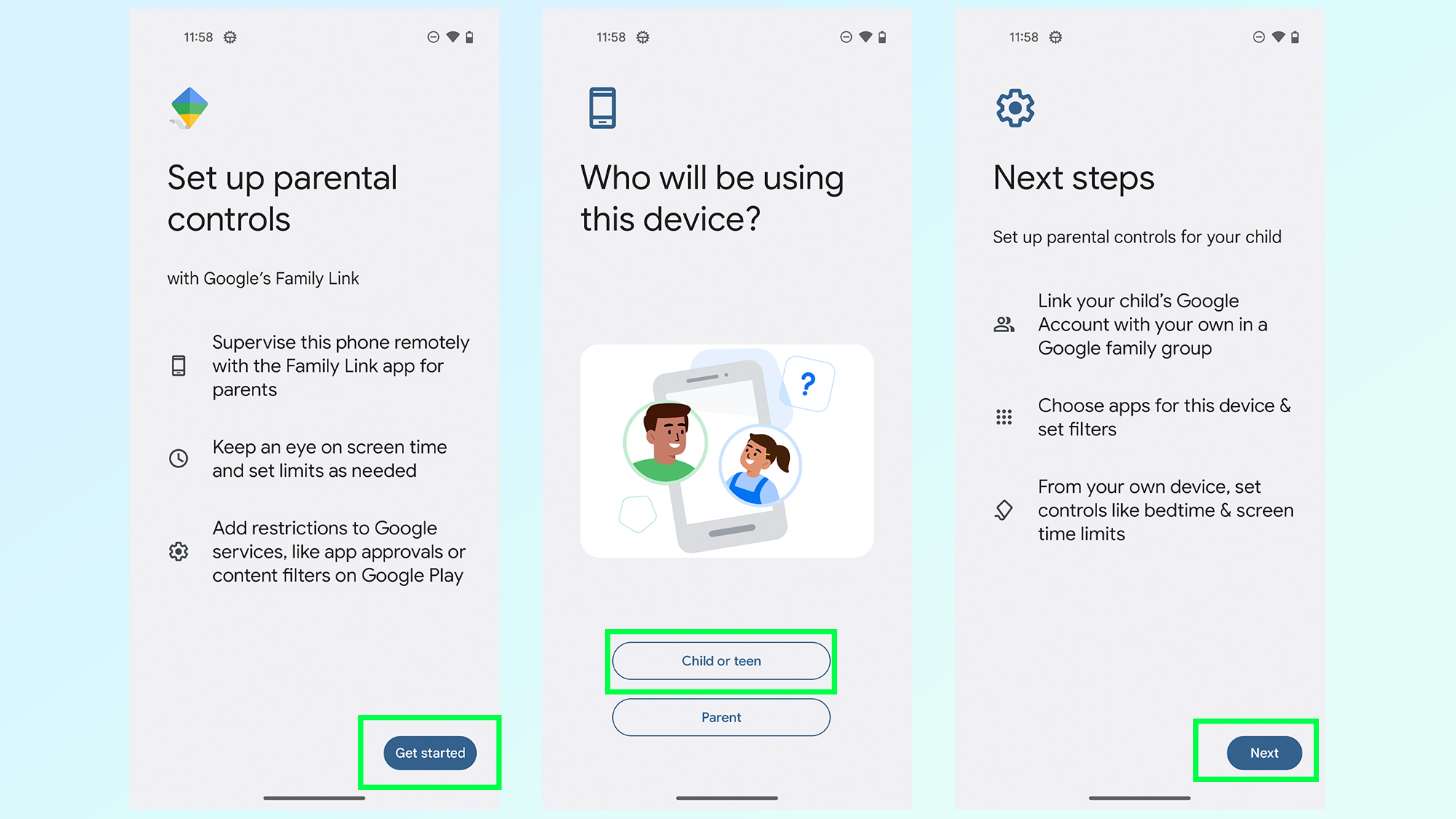
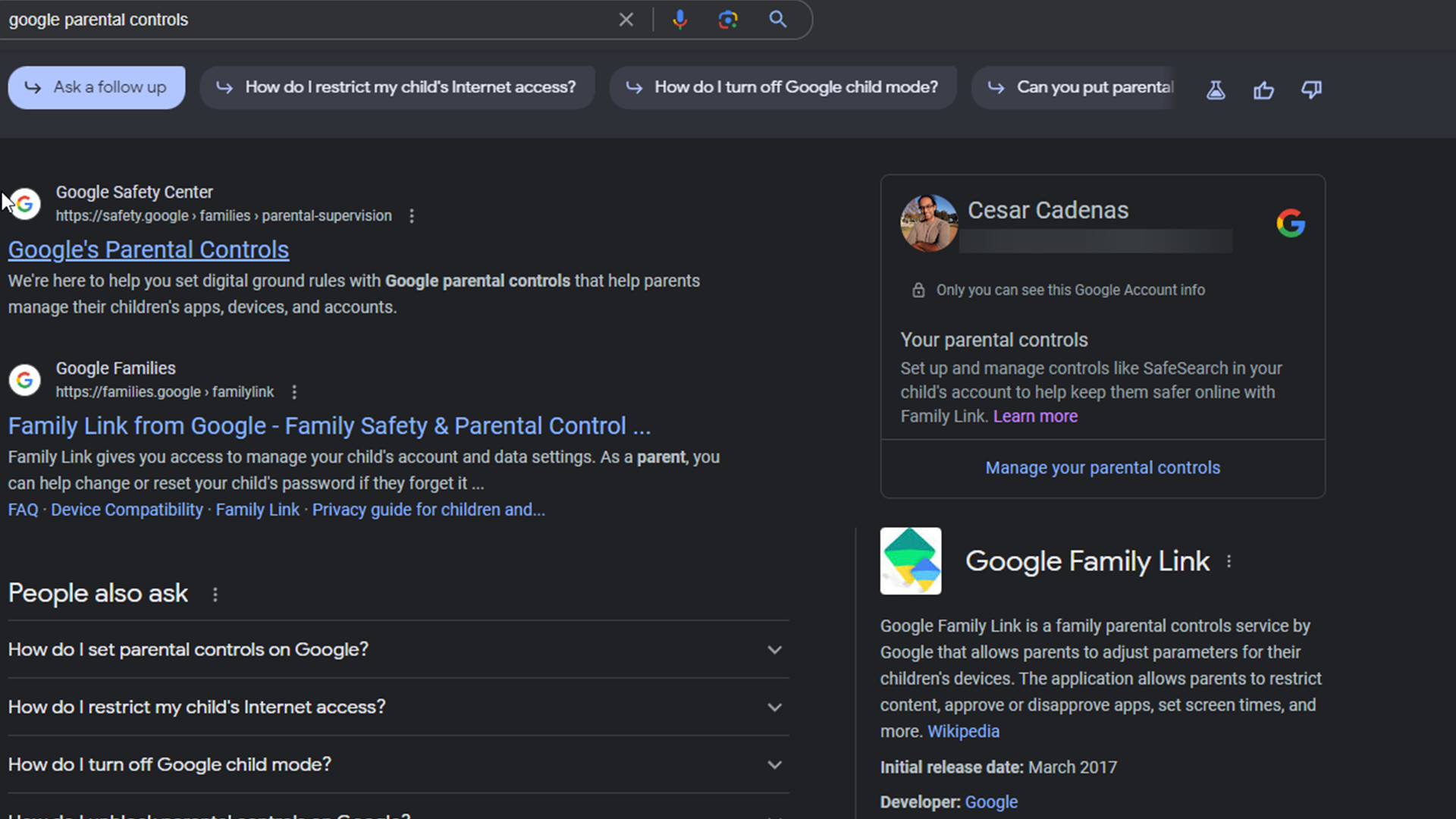
For deeper control, you can set up Google’s Family Link app on your phone. This lets you manage your child’s account remotely, changing search filters or even pausing their device from your own couch. It takes about five minutes to install and gives you a real-time dashboard of their digital habits.
Another handy trick is to create a separate Google account for each child. You can then adjust the SafeSearch level individually, so a ten-year-old gets stricter filters than a sixteen-year-old who might need broader research for school. This way, the controls grow with your child, not against them.
Don’t forget to check the “Block explicit results” box in the search settings, which is often hidden behind a “More” menu. Also, verify that your Wi-Fi router has parental controls, because that catches searches on any device, even without an app. It’s like a backup net for when they borrow a friend’s tablet.
A fun way to test your filters is to search for something borderline, like “funny jokes” or “wild animals,” and see what comes up. You’ll quickly notice whether the results feel clean and friendly. If not, just revisit the settings and tighten the screws a little.
Talk to your kids about why you’re using these controls, rather than hiding them. Frame it as you and them vs. the weird internet, not you vs. them. This builds trust and teaches them how to self-curate later, which is the ultimate goal.
Finally, remember that parental controls are not a one-time setup; they’re a living system. Review the settings every few months, especially after a birthday or a new school year. The internet changes fast, and your rules should, too.
So go ahead, flip that SafeSearch switch and breathe a little easier. You’re not building a wall, just adding a very sensible door filter. Your kids will hardly notice it – until they’re older and thank you for keeping those early searches so wonderfully, boringly safe.

:max_bytes(150000):strip_icc()/NEW5-d4416516ac9f49c98d61fe8610dacd07.jpg)