How To Make A Video Transparent In Filmora
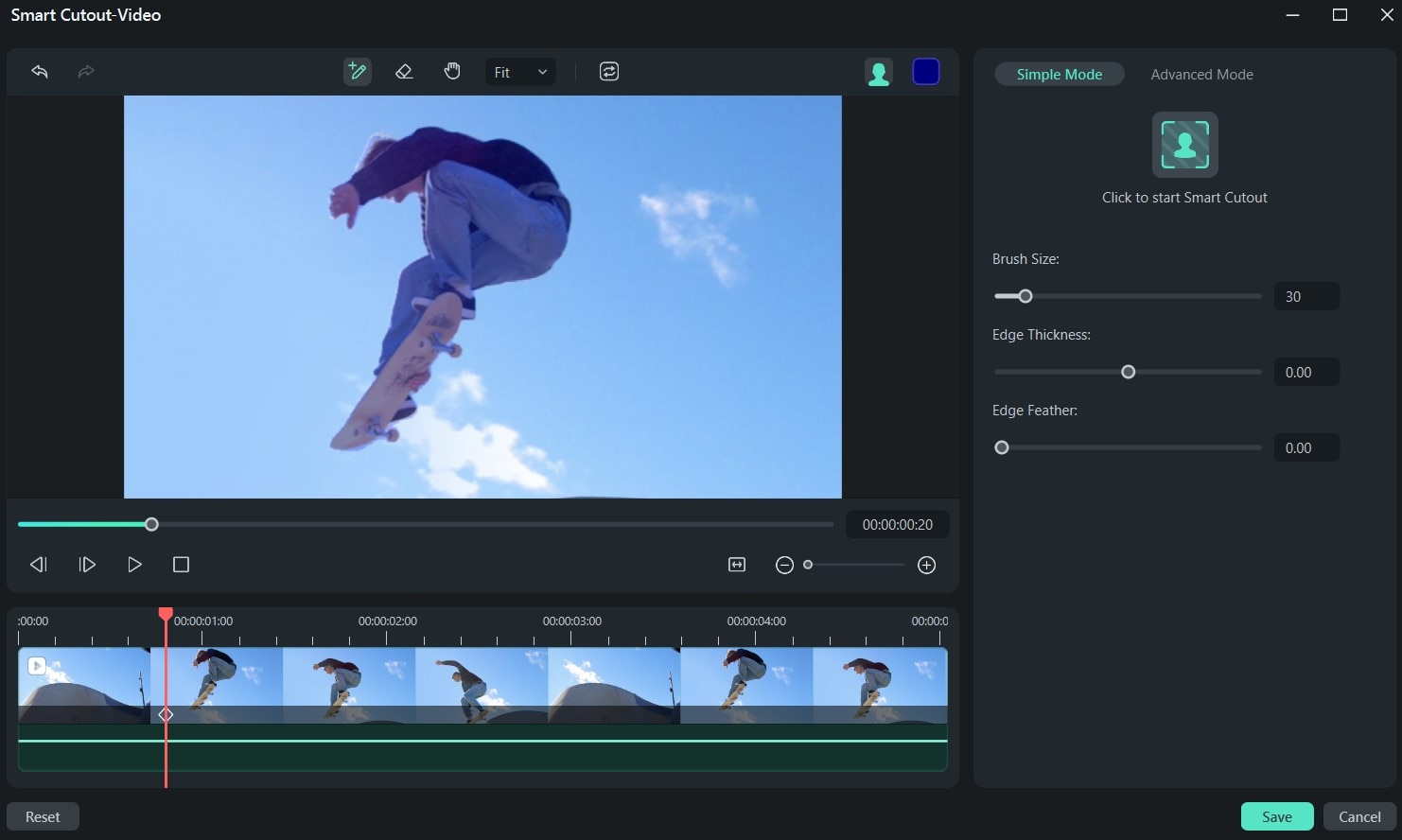
I still remember the first time I tried to make a video transparent in a video editing software - it was a nightmare! I spent hours watching tutorials, reading forums, and experimenting with different settings, but nothing seemed to work. Little did I know, I was using the wrong software, and Filmora would later become my go-to editor for such tasks.
Fast forward to today, and I'm excited to share with you how to make a video transparent in Filmora, a feature that can elevate your video content to the next level. If you're anything like me, you're probably curious about the possibilities of transparent videos - what sorcery is this? Well, let's dive in and find out! With Filmora, you can easily achieve this effect and create stunning visuals.
Understanding Transparency in Video Editing
Before we begin, it's essential to understand what transparency in video editing means. In simple terms, transparency refers to the ability to see through a video or an object, allowing the background or other elements to be visible. This effect can be achieved using chroma keying, a technique that replaces a specific color (usually green or blue) with a transparent background.
Must Read
Now, you might be wondering, why would I want to make a video transparent? Well, my friend, the possibilities are endless - from creating overlay effects to making complex composites look effortless. With transparent videos, you can add an extra layer of depth and visual interest to your content, making it more engaging and professional-looking.
Preparing Your Video for Transparency
Before you start making your video transparent, make sure you have the right footage. You'll need a video with a solid-colored background, which will be replaced with transparency. If your video has a complex background, you might need to use masking techniques or rotoscoping to isolate the subject - but that's a topic for another time!

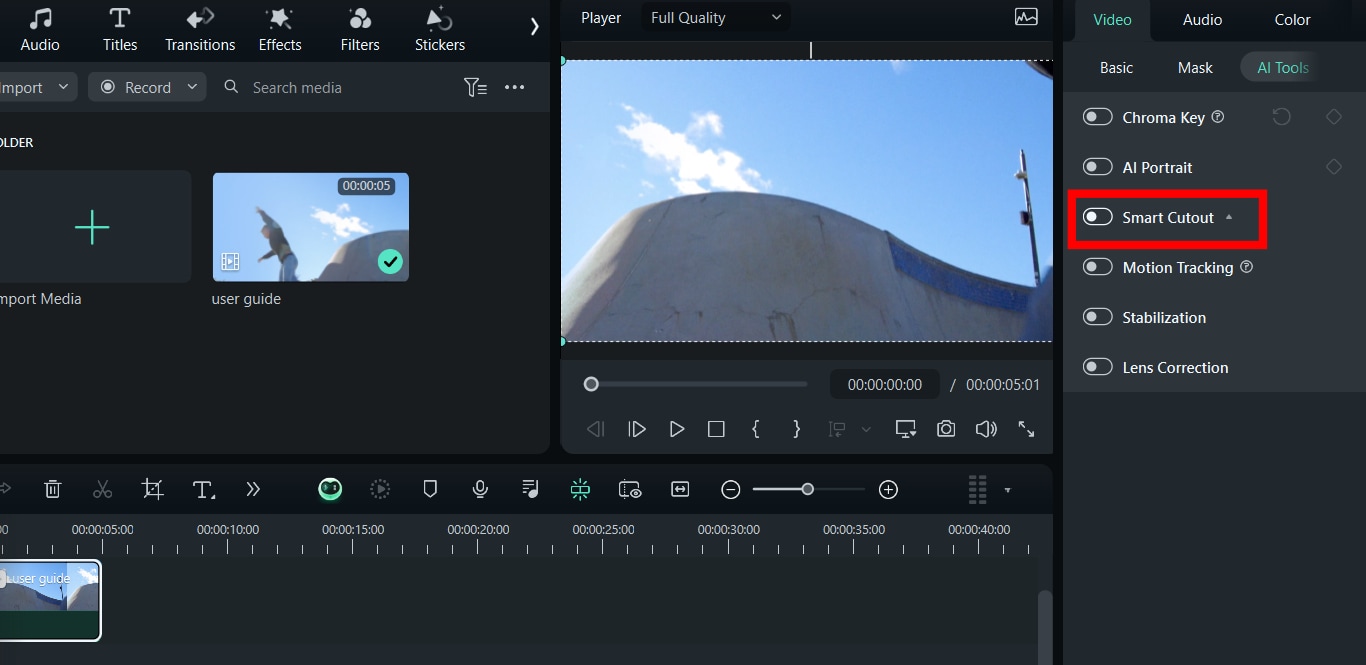
Once you have your video ready, import it into Filmora and drag it onto the timeline. Now, let's get started with the fun part - making that video transparent! With Filmora's chroma keying tool, you can easily remove the background and replace it with a transparent one.
To access the chroma keying tool, go to the color tab in the toolbar and select chroma key. From there, you can adjust the settings to fine-tune the effect and get the desired level of transparency. Don't worry if it takes a few tries to get it just right - practice makes perfect, and you'll soon become a pro at making videos transparent!
Tips and Tricks for Working with Transparent Videos
Now that you've made your video transparent, it's time to think about how to use it effectively. One of the most common mistakes people make is not considering the background of their video. Remember, transparency means that the background will be visible, so choose a background that complements your transparent video.
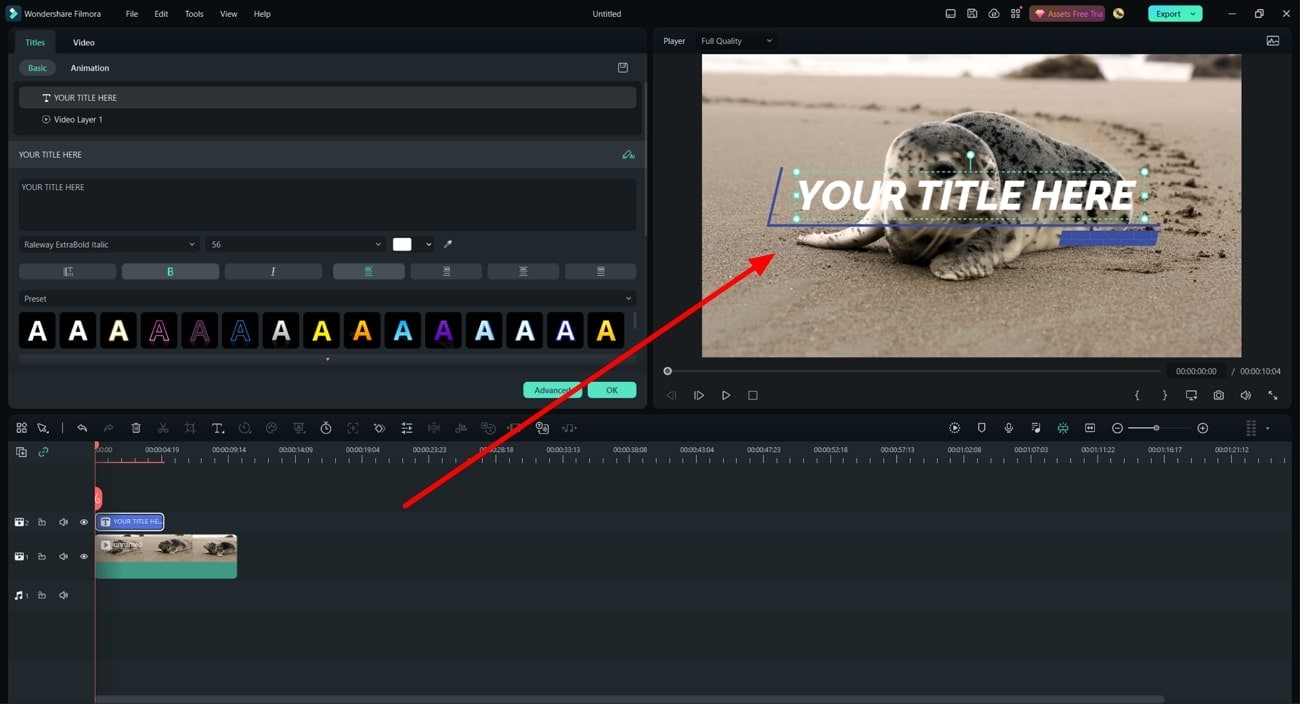
Another tip is to play with layers - transparent videos can be combined with other elements, like text, images, or even other videos, to create complex and interesting compositions. Don't be afraid to experiment and try out new things - after all, that's what video editing is all about!
Finally, keep in mind that transparent videos can be resource-intensive, so make sure your computer can handle the demands of rendering and exporting. But with Filmora, you can trust that your videos will be rendered quickly and efficiently, even with complex effects like transparency.
In conclusion, making a video transparent in Filmora is easier than you think, and the possibilities are endless. Whether you're a seasoned video editor or just starting out, this effect can add a whole new level of depth and visual interest to your content. So go ahead, give it a try, and see what amazing things you can create - and don't forget to have fun along the way!
And there you have it - a step-by-step guide to making a video transparent in Filmora. I hope you found this tutorial helpful and informative, and that you're now eager to start creating your own transparent videos. Happy editing, and I'll see you in the next tutorial!