How To Lower Your Icloud Storage
:max_bytes(150000):strip_icc()/006_reduce-amount-of-items-stored-in-icloud-5203089-081d6da9bdce4a089a03fb4bd6087490.jpg)
Let’s face it—that “Storage Almost Full” notification on your iPhone is a real buzzkill. But clearing it out doesn’t have to feel like a tech chore; it’s actually a fun little digital spring cleaning. Once you reclaim that space, you’ll have room for more photos, videos, and apps without paying a monthly fee.
The best part? You don’t need to be a tech wizard to do it. Whether you’re a busy parent drowning in kid photos, a beginner who just wants their phone to work, or a hobbyist shooting 4K videos, this guide is for you. The goal is simple: keep what matters, toss the junk, and enjoy a faster, happier device.
Think of your iCloud like a shared family closet—it fills up with everyone’s stuff. For families, this means coordinating who backs up what, which can be a headache. For hobbyists, it’s about protecting your creative work without losing quality. The good news? There are dozens of ways to slim down, from deleting old backups to turning off auto-save for memes.
Must Read
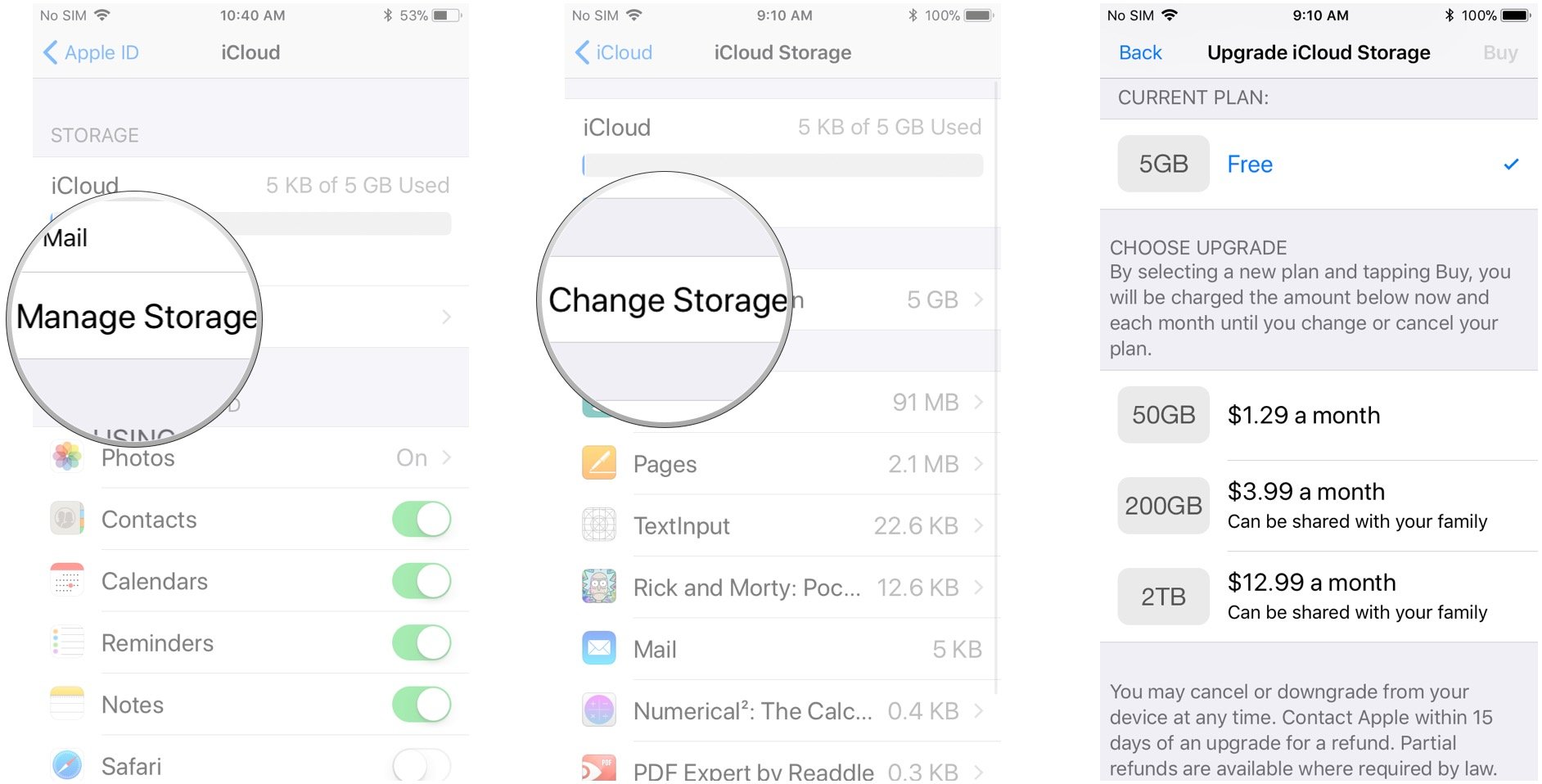
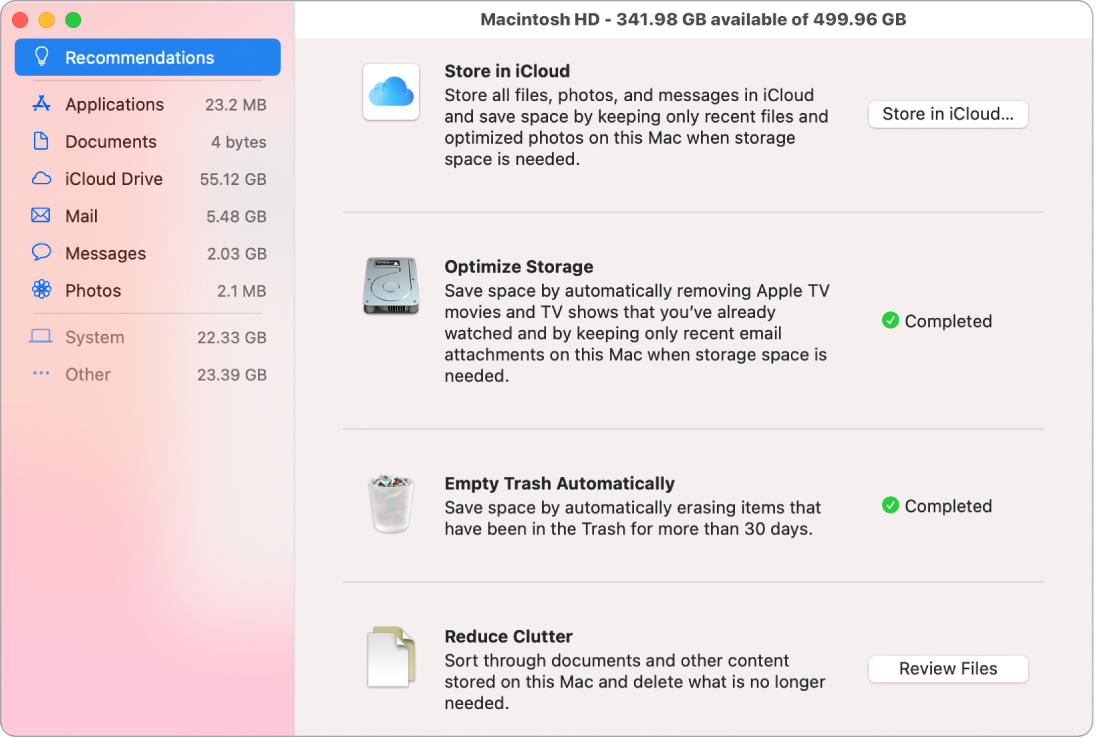
Let’s start with the easiest win: check your storage breakdown. Go to Settings > [Your Name] > iCloud > Manage Storage. You’ll see a bar chart showing which apps are hogging space—usually Photos and Messages are the usual suspects. This takes two minutes and gives you a clear battle plan.
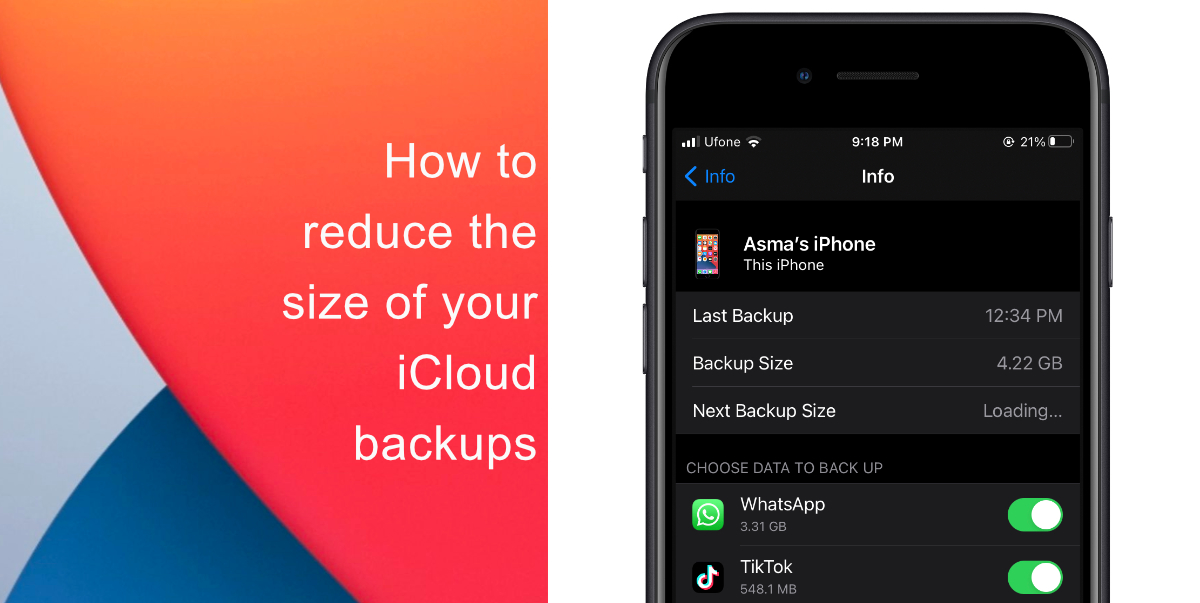
Next, tackle old device backups. Every time you get a new iPhone, your old one’s backup stays in iCloud forever, eating gigabytes. Tap on “Backups,” and delete any that don’t match the phone you’re currently using. You’ll likely free up 5–10 GB in one tap—instant relief.
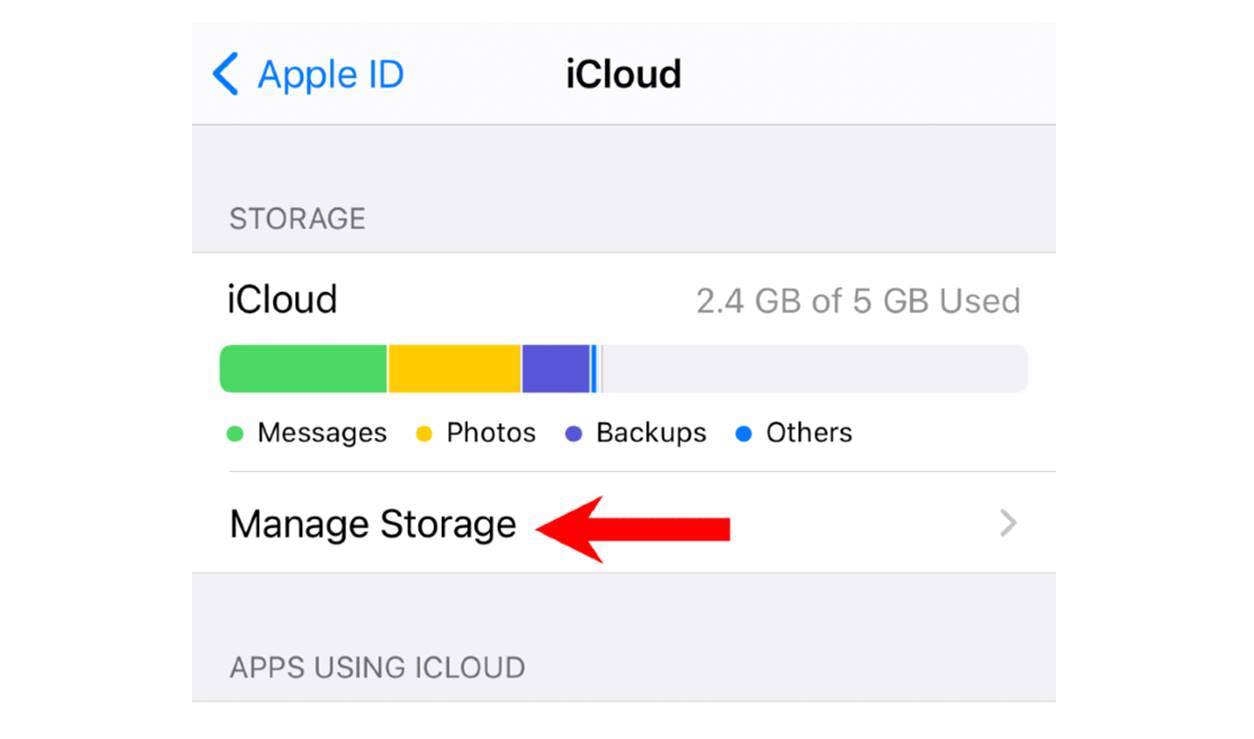
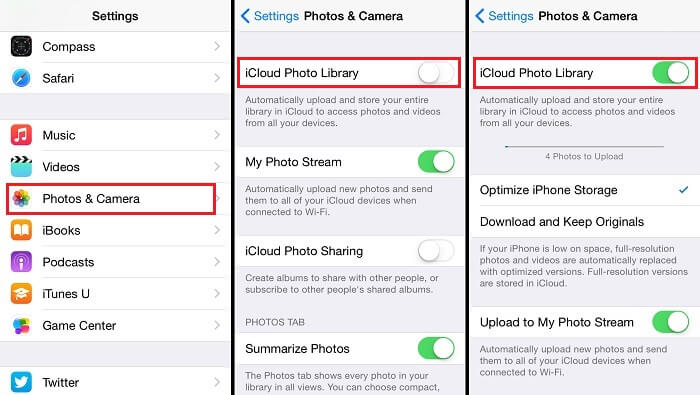
Now, for the big one: photos. Open the Photos app, go to “Recently Deleted,” and permanently clear that folder. Then, go to Settings > Photos and switch on “Optimize iPhone Storage” —this keeps small versions on your phone and full-res ones in iCloud. Also, scroll through your library and delete blurry shots, duplicate screenshots, and accidental pocket videos.
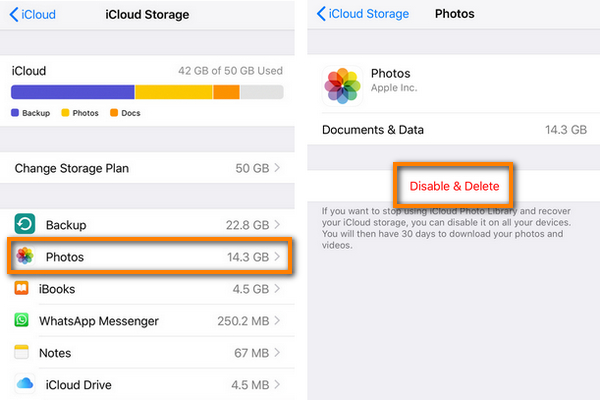
If you’re really serious about lowering usage, turn off iCloud Photos entirely and use Google Photos or a hard drive instead. That’s a bigger step, but it frees up everything. For a lighter fix, disable iCloud backup for apps you don’t care about, like games or old banking apps. Just flip the toggles in the Manage Storage menu.
Don’t forget Messages—those video clips and GIFs add up fast. Go to Settings > Messages and set “Keep Messages” to 30 days instead of forever. And check your “Attachments” in conversations; you can delete large files right from the message thread. This alone can shave off several gigabytes.
Finally, make it a monthly habit. Set a reminder for the first of every month to spend five minutes deleting old backups and clearing photo junk. It’s like brushing your teeth for your digital life—quick painless, and prevents big problems later. You’ll never see that scary notification again.
Lowering your iCloud storage is less about losing stuff and more about keeping the good stuff. You’ll feel lighter, your phone will run smoother, and you might even delay paying for that extra 200GB plan. So grab your coffee, spend ten minutes on this, and enjoy your newly spacious digital world.
![How to Disable iCloud Notifications [2026]](https://mobiletrans.wondershare.com/images/images2023/turn-off-icloud-notifications-04.jpg)