How To Hard Reset A Cricket Phone

So there I was, staring at my Cricket phone like it had personally insulted my grandmother. It was frozen on a boot loop, that little spinning wheel of doom mocking me faster than a toddler hyped up on sugar. I’d dropped it in a puddle the day before, and honestly, it was holding a grudge.
I panicked, of course. I started pressing every button like I was defusing a bomb, which, in a way, I kind of was. Then it hit me—I needed a hard reset, not just a “turn it off and on again” pep talk. This is the digital equivalent of a restart button for your whole brain, and it’s surprisingly easy to do once you know the trick.
What’s the Difference Between a Soft and Hard Reset?
Quick sidebar before we dive in. A soft reset is just restarting your phone—like taking a power nap. A hard reset is like moving to a new country, changing your name, and pretending the old you never existed. It wipes all your data, accounts, and those 10,000 blurry photos of your cat. Yes, you hear me correctly—everything goes. So, if you have any chance of backing up your stuff, do that first. I’m not your mom, but I also don’t want to be the reason you lose your grandma’s meatloaf recipe from 2019.
Must Read
Why would you even need this? Well, maybe your phone is password-locked and you’ve tried every birthday of every relative, or maybe it’s just slower than a snail in peanut butter. Either way, a hard reset is the nuclear option, and it usually works like a charm.
Prep Work: The “Save Yourselves” Phase
Before you go blowing up your digital life, make sure your phone has at least a 50% battery charge. You don’t want it dying mid-reset, because then you’ll have a brick instead of a phone. Trust me, I’ve seen it happen, and it’s not pretty. It’s like giving a speech and passing out right before the punchline.

Also, if your phone still turns on, go to Settings > Backup and Reset. Save your contacts and media to Google Drive or your SD card. If your phone won’t turn on at all, well, you’re skipping this step, and we’re going straight to the dark side. No judgment here.
Method 1: The “If It Turns On” Route (Factory Reset from Settings)
If your Cricket phone is conscious but acting like a grumpy teenager, this is your path. Go to Settings, then scroll down to System or General Management (it varies, so don’t panic). Look for “Reset” or “Factory Data Reset.” Tap it, read the scary warning, and then hit “Reset Phone.”

It’ll ask for your PIN or password, so that’s your first hurdle. Once you enter it, you’ll see a countdown, and then the phone will wipe itself faster than you can say “oops.” It’ll reboot looking like it just came from the factory. Bloatware included, sadly.
Method 2: The “I’m Locked Out” Route (Hard Reset via Buttons)
This is the real hard reset, the one that feels like you’re hacking into the Pentagon. You need to turn the phone off completely. If it’s frozen, hold the Power button for about 10-20 seconds until the screen goes black. Now, here’s the tricky part, because Cricket phones are a bit picky.
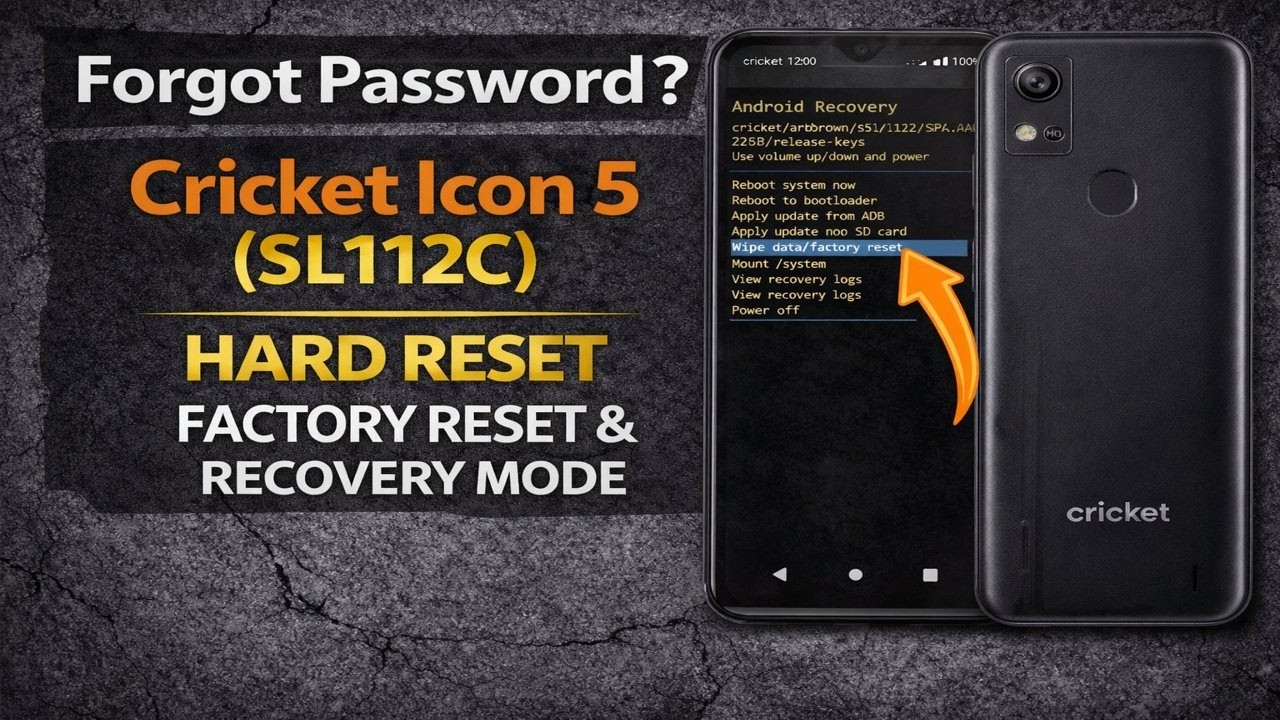
For most Cricket Android phones (like the Samsung or LG models), you’ll hold down Volume Up and Power at the same time. Keep holding them until you see the logo, then release the Power button but keep holding Volume Up. This triggers “Recovery Mode”—a black screen with white text that looks like a computer nerd’s fever dream.

Use the Volume Down key to scroll to “Wipe data/factory reset.” Select it with the Power button. Then, scroll to “Yes—delete all user data” and confirm. It’ll take a minute, maybe two, and then you’ll see “Reboot system now.” Press Power, and boom—it’s like a phoenix rising, minus the cool fire effects.
What If My Cricket Phone Uses a Different Button Combo?
Don’t sweat it. Some newer models use Volume Down instead of Up, or they want you to hold the Home button (if it’s an older Samsung). If the Volume Up + Power trick doesn’t work, try the other volume button. And if neither works, a quick Google search like “hard reset [your exact model]” will be your best friend. I’m not a tech wizard; I’m just a guy who’s broken a few phones in his day.

The Aftermath: Setting Up Your New Old Phone
When your phone reboots, you’ll be greeted by the “Hello” setup screen. It’s kind of beautiful, honestly. You get to create a fresh password, which is your chance to not use “1234” this time. Please, for the love of all that is holy, use a password you’ll remember.
You’ll have to re-enter your Google account and reconnect to Wi-Fi. It’s a bit of a hassle, but it’s also oddly therapeutic, like cleaning out your closet and finding a jacket you forgot you loved. And if you didn’t back up? Well, consider this a forced digital cleanse. Maybe you didn’t need those 500 pics of screenshots anyway.
So, there you have it. The hard reset isn’t scary—it’s just a big sledgehammer for a tiny bug. Now go forth, reset your phone, and spare yourself the headache of visiting the Cricket store. And hey, if it still doesn’t work? Well, that’s what the two-year warranty is for, right? Probably.