How To Film Yourself And Your Screen

Last Tuesday, I spent a solid forty minutes trying to record a video of myself explaining a cool new app. I set my phone against a coffee mug, hit record, and delivered what I thought was a flawless monologue. When I played it back, the lighting made me look like a witness in a true-crime documentary, and the screen was just a fuzzy, glare-covered rectangle. I sighed, deleted the masterpiece, and went back to eating my microwave burrito, feeling profoundly defeated.
Sound familiar? If you’ve ever tried to make a tutorial, a gaming clip, or even a quick “Hey, look at this” video for a friend, you know the struggle is real. You’re not just trying to capture a screen; you’re trying to capture yourself reacting to the screen, and that’s a whole different beast. But here’s the good news: you don’t need a Hollywood studio or a degree in cinematography to make this work. You just need to stop overthinking it and get a few basic tricks under your belt.
The Great Lighting Dilemma (Or: Why You Look Like A Ghost)
Let’s talk about the elephant in the room: your face. Unless you’re a vampire, you probably want to look like a human and not a pale smudge against a dark background. The biggest mistake? Relying on your monitor’s glow as your main light source. That only works if you’re trying to communicate with spirits.
Must Read
Instead, find a soft light source and place it behind your phone or camera, not behind you. A window with indirect sunlight is your best friend. Or, if you’re recording at 2 AM like a normal person, grab a desk lamp and bounce the light off a white wall or a piece of paper.
Your face should be brighter than the screen. That’s the golden rule. If the screen is too bright, it will wash out your features and make you look like you’re holding a flashlight to your chin. And remember, eye contact matters—but you can’t look at both the camera and the screen at once. Practice looking at the lens, not the preview of yourself. I know, it feels weird, but it’s the difference between talking to your audience and talking to your own reflection.

Screen Capture: The Technical Wizardry
Now, let’s nerd out for a second. For the actual screen recording, you have options. On a Mac, QuickTime Player is your underrated hero. Just go to File > New Screen Recording, and you’re golden. On Windows, the built-in Xbox Game Bar (press Windows + G) is surprisingly decent for short clips, though it feels oddly named for a productivity tool.
If you want to step up your game, try OBS Studio. It’s free, open-source, and a little intimidating at first, but it lets you layer your camera feed right on top of your screen capture. You can resize your little face bubble, move it around, and even add a green screen effect to pretend you’re a weather reporter. (Don’t judge me; I did it. It was fun.)
The trick with OBS is to set up a single “scene” with your display capture and your video capture device separately. Then, you can position yourself in the corner. Just remember to select the correct audio input so you’re not recording your keyboard clicks and calls to your mom simultaneously.

Positioning Your Face: The “Talking Head” Conundrum
Where do you put your little face on the screen? Bottom right is the classic, but bottom left works if you’re a rebel. The key is to keep yourself out of the critical content. If you’re explaining a code editor, don’t cover the line numbers. If you’re showing a shopping site, don’t hide the “Buy Now” button.
I like to keep my face bubble at about 15-20% of the total screen size. Too big and you can’t see the content; too small and you look like a pixelated potato. And for the love of all that is holy, look at the camera lens when you’re making a point. It’s the closest thing to eye contact you can get, and it builds trust.
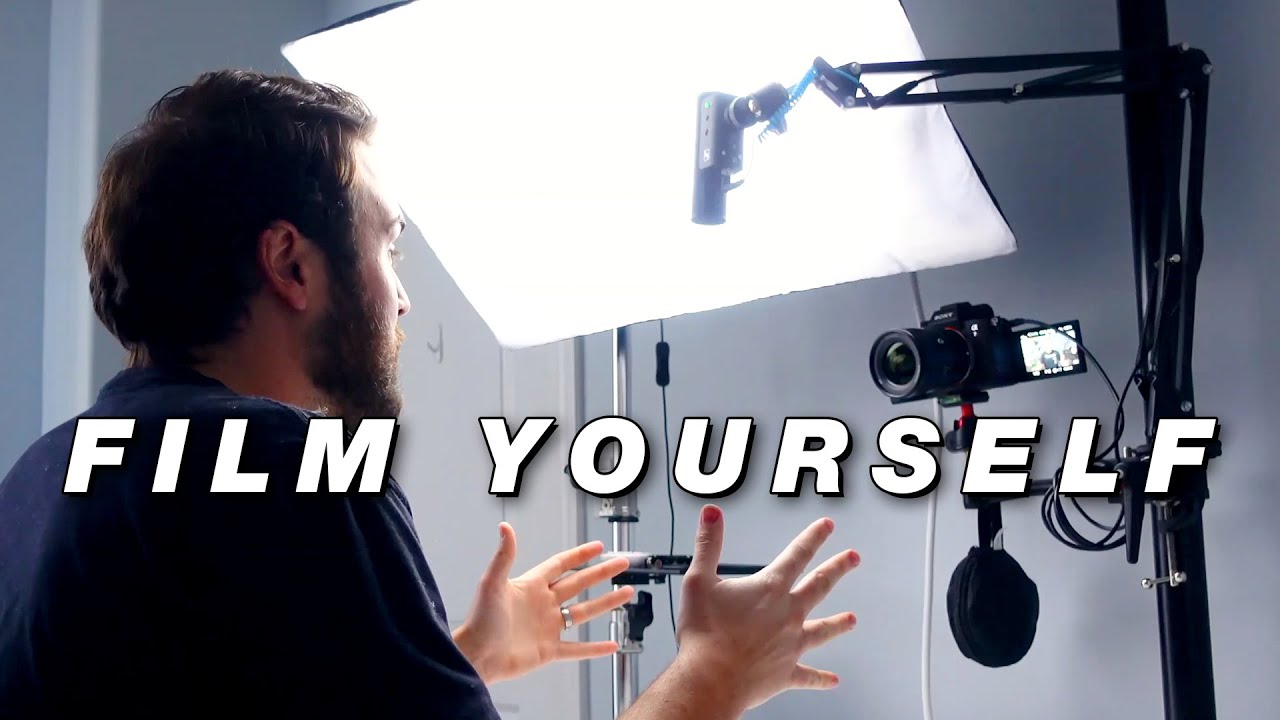
Also, don’t forget to lock your screen’s orientation. If you’re on a phone, flip it to landscape. Horizontal footage is non-negotiable for YouTube or any serious platform. Vertical video is for TikTok dances, not for software tutorials, my friend.
The Audio Trap (And Why Your Mic Matters)
Nobody, and I mean nobody, will stick around for a video where they can’t hear you. Even if your visuals are stunning, buzzing, hollow audio is a one-way ticket to the “Closed” tab. Your laptop’s built-in mic is convenient, but it’s also the reason you sound like you’re in a tin can.
If you have a pair of earbuds, use them as a mic. Just plug them in, dangle the little mic near your mouth, and watch your audio quality skyrocket. Seriously, this is the cheapest pro-move on this list. If you’re feeling fancy, a USB podcasting mic is great, but don’t let that stop you from starting today.

One more thing: do a test recording first. Just talk for ten seconds and listen back. This will save you from the biggest heartbreak—realizing you’ve narrated an entire hour of content with your desk fan providing unwanted “white noise” backing vocals.
Just Hit Record, You Goof
Look, the hardest part is the fear of looking stupid. I get it. I once recorded a video where I said “um” forty times and then accidentally ended the recording by waving my hand over the stop button. It was terrible. But that’s the point.
Your first few attempts will be rough. They’re supposed to be. Treat them as rehearsals. The only difference between a beginner and a pro is that the pro has thousands of terrible outtakes they never published. So, set up your light, fix your camera angle, and hit that record button. Your future followers don’t need perfection—they need your perspective. Now go make something awesome, and try not to spill your coffee on the keyboard. I believe in you.