How To Disable 3rd Party Cookies
Okay, let’s be real for a second. You’re probably here because you just watched some terrifying documentary about your phone listening to your conversations, or maybe you just saw a creepy ad for the exact pair of shoes you thought about buying yesterday. That’s not magic, my friend. That’s the third-party cookie in action.
These little digital crumbs are like that overly friendly acquaintance who follows you around the party, takes notes on everything you say, and then yells your secrets across the room. It’s time to kick them out. And honestly? It’s easier than you think.
So grab your coffee, put on your comfy pants, and let’s do a little digital spring cleaning. No judgment if you take notes—I’ll wait.
Must Read
First Things First: What The Heck Are They?
Think of a cookie as a tiny text file a website leaves on your browser. A first-party cookie is from the site you’re actually on—like your bank remembering your login. That one’s fine, we like that one.
A third-party cookie, however, is planted by some other company through that site. It’s the reason you look at a cat bed on one site and then see cat beds chasing you around the internet for two weeks. It’s basically a digital stalker wearing a trench coat.
We’re not here to destroy all cookies—just the creepy ones. Think of it as unfriending that person who only talks about themselves at parties.
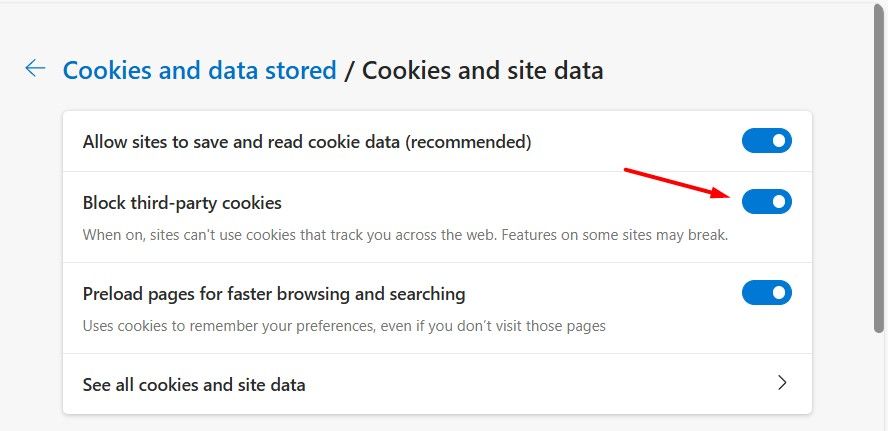
Step One: The Browser Setting Shuffle
Every browser has a little hiding spot where you can turn this stuff off. It’s usually buried in settings, but don’t worry—I’ll spelunk for you.
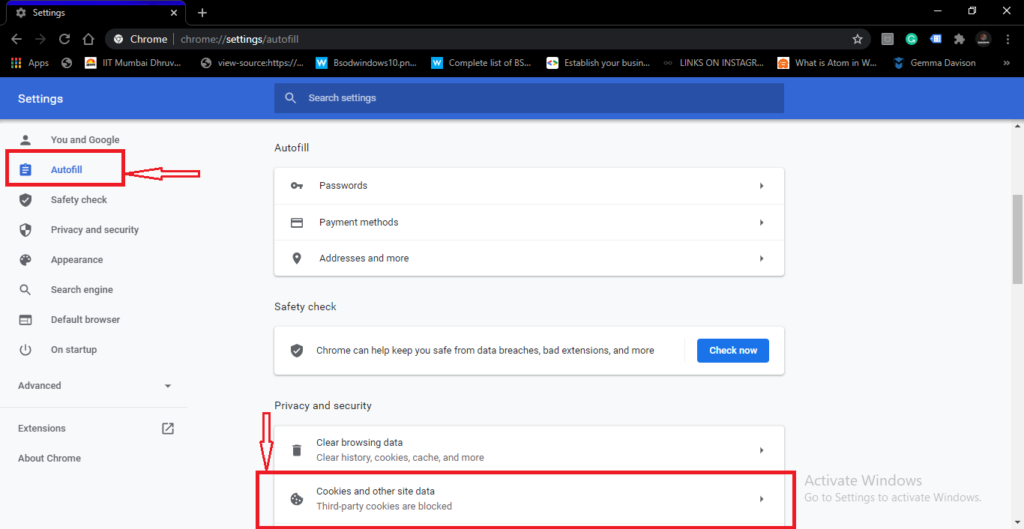
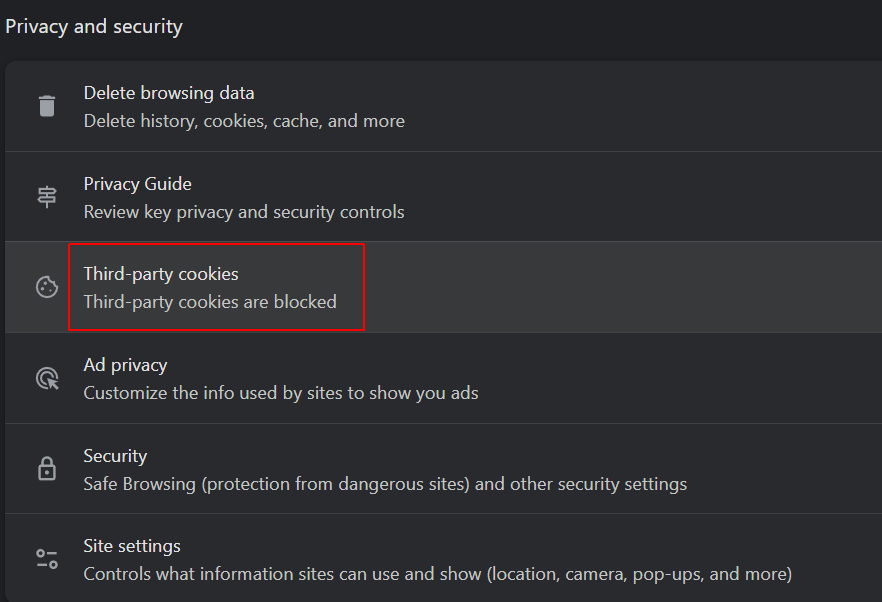
Google Chrome: Click those three little dots in the top right corner (the "hamburger’s cousin"). Go to Settings → Privacy and Security → Third-party cookies. Then just toggle the switch that says "Block third-party cookies." Boom. Done.
If you’re on Safari, you’re already in luck. Apple has been blocking these bad boys by default for ages now. But if you want to double-check, pop into Settings → Privacy → and make sure "Prevent cross-site tracking" is checked. It’s like having a bouncer at the club of your life.
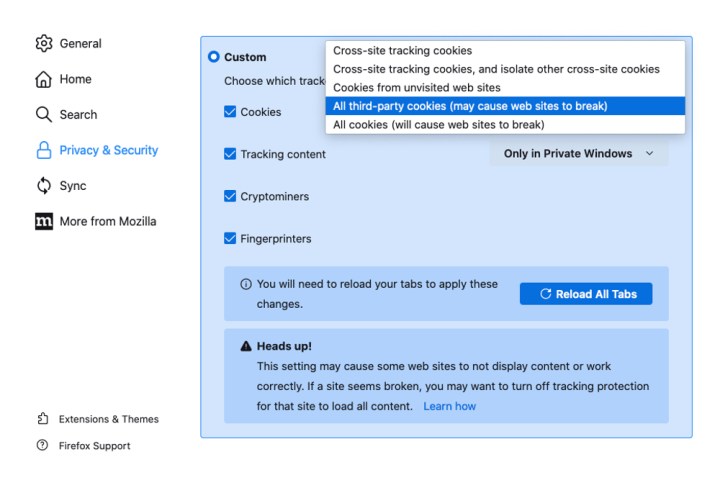
For you Firefox fans (you rebel, you), it’s Settings → Privacy & Security → then choose "Strict" instead of "Standard." It’s like turning your browser from a lax security guard into a Rottweiler with a badge.

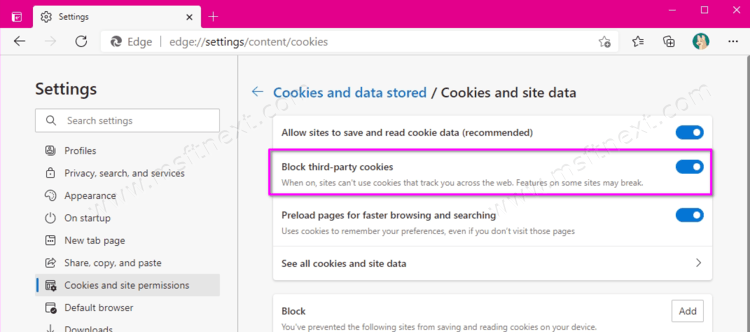
And if you’re on Edge or Brave? Just flip through the privacy settings until you see the word "cookies." You’ll find it—I believe in you.
Step Two: Use Your Browser’s Secret Weapon
If you want to go full ninja, consider using Incognito or Private Browsing mode. But here’s the twist—it doesn’t actually block cookies. It just deletes them when you close the window. It’s like sweeping dust under the rug instead of actually dusting.
Don’t get me wrong, it’s a nice temporary fix. But if you want the real thing, stick with the settings we just changed. Your future, less-stalked self will thank you.
Or, you know, you could just install a dedicated extension like uBlock Origin or Privacy Badger. These little digital guard dogs will sniff out cookies and chase them away before they even settle in. They’re free, they’re awesome, and they give you a warm, fuzzy feeling of control.
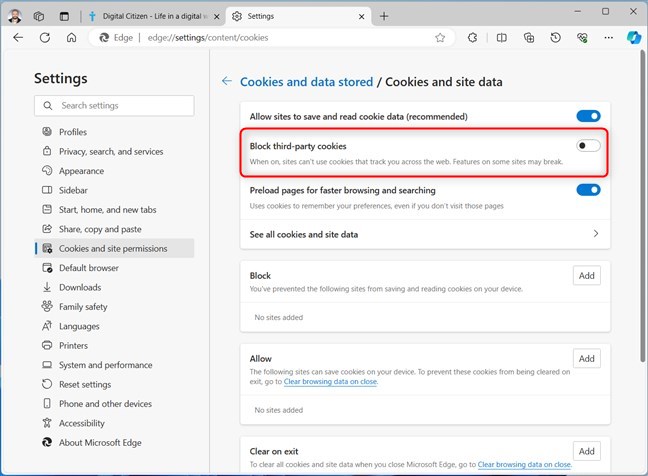
Why Should You Even Bother?
Okay, let me level with you. Some people will say, "Oh, but I like personalized ads!" To which I say: do you though? Or do you just like the idea of someone caring about your taste without actually being your friend?
Blocking third-party cookies doesn’t mean the internet becomes a grey, boring wasteland. You’ll still get ads, just dumber ads. You’ll see that callback from a site you visited two months ago, and that’s about it. It’s charming in a "grandpa tells the same joke" kind of way.
More importantly, it stops companies from building a creepy little dossier on you. They won’t know your shoe size, your political leanings, or that weird rash you Googled at 2 AM. That’s your business, not theirs.
The Weird In-Between: What You’ll Lose
Look, I’m not going to sugarcoat it. Some sites might get a little wonky. That one shopping cart you left half-filled? It might forget your items. You might have to log into a few websites again. But honestly, that’s a small price to pay for not being followed.

You’ll also notice that "retargeting" ads will become a thing of the past. No more seeing that flannel shirt you decided not to buy for the next 14 days. You’ll actually be free from the guilt. It’s liberating, like breaking up with a clingy ex and realizing you actually have time for hobbies.
And if you’re worried about losing that one awesome feature on a site? Yeah, occasionally something breaks. But you know what also breaks? The chain of companies knowing you eat a bagel every morning. Balance, my friend.
Go Forth And Browse In Peace
So there you have it. Block third-party cookies in about four clicks, install a privacy extension if you feel spicy, and then go back to looking at cat memes without the world watching. Seriously, it’s that easy.
You’ve done a good thing today. Pat yourself on the back. Pour a second coffee. And enjoy the sweet, sweet silence of an internet that isn’t whispering about you behind your back. Go on, get to it—your future, slightly more anonymous self is waiting.