How To Create And Instagram Story
Okay, let’s be real for a second. You’ve probably scrolled past a million Instagram Stories today, and half of them made you feel like you’re missing out on some secret, high-production life. Meanwhile, your own Story is just a blurry photo of your coffee (again). It’s time to break the cycle, my friend, and I’m here to hold your hand through it. No, you don’t need a film crew—just your phone and a tiny bit of courage.
First things first, let’s talk about the elephant in the room: perfectionism. That little voice in your head that says “my life isn’t exciting enough” is a liar. Your Story doesn’t need to be a summer blockbuster. It’s a snapshot, not a documentary. So, take a deep breath, and let’s get silly with it.
Step 1: The Raw Material (Don’t Overthink It)
Grab your phone. Yes, the one you’re clutching right now. You don’t need a fancy camera app—the native one works perfectly fine. Look around you. See that weirdly shaped crack in the sidewalk? Your dog’s guilty face after stealing a sock? The absolutely heroic pile of laundry you’re ignoring? That is your content. It’s not about the “what”; it’s about the vibe.
Must Read
Just snap a quick pic or hold down the button for a 5-second boomerang. If you spend more than 30 seconds choosing a filter, you’re overthinking it. Pick one, move on, and remember: imperfect is interesting. The grainy, candid shots often get the most love anyway because they feel real.
Step 2: The Magic of Text Overlays
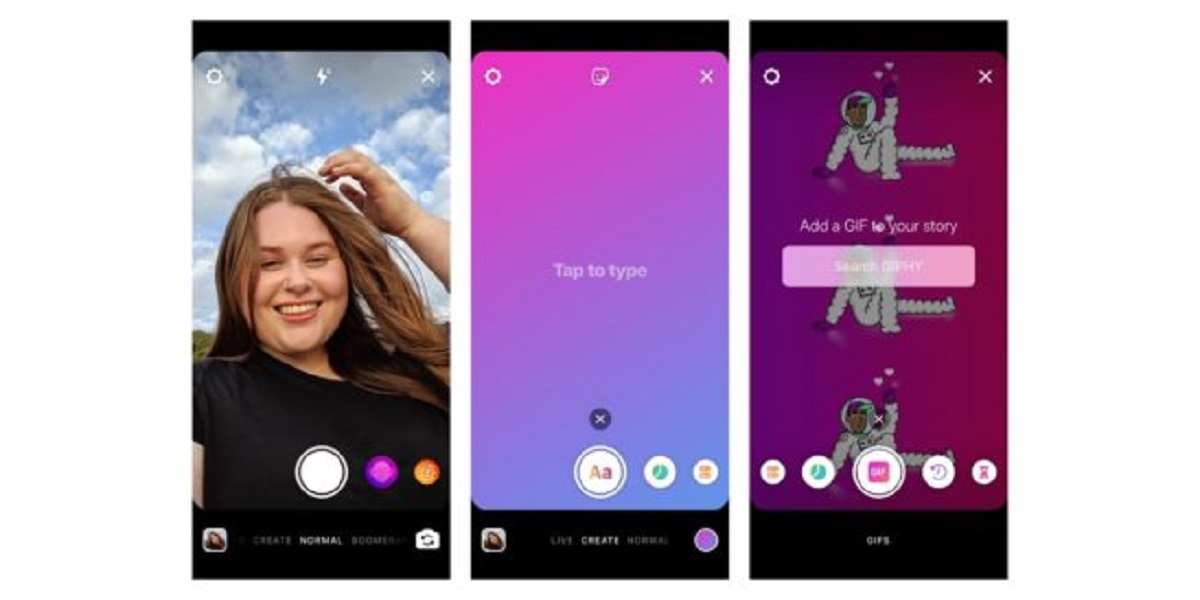
Okay, you’ve got your photo. Now, let’s talk. Or rather, write. Tap the “Aa” icon in the top right. See that little text box? It’s your best friend. You don’t need a witty caption for every single thing, but adding a cheeky line adds personality. Try something like, “Bold of this plant to think it’s still alive,” or “My 2 PM energy vs. my 8 AM ambition.”

The trick is to position the text so it doesn’t get hidden by the UI (the little buttons at the bottom and the top). Keep your text within the middle 80% of the screen. Play with font sizes—make a huge word and a tiny word. It’s basically digital improv, and there are no wrong answers. If you hate it, just press the backspace and try again. It’s not rocket science, it’s a sticker book for adults.
Using the “Type” Mode
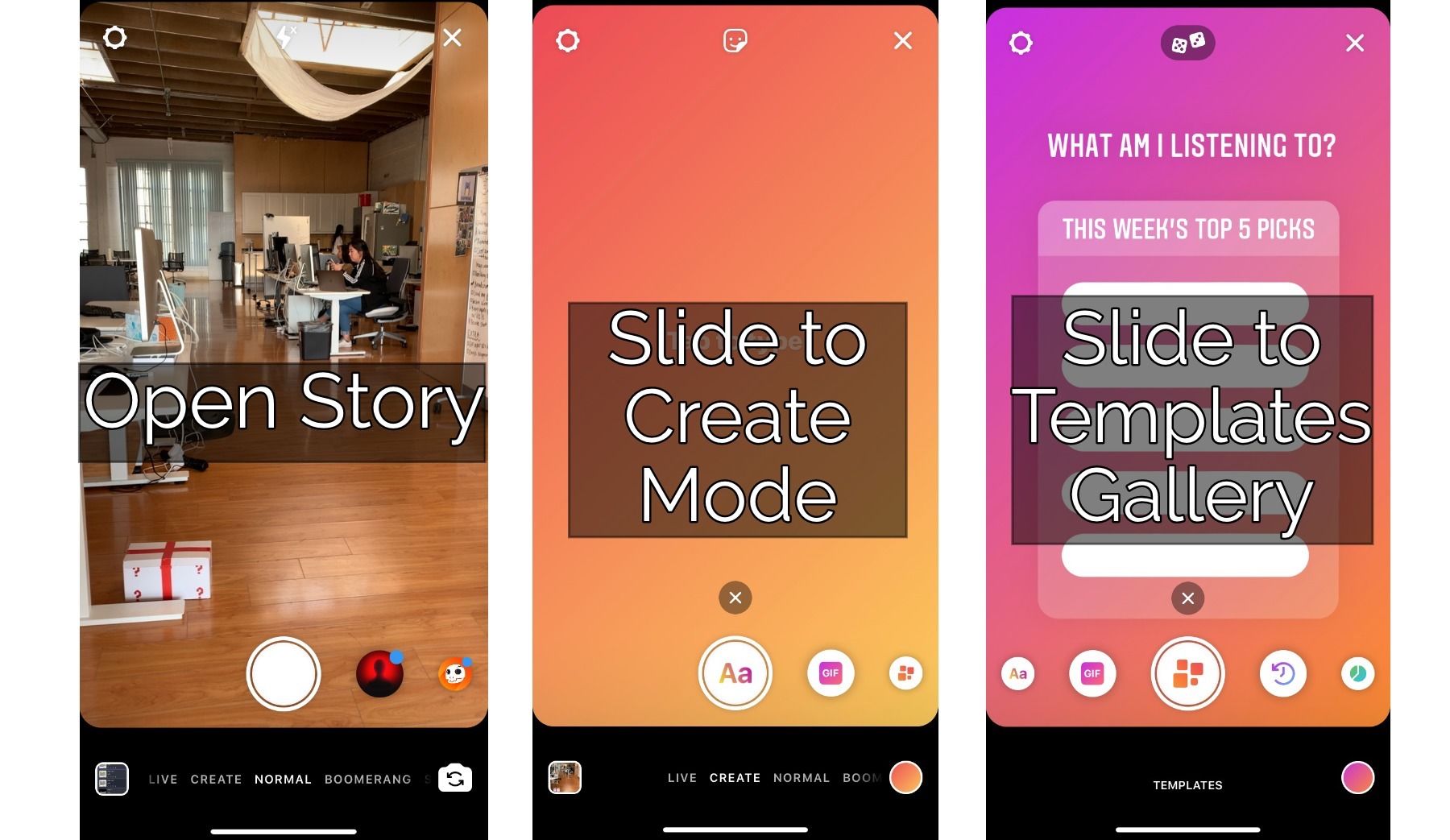
Here’s a secret weapon: the “Aa” button again, but hold it. You can actually pick a full-screen background color and type across it. This is great for when you have zero photos. Just pick a funky background color, type a thought like “POV: it’s Monday again,” and boom—relatable content. You’ll look like you spent hours on it, but it took you 10 seconds. Chef’s kiss.
Step 3: Stickers and GIFs (Go Nuts)
This is where we ditch the boring and embrace the chaotic. Tap the sticker icon (the smiley face at the top). You’ll see a treasure trove of options. Add a poll if you want engagement—ask something dumb like “Pineapple on pizza: yes or no?” and watch the chaos unfold. Add a “This or That” sticker to compare two equally stupid things. The point is to invite interaction without making it a chore.

Don’t sleep on the music sticker either. It’s the heartbeat of the Story. Search for a song that matches the mood you’re going for, even if the mood is just “panicking about nothing.” But here’s a pro-tip: lower the music volume a bit if you’re also posting a video with audio. You want the viewer to hear your shaky voice or your cat’s meow, not a bass drop that drowns everything out.
Step 4: The Drawing Tools (Your Inner Picasso)
At the top right, you’ll see a squiggly line icon. That’s your marker. Use it to circle something dumb. Draw a mustache on a billboard. Write “hi” in the corner. The drawing tool is for emphasis, not for creating masterpieces. It’s the equivalent of pointing at something in a photo and going “this—this right here.” It adds a layer of physical presence that static photos lack.
Color Coordination (Or Not)
If you’re feeling fancy, make your text and your drawings use the same color. Use the eyedropper tool to pick a color directly from your photo. For example, if you’re wearing a red shirt in the pic, make your text the same shade of red. It looks super put-together, like you’re a brand. But if you can’t be bothered, just use black or white. Always looks decent.
Step 5: The Grand Finale—Posting
You’ve added the stickers, typed a hilarious quip, and maybe scribbled a little. Now, for the scariest part: hitting that “Your Story” button at the bottom. Do it. Right now. Don’t wait for the “perfect” time. There is no perfect time. Post it when your coffee is still warm, or when you’re waiting for the bus. The algorithm loves consistency, not perfection.
Once it’s live, relax. Don’t refresh the viewer list every 10 seconds. I know you will, but try not to. And if someone reposts it? You win at life. If they don’t? Who cares—you just made a tiny piece of digital art that disappeared in 24 hours. That’s the beauty of it. It’s disposable, it’s fun, and it’s a low-stakes way to say “hey, I exist, and I think this is funny.” Now go forth and post that blurry picture of your lunch. We’re all waiting to see it.