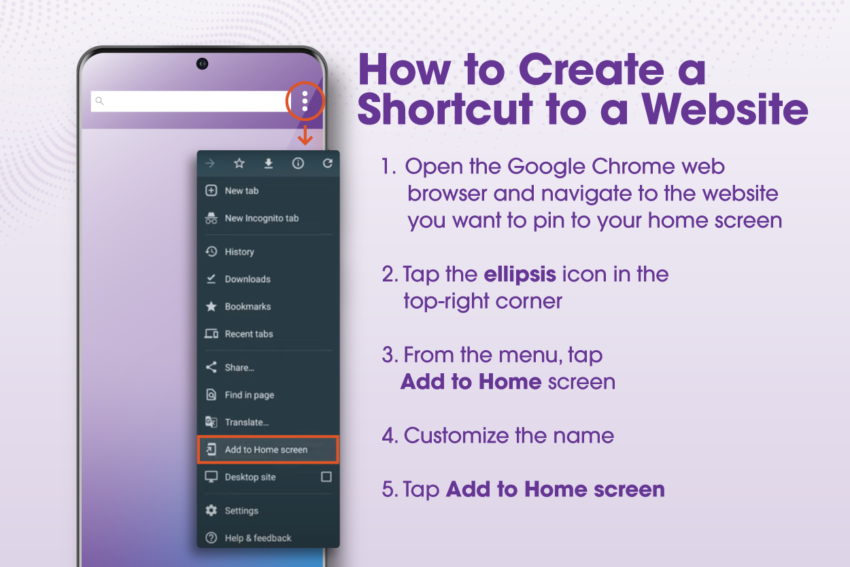
How To Create A Shortcut To Website

Ever find yourself typing the same web address over and over, like a digital Groundhog Day? Creating a shortcut to your favorite website is a tiny trick that saves you clicks and frustration. It’s one of those little life hacks that feels surprisingly satisfying, almost like tidying up a messy desk.
For beginners, this is the first step to feeling like a computer whiz without any complex coding. Families can create a single, big, colorful icon on the desktop for grandma’s recipe site or the kids’ homework portal. Hobbyists, from knitters to car restorers, can instantly jump to their go-to forums, tutorials, or live stream pages without the hunt.
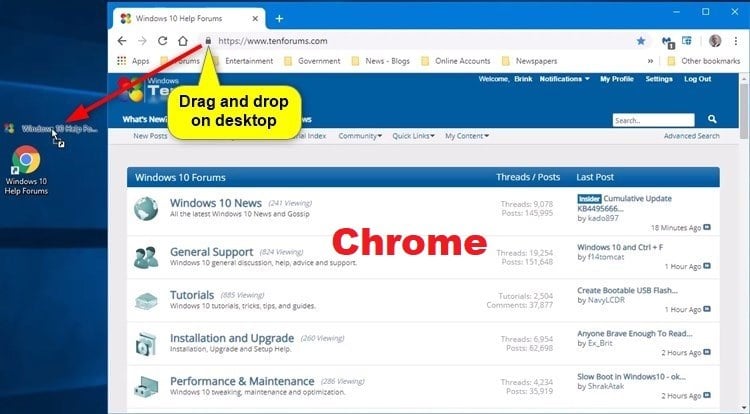
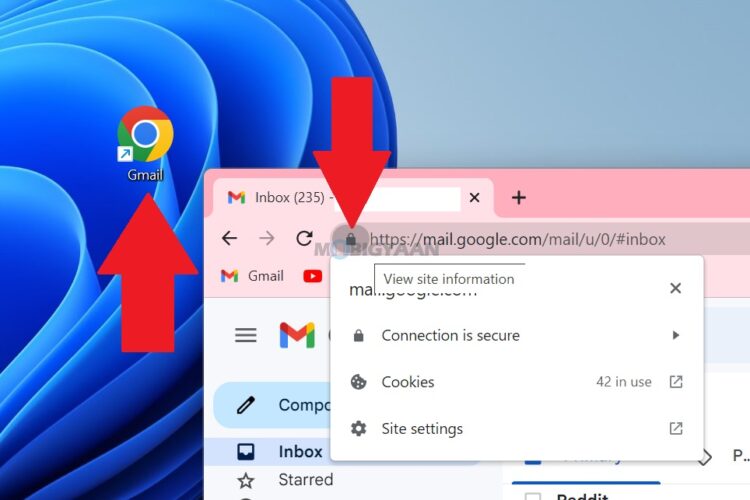
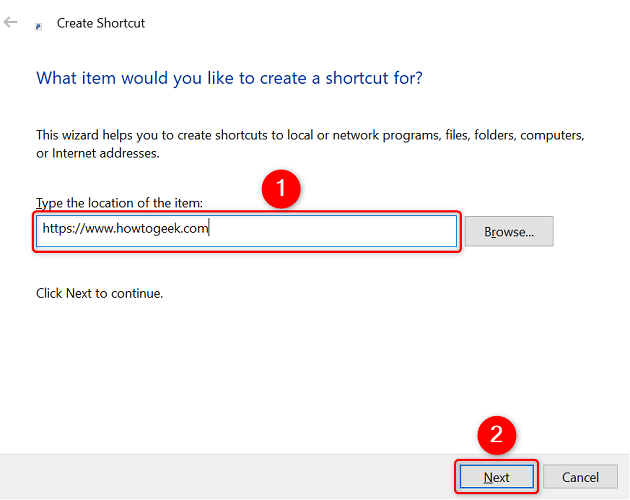
The beauty is that you have options, and each one takes less than thirty seconds. The most common method is on a desktop browser, where you simply drag the little padlock or globe icon from the address bar onto your desktop. On mobile devices, you can use the “Share” button and choose “Add to Home Screen,” which instantly creates an app-like icon. For a more polished look, some browsers let you right-click a bookmark and “Save as Desktop Shortcut” for a direct, double-click experience.
Must Read
Let’s look at a couple of real-world variations. If you constantly check a specific folder in your email, make a shortcut directly to that filtered view. For a family movie night, create a shortcut to the exact search results on a streaming service for “kids comedies.” You can even make a shortcut to a YouTube search for “morning yoga,” turning your computer into a one-tap ritual station.

Ready to try it? First, don’t overthink it—just open your browser of choice and navigate to your most-visited site. Next, look for the icon on the left side of the address bar; that’s your “grabbable” handle. Click, hold, and drag that icon to your desktop or taskbar, and let go when you see a “Link” or “+” symbol. For phones, hit the share icon (the box with an arrow) and scroll for “Add to Home Screen,” then confirm.
One practical tip is to rename your shortcut to something short like “Work Mail” or “Footy Scores” so it stays clear and clutter-free. Also, consider pinning the shortcut to your taskbar on Windows, or the Dock on Mac, for even faster one-click access. And if you ever feel overwhelmed, just remember that you can right-click the shortcut to delete it anytime—it’s never permanent.

The real joy here is reclaiming those five seconds you lose multiple times a day. It’s a small automation that feels like a personal victory, especially when you see your single, purposeful icon sitting neatly on your screen. You’ll find yourself smiling a little every time you click it, knowing you’ve cut through the digital noise.
So go ahead, give it a spin. You’ll wonder how you ever lived with the “old way” of typing and clicking. It’s a tiny piece of digital convenience that makes your online life just a little bit easier, and that’s always worth celebrating.