How To Clone A Ssd To Another Ssd
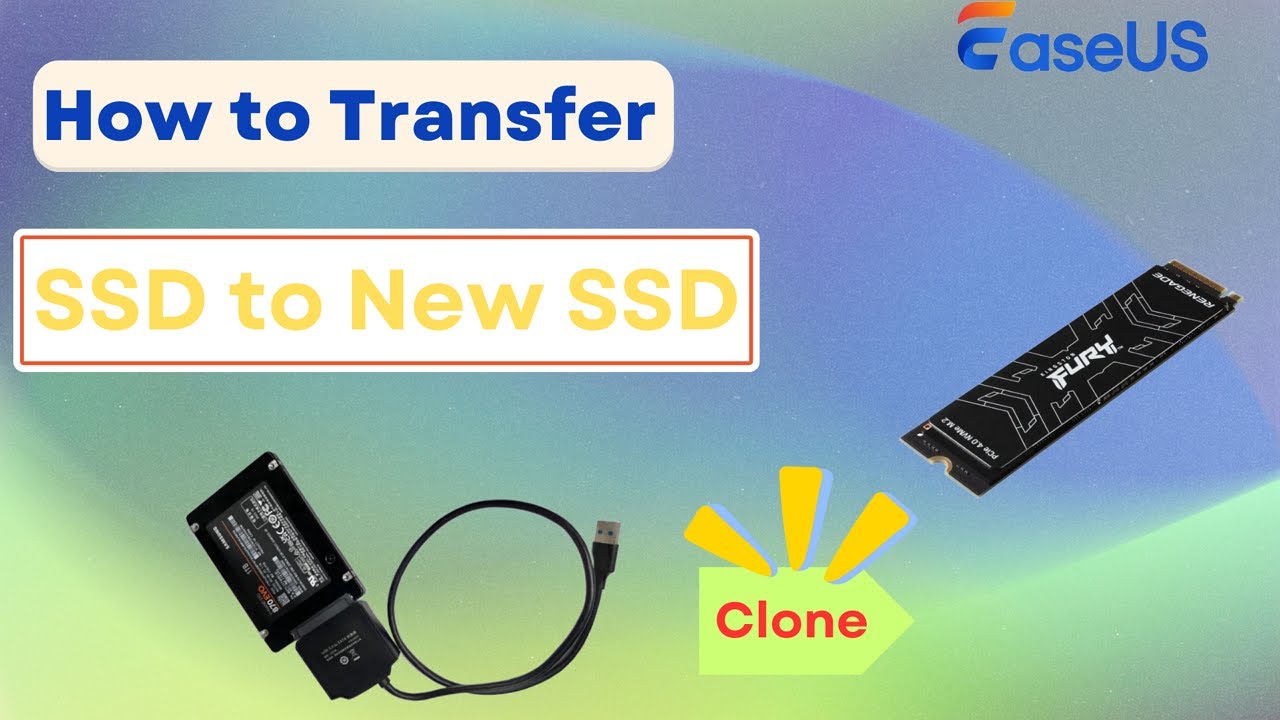
There comes a moment in every tech enthusiast’s life when their trusty SSD starts to feel like a cozy but cramped studio apartment. You’ve got photos, game libraries, and that one folder labeled “Desktop Backup” that you haven’t opened since 2019. Instead of spending a weekend reinstalling Windows and re-downloading your entire digital life, you can simply clone your drive—think of it as a Star Trek teleporter for your data.
Cloning isn’t about copying files like you would drag and drop; it’s about making an exact, bootable replica of your entire system. You’re not just moving your music and memes—you’re moving the operating system, the drivers, the hidden partitions, and that specific wallpaper you love. It’s the closest thing to time travel that your motherboard will ever experience.
The Zen of Preparation
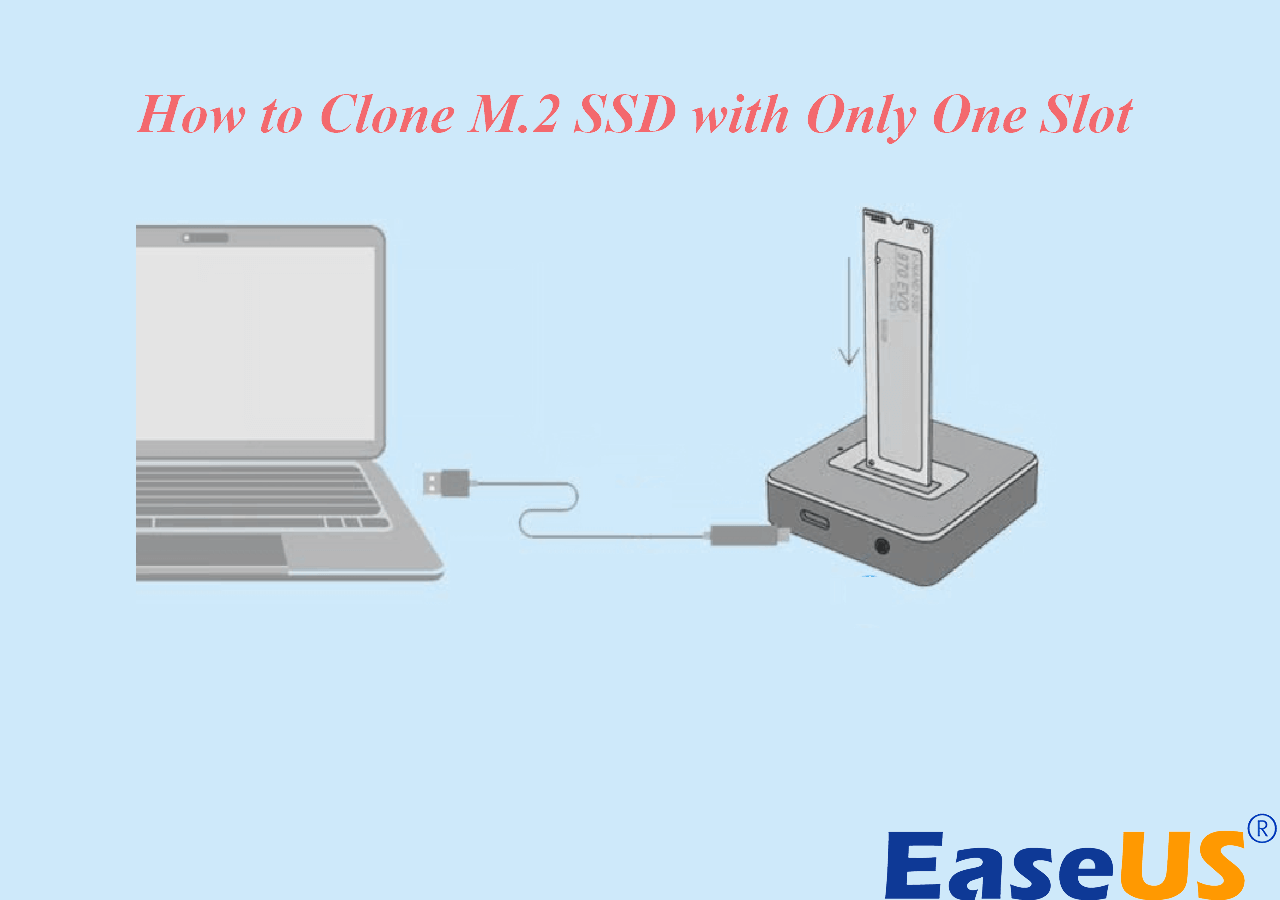
Before you dive in, channel your inner Marie Kondo. Your source SSD should be tidy, but more importantly, your target SSD needs to be physically installed and recognized by your system. Most external USB-to-NVMe adapters work beautifully, but if you have a desktop, plugging both drives directly into your motherboard’s SATA or M.2 slots is the speediest route.
Must Read
Here’s a pro trick: free up at least 15% of your source drive’s space before you start. Cloning works best when there’s breathing room, and it makes the process significantly faster. Think of it as cleaning your apartment before the movers arrive—you don’t want them tripping over that pile of old cables.
Picking Your Digital Chisel
You have two main choices for cloning software: the paid giants like Acronis True Image, or the beloved free open-source darling, Clonezilla. If you want a graphical, “click-and-pray” experience, Macrium Reflect Free is your best friend. For the deep-divers among us, Clonezilla offers a retro, blue-screen interface that feels like hacking in a 90s movie—just without the hacking, just with a lot of pressing “Enter.”
Note: if you’re switching from a SATA SSD to an NVMe drive, always check your motherboard’s BIOS for NVMe support. Also, this is a golden opportunity to update your firmware—future you will be grateful. And unlike that time you ignored your car’s warning light, this one is actually easy.
Executing the Great Data Migration
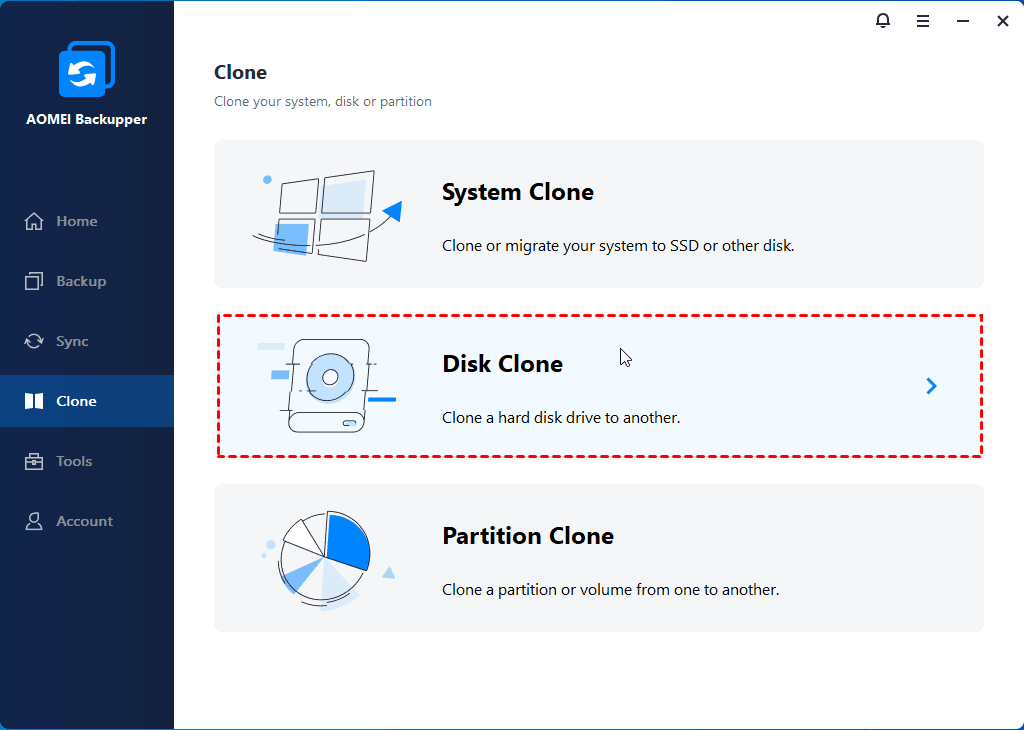
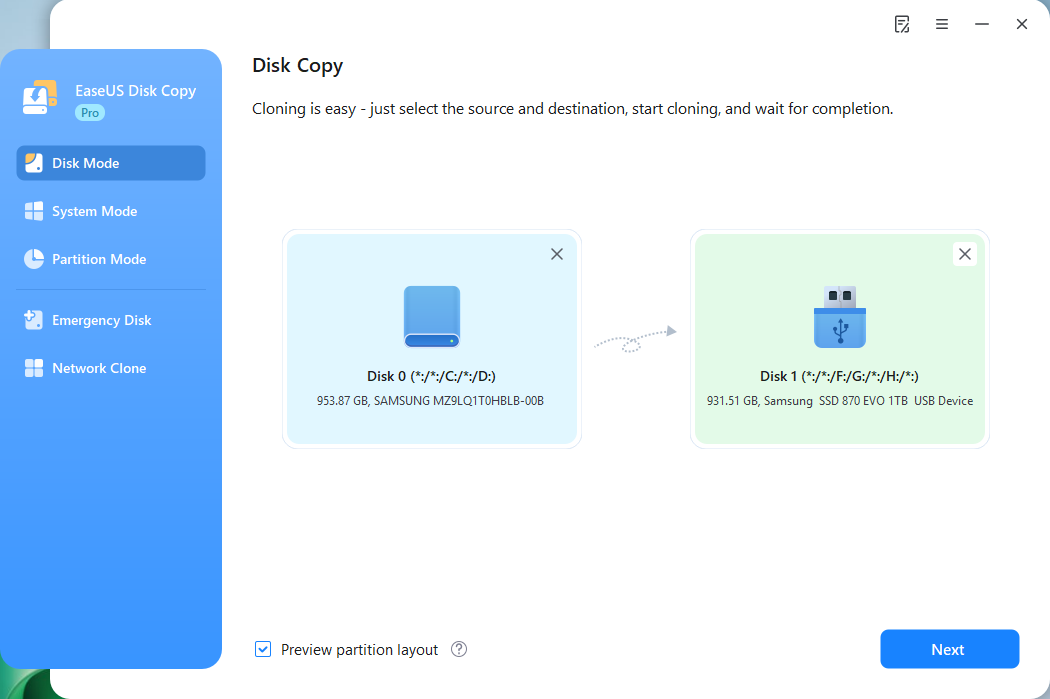
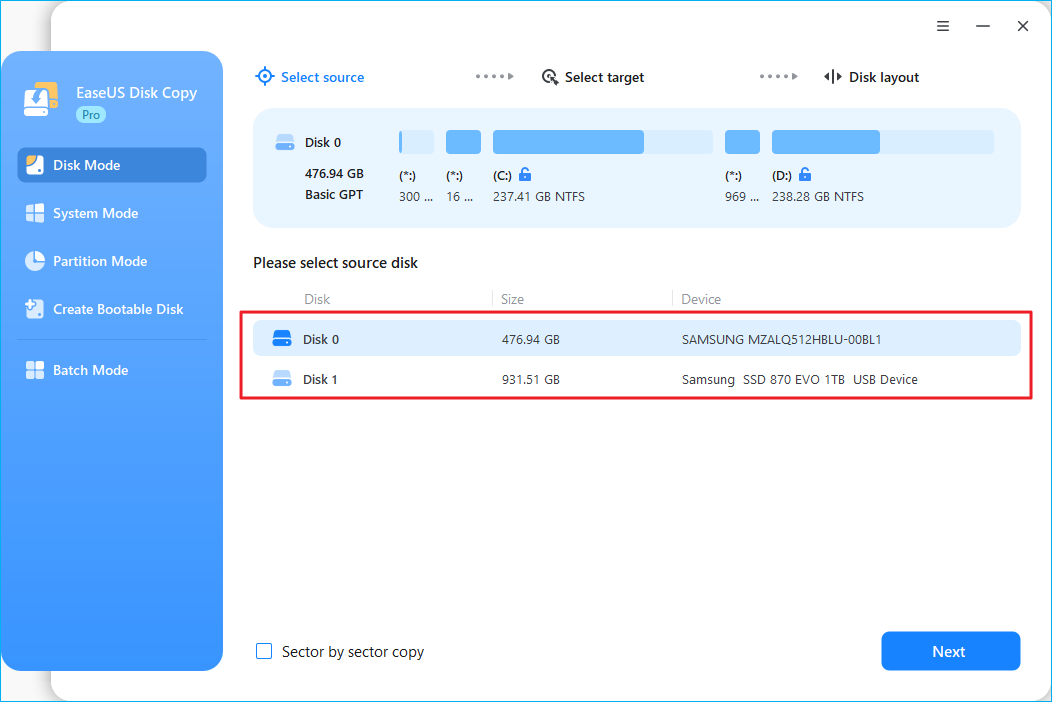
Once you’ve chosen your software, the process is deceptively simple. Select your source disk (the old SSD), select your destination disk (the new SSD), and hit clone. Most tools will warn you that the destination will be completely wiped, so double-check you didn’t plug in your external hard drive with your wedding photos on it. That’s a mistake you only make once.
Here’s where the art comes in: stay. patient. If you’re moving 500 GB over PCIe Gen4, it might take 10 minutes. Over an older USB 3.0 cable, it could be a solid 45 minutes of you staring at a progress bar. Pop on a podcast, make a pour-over coffee, or finally teach your pet that new trick. Resist the urge to multitask on your PC—you’ll be tempted to open Chrome, but cloning is a demanding mistress.
Fun fact: The word “clone” actually comes from the Greek word klōn, meaning “twig,” because ancient Greeks would propagate trees by cutting branches. In the digital world, you’re doing the same thing—except your branch is a silicon chip and your tree is a bootable operating system. Science!
The Big Swap and The Little Check
When the copy finishes, shut down your computer and physically remove the old SSD. Install your new drive in its place, boot up, and hold your breath. If you see your login screen within ten seconds, congratulations—you’ve just become a tech wizard with zero casualties. If you see a black screen with a blinking cursor, don’t panic. It’s usually a BIOS boot order issue, not a data loss one.
Once you’re in, repartition that extra space if your new drive is larger. Windows’ Disk Management utility makes this a two-click affair. And here’s a juicy tip: don’t format the old SSD yet. Keep it as a backup for at least a week. Life is unpredictable, and so is software.
Why This Matters More Than You Think
Cloning isn’t just about geeking out over hardware; it’s about reclaiming your time and reducing friction in your daily life. We live in an era of constant updates and resets, but your digital environment should feel like a home, not a construction site. By mastering this simple skill, you’ve given yourself the superpower of effortless mobility.
Next time your system feels sluggish, you’ll know it’s not a reason to dread the reinstall—it’s just a cozy weekend project. You’ll buy that new 2TB drive, clone over your life in an afternoon, and sleep like a baby. And isn’t that the real goal of any modern living? A flawless, seamless existence where your data just… follows you. Cheers to that.