How To Change Your Password Google

Last Tuesday, I watched my neighbor, Dave, try to log into his Gmail for a full ten minutes. He typed, deleted, sighed, and then typed his password again—only to be met with that dreaded red “Wrong password” shake. Finally, he turned to me with the defeated look of a man who’d just lost a staring contest with his own laptop.
“I think someone hacked me,” he whispered, clutching his phone like a holy relic. I asked him what his password was, and he proudly told me it was his dog’s name plus his birth year. You know, the digital equivalent of leaving your front door unlocked with a sign that says “free Wi-Fi.”
We fixed it in about three minutes, but the panic on his face got me thinking. Changing your Google password shouldn’t feel like defusing a bomb. It should feel like changing your socks—quick, routine, and slightly satisfying when you finally do it. So, let’s walk through this together, shall we?
Must Read
Why You’re Probably Overthinking This
First off, let’s get one thing straight: Google is not trying to trick you. Well, okay, it is trying to trick you into using its password manager, but that’s a different story. The actual process of changing your password is stupidly simple, once you know where the secret door is.
You’re not alone if you’ve been avoiding it. I once put off changing my password for six months because I was scared I’d lock myself out of my own life. Newsflash: your phone has your fingerprint, your computer has your face, and your brain has that one password you’ve used since 2011—you’ll be fine.
But here’s the kicker: your password is the key to your entire digital kingdom. Email, YouTube, Google Drive, those embarrassing search history gems—all of it. So, let’s treat this like a mini heist, but one where you’re both the burglar and the homeowner.

Step One: Find the Back Door (It’s Actually the Front Door)
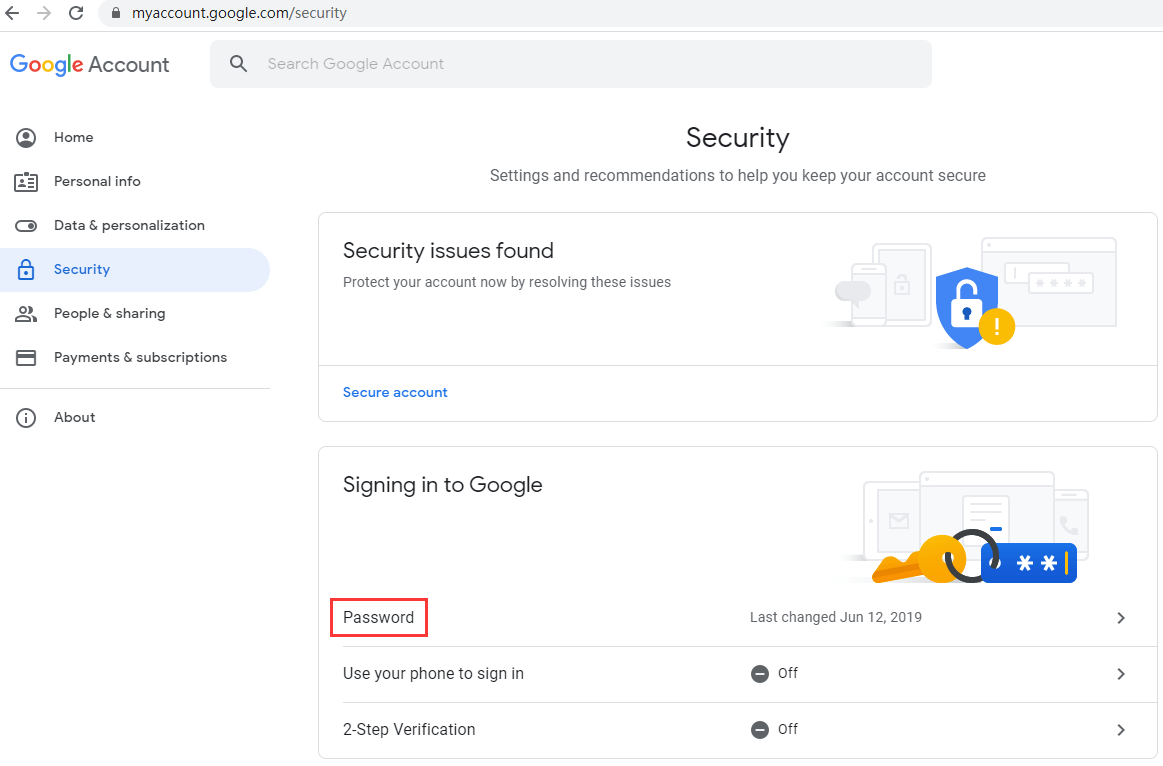
Open your browser and go to myaccount.google.com. If you’re not logged in, Google will ask you to sign in first—yes, with your old password. Ironic, right? You’re trying to change it, and they make you use it one last time, like a sad farewell tour.
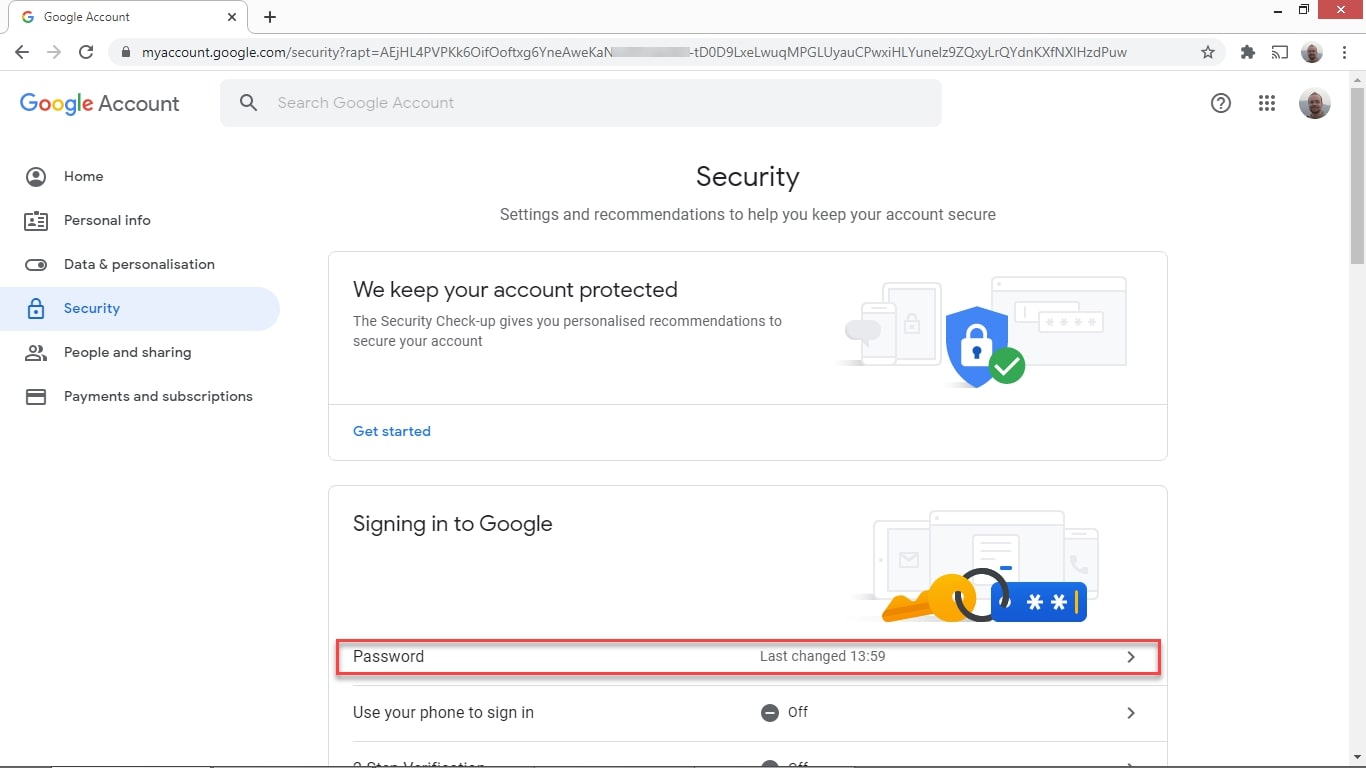
Once you’re in, look for a section called “Security.” It’s usually on the left sidebar, but don’t panic if you see a new layout—Google loves to rearrange furniture just to keep us humble. Click on it, and then scroll down to find the magical words: “Password.” It’s usually under “Signing in to Google.”
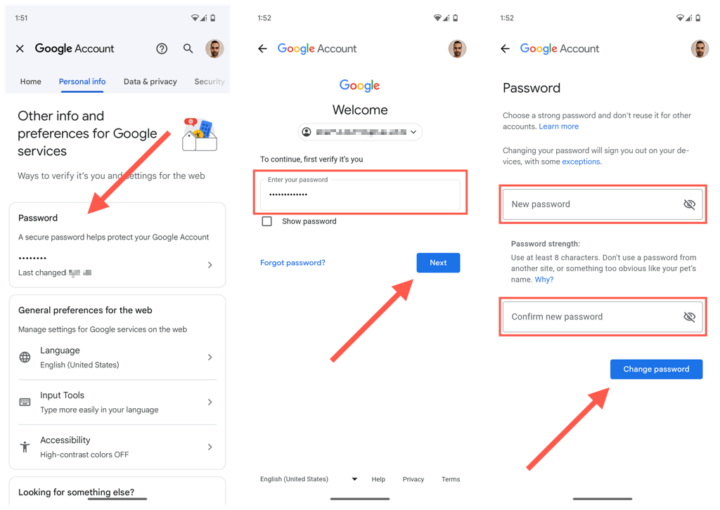
Click that, and Google will ask you to verify it’s really you. They might send a code to your phone or ask you to enter your current password again. Yes, they’re making you prove you’re you before you can become a slightly different you. Just roll with it; it’s for your own good.
![How To Change Your Gmail Password [with screenshots]](https://clean.email/user/pages/blog/email-providers/change-password-in-gmail/change-2x.jpg)
Step Two: The Moment of Truth (And a Little Creativity)
Now comes the fun part: typing in your new password. This is where Dave froze, his mind a blank void where his memory used to be. Don’t be Dave. Take a breath and think about what makes a strong password—length beats complexity, always. A phrase like “PurpleElephantDancesAt3AM” is way better than “P@ssw0rd!” and you won’t forget it.
Google will show you a little strength meter that feels vaguely judgmental, like a tiny algorithm critic on your shoulder. Aim for the green bar, not because it matters, but because it’s satisfying to see that little green line fill up. Pro tip: don’t use “password123,” ever, not even ironically.
When you type it the second time to confirm, you’ll feel a tiny rush of adrenaline. That’s just the fear of typos, but don’t worry—Google will let you know if they don’t match. It’s like a digital umpire calling “foul” on your clumsy fingers.
![How To Change Your Gmail Password [with screenshots]](https://clean.email/user/pages/blog/email-providers/change-password-in-gmail/new-2x.jpg)
Step Three: The Aftermath (Where It Gets Weird)
Hit the “Change Password” button, and boom—you’re done. But here’s the sneaky part: Google is going to log you out of everything. Every device, every session, every ancient Chromebook you forgot you owned. This is called “security,” but it feels more like a digital eviction notice.
Don’t freak out when your phone suddenly asks you to sign in again. That’s the system working correctly. Just log back in with your shiny new password, and your phone will remember it because you’re probably using the “Save Password” feature that you’ve ignored for years. Now is the time to start using a password manager. I’m not telling you to do this because I work for a tech company—I’m telling you because remembering 40 unique passwords is impossible, and pretending otherwise is just masochism.
Also, check if Google asks you if you want to sign out of other devices. It’s usually a grey box after you change the password. Say yes. It’s the digital equivalent of changing the locks after a breakup—even if the only ex is your old, weak password.
Your New Relationship With Google
And that’s it. You’re now one of those annoyingly secure people who changes their password every few months. Dave, by the way, now uses “CorrectHorseBatteryStaple” and feels like a hacker god. You can too.
Remember, this takes less time than waiting for your coffee to cool down. So, next time you get that little nagging feeling that maybe your password is too easy—it is—just go do it. Future you, who won’t be getting weird login alerts at 3 AM, will thank you.
Now, go forth and change that password. And maybe, just maybe, use a different one for your bank account. Your dog’s name isn’t that secret, and your birth year definitely isn’t. Stay safe, stay smart, and don’t be Dave.