How To Change Wateen Wifi Password
There comes a moment in every household’s life when the Wi-Fi password becomes the family’s worst-kept secret. Maybe your cousin’s friend’s roommate got it, or you just realized your neighbor’s dog has been streaming Netflix on your bandwidth for six months. Changing your Wateen password is like giving your digital castle a fresh coat of armor—except the instruction manual is written in a language only your router understands.
Let’s be honest: we’ve all stared at the back of a router with the same intensity we use to read a menu in a foreign country. But fear not, because this is easier than assembling IKEA furniture, and you won’t end up with leftover screws. By the end of this, you’ll be the gatekeeper of your own digital kingdom, and the only thing locked out will be the freeloaders.
Why Bother? Because Your Wi-Fi Has Become a Motel
You know that feeling when you check your speed and it’s slower than a snail on a treadmill? That’s not just the universe being cruel; it’s probably three devices from the flat downstairs that you’ve never even seen. Your password is basically the door to your house, and right now, you’ve left it open with a sign that says “Free Snacks.”
Must Read
Changing it regularly is like changing the locks after a bad breakup—it’s therapeutic and necessary. Plus, every time you change it, you get to play the good old game of “Who’s Going to Ask Me for the Password Now?” Spoiler: it’s your mother, and she’ll write it on her hand.
Before You Dive In: The Gear You’ll Need
Grab your laptop or phone, a cup of tea (or something stronger, no judgment), and locate your router. This is the black or white box with blinking lights that sits in a corner gathering dust and emitting a mysterious warmth. You’ll also need the default login details, which are usually printed on a sticker on the router itself—it’s like a secret code for grown-ups.
If you’ve lost the sticker, don’t panic. Check the box it came in, or your original Wateen welcome email. If all else fails, do the old “look under the couch cushions” routine, because that’s where all lost things live.
Step 1: Getting Inside Your Router’s Brain
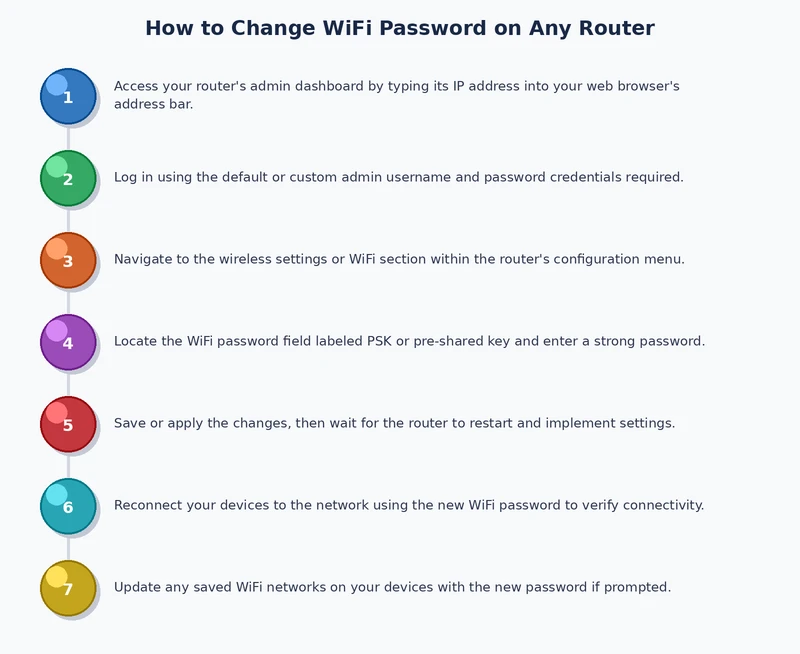
Open your internet browser and type in the IP address. For most Wateen routers, this is 192.168.10.1 or 192.168.0.1—think of it as the secret handshake to get past the bouncer. Hit enter, and you’ll see a login page that looks like it was designed in 2004. That’s okay, vintage is cool now.
The default username is usually admin, and the password is usually admin or password. If that doesn’t work, check the sticker again. It’s a bit like trying to guess a friend’s Netflix password, except this time you’re allowed to get in.

Step 2: Finding the Wi-Fi Settings (It’s Hiding in Plain Sight)
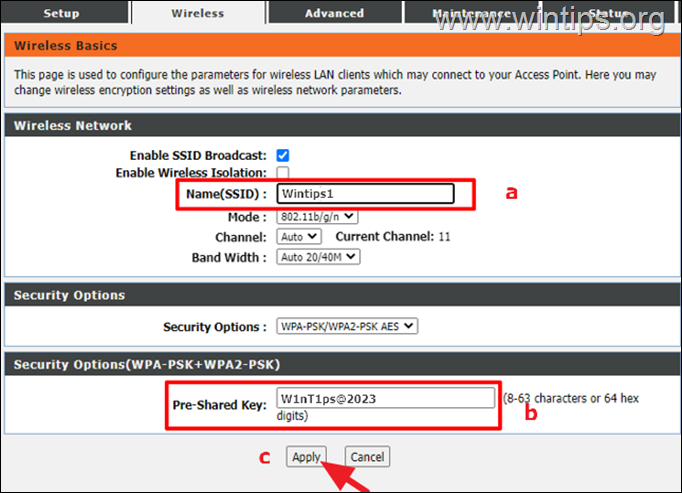
Once you’re inside, you’ll see a menu with terms like “Wireless,” “WLAN,” or “Wi-Fi.” Click on that. It’s the same feeling as finally finding the “any” key on a keyboard. Look for a sub-menu that says “Security” or “Wireless Security.” That’s where the magic happens.
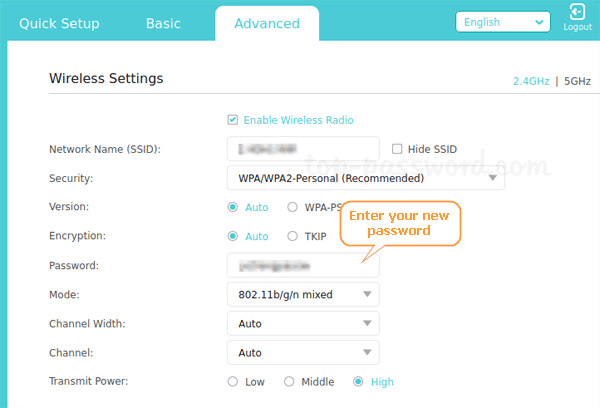
You’ll see a field called “Pre-Shared Key” or “WPA/WPA2 Passphrase.” That’s your password. It’s currently probably something like “John12345” or “password” because, let’s be real, we all do it.
Step 3: Creating a Password That Isn’t Embarrassing
Here’s the fun part: make a new one. But please, for the love of all things fast, don’t use “12345678” or your name followed by your birth year. That’s the digital equivalent of leaving your car keys in the ignition with the engine running.

Go for a random mix of letters, numbers, and symbols—something like BlueFrog!42&Jump. It sounds ridiculous, but your inner hacker will applaud you. Write it down somewhere safe, like a sticky note under your keyboard (yes, that’s ironic, but it works).
Step 4: Save, Reboot, and Enjoy the Chaos
Click “Save” or “Apply,” and your router will probably restart itself. This is the dramatic pause in the movie where everyone holds their breath. Wait for the lights to stop blinking like a disco, then reconnect your devices.
Now, watch as your phone reconnects and your laptop asks for the new password. You’ll feel a rush of power, like you’re the president of a small, tech-savvy nation. Just don’t let it go to your head.

Pro-Tip: Don’t Forget to Tell the People You Actually Like
This is the real test of friendship. You’ll have to send the new password to your roommates, your partner, and your best friend who visits every Sunday. Make a group chat, send it, and then watch the replies come in: “Wait, is it case-sensitive?” and “What’s an uppercase B?”
And for the love of your sanity, do not give it to your relatives who only visit during holidays. They’ll hog the bandwidth for video calls with their other relatives, and you’ll be left staring at a loading screen for your favorite show. You’ve been warned.
So go on, change that password. It takes less time than finding a matching pair of socks, and the peace of mind is priceless. Your Wi-Fi will thank you, your speed will jump, and you’ll finally be the boss of your own home again. Just remember to write the new password down before you forget it—because we both know you will.