How To Change The Password Of Wifi

Let’s be honest: your Wi-Fi password is probably either your dog’s name followed by a number you forgot, or that one random string of characters you scribbled on a sticky note back in 2019. And now, the neighbor’s teenager is somehow streaming 4K horror movies on your bandwidth at 3 a.m. We’ve all been there. Changing your Wi-Fi password feels like defusing a bomb—except the bomb is your Netflix queue and the wires are your smart fridge and your mother-in-law’s tablet.
But here’s the good news: it’s actually easier than convincing your family to use the “good” towels. You don’t need a physics degree or a tech support hotline on speed dial. You just need to know where to look, a little patience, and maybe a snack for the ten-minute adventure ahead.
Step One: Find Your Router’s Secret Lair
First, you have to locate that little black or white box that’s been blinking at you menacingly from behind the TV. You know the one—it looks like a baby alien with antennae. It’s probably collecting dust on a shelf or hiding in a closet next to old holiday decorations. This is your router, and it’s the gatekeeper of your digital kingdom.
Must Read
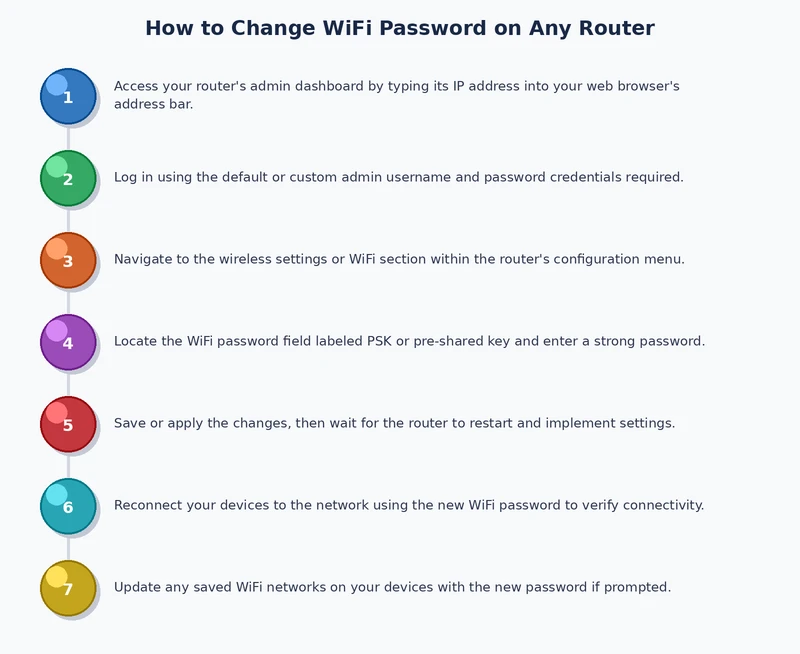
Flip that bad boy over. You’ll see a sticker that looks like a miniature treasure map. On it, you’ll find the default IP address (usually something like 192.168.1.1 or 192.168.0.1) and a username and password that your internet provider never bothered to tell you about. Don’t worry, that’s normal—it’s like finding the spare key under the fake rock.
Now, grab your laptop or phone, and open a web browser. Type that IP address into the address bar like you’re typing a magic spell. Hit Enter, and brace yourself for the login screen that looks like it was designed in 2005.
Step Two: The Login Dance
Here’s where the comedy begins. You’ll see a box asking for a username and password. If you’ve never touched this before, try “admin” for both. Yes, really. It’s the digital equivalent of a door lock that says “push.” If that doesn’t work, check the sticker again—sometimes it’s “user” or “password” or a random serial number that makes you feel like you’re unlocking a spy satellite.
If you’ve changed it before and forgot (we’ve all been there), you might have to do the factory reset move. That’s where you take a paperclip, find the tiny little hole in the back of the router, and poke it like you’re trying to wake a sleeping dragon. Hold it for 10 seconds, and the router will reset to its original, naked factory settings. It’s drastic, but so is having to re-enter your Wi-Fi password on every single device in the house.

Step Three: The Golden Settings Page
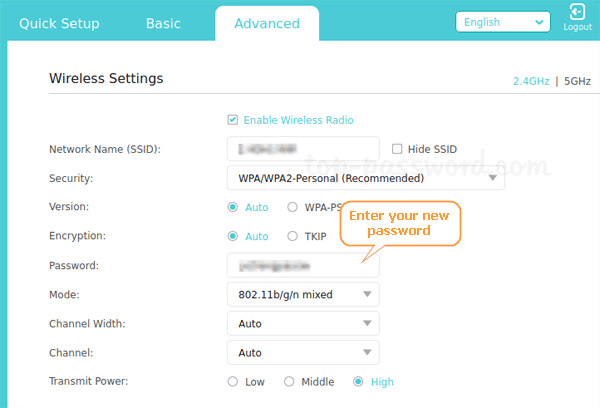
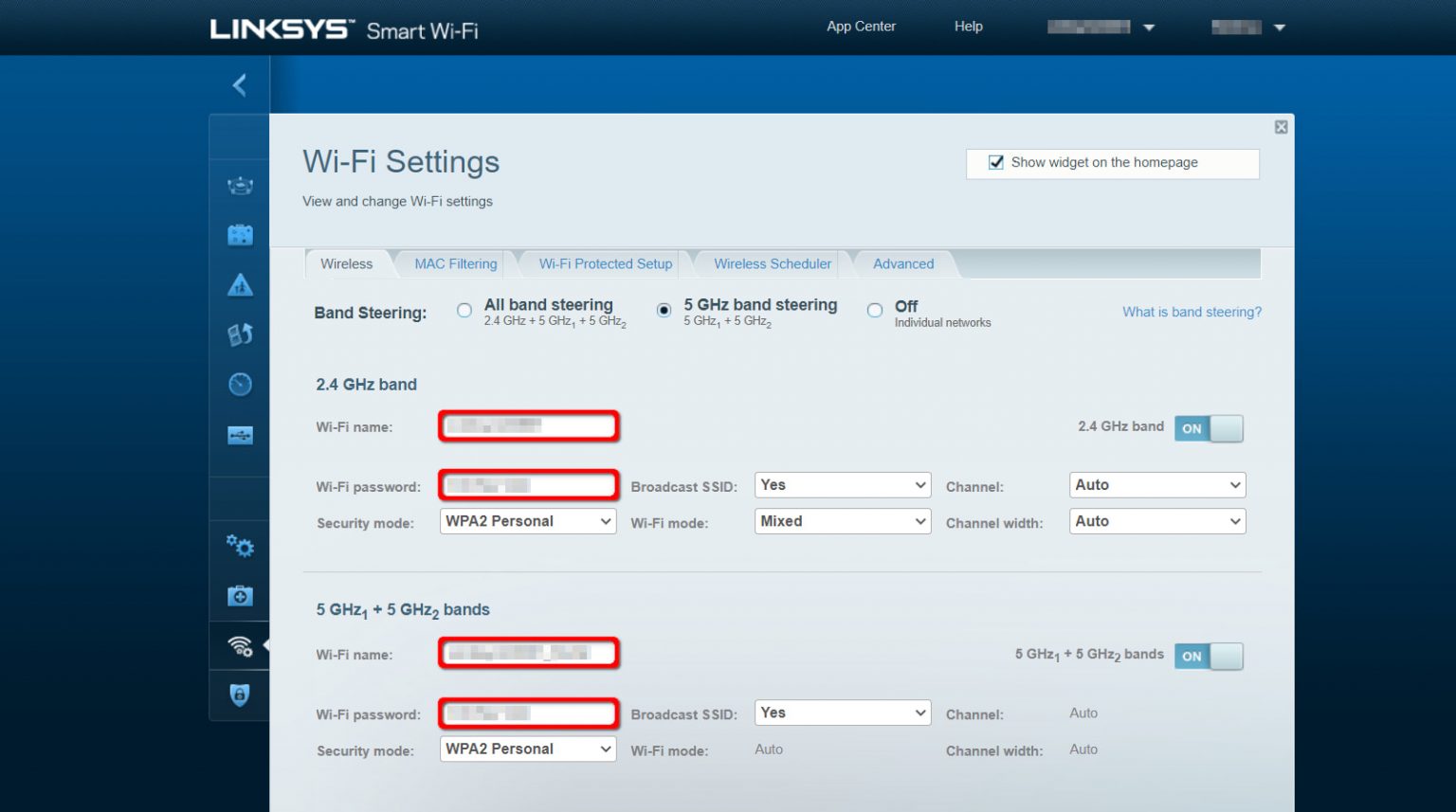
Once you’re inside, you’ll see a dashboard that looks like a spreadsheet from hell. Don’t panic. Look for something called “Wireless,” “Wi-Fi,” or “Security.” It’s usually under a tab that says “Basic” or “Advanced,” which is a lie because none of this is basic. Click on that like you’re opening a door you’ve never entered before.
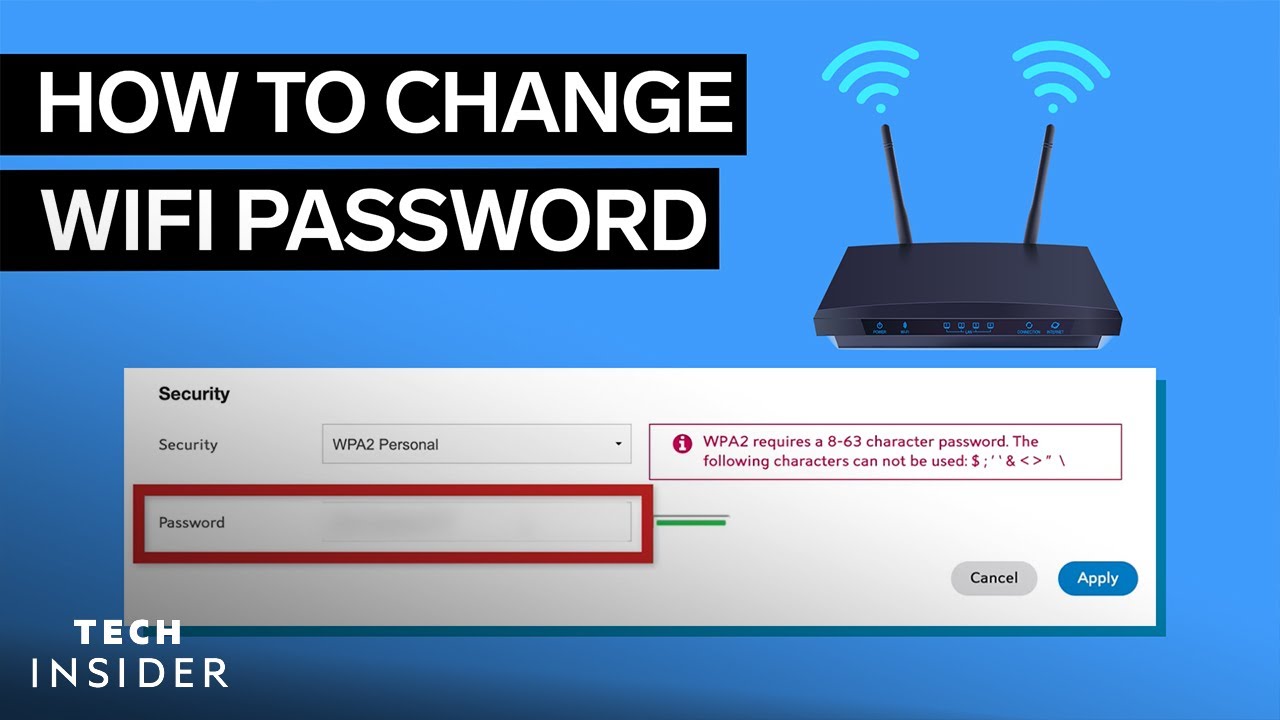
You’ll find a field labeled “Passphrase”, “Network Key”, or “WPA2 Password.” That’s your target. This is the moment of truth. Delete the old, forgotten password and type a new one. But here’s my advice: make it something you can actually remember this time. Sure, “P@ssw0rd123!” is secure, but so is “MyCatIsFat194!”—and that one makes you smile every time you type it.
Go with a mix of uppercase, lowercase, numbers, and a symbol. But for the love of all that is holy, write it down immediately. Not on a sticky note stuck to the monitor. Put it in your phone’s notes app, or tattoo it on your arm if you’re committed. Future-you will thank present-you.

Step Four: The Big Save and the Great Disconnect
Hit that “Save” or “Apply” button. The router will blink, make a weird clicking sound, and then—poof—every device in your house will drop off the internet like flies in winter. Don’t panic. This is normal. It’s like the router is saying, “Okay, new keys, everyone out!”
Now comes the fun part: reconnecting all your gadgets. Your phone will ask for the password again. Your laptop will sulk. Your smart TV will make you type it in using the remote’s on-screen keyboard, which is an exercise in pure rage. And yes, your smart plug will forget it exists as a concept. But this is the price of security, my friend.

Go around the house and reconnect everything. It’s tedious, but it’s also a great excuse to finally forget the password to your ex’s streaming account. Silver linings.
Step Five: The Victory Lap
Once everything is back online, take a moment to bask in the glow of your own competence. You just changed the Wi-Fi password! You conquered the blinking box! The only thing left to do is share the new password with your family, and watch them roll their eyes when they have to type it into their Xbox.
And if your neighbor complains about their 4K movies buffering? Just smile and say, “Oh, that’s weird. Maybe your Wi-Fi’s broken.” Then quietly close your laptop and enjoy the sweet, sweet victory of secure internet. You’ve earned it.