How To Change My Spotify Account

Let’s face it: your Spotify account is basically your musical fingerprint. But sometimes, you realize the playlist “Sad Bangers for Rainy Days” just isn’t your vibe anymore, or you accidentally signed up with your uncle’s email. The good news? Changing your account is as easy as convincing a cat to take a nap—it just takes the right nudge.
First, let’s talk about the big switch: changing your email or username.
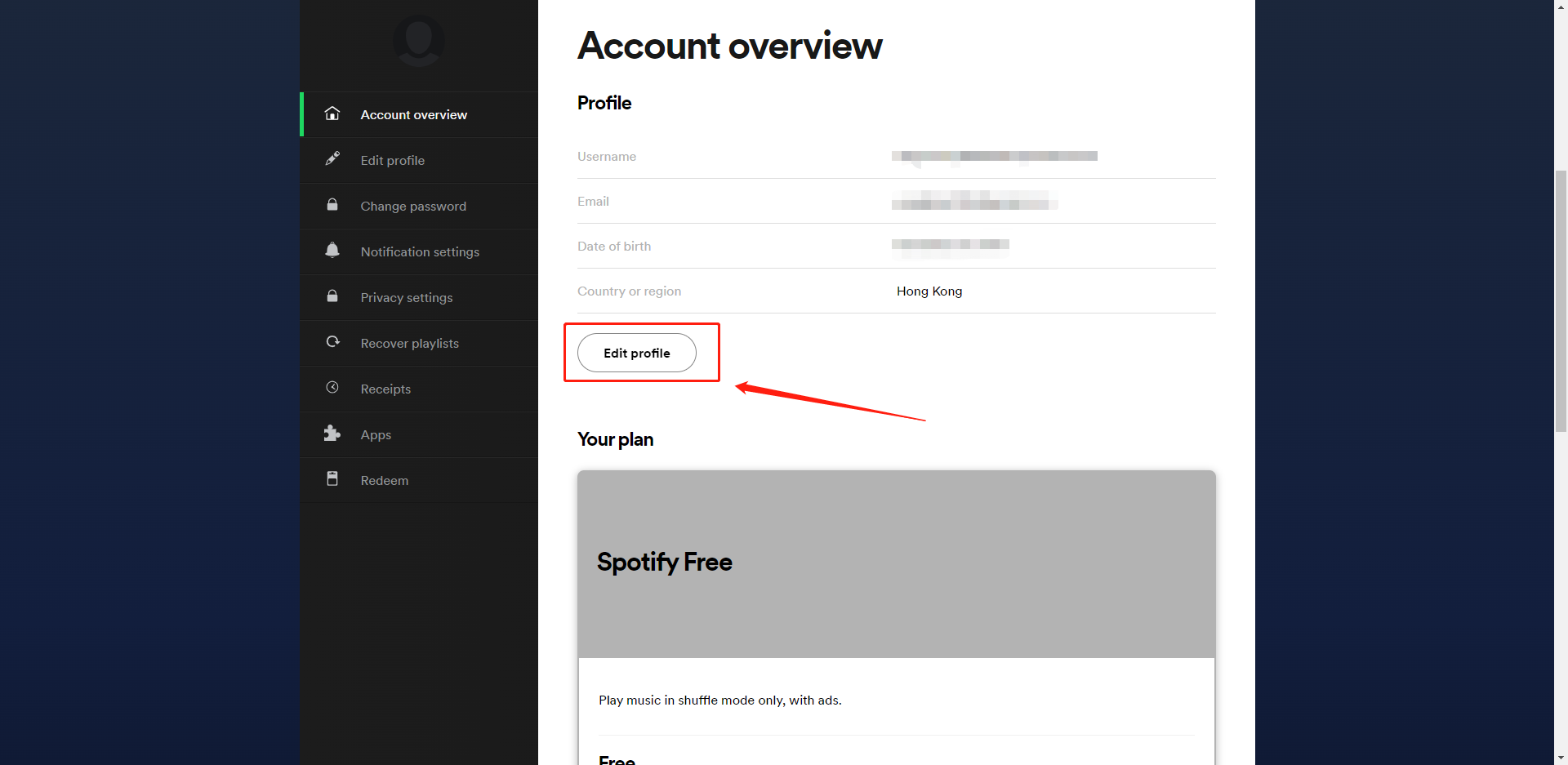
Imagine your Spotify login is a secret handshake. If you used a crazy old email, you’re essentially shaking hands with a ghost. No sweat—just hop onto the Spotify website (not the app, it’s a web-only magic trick) and log in.
Click “Profile” in the top right, then hit “Account.” Look for the “Edit Profile” button—it’s your golden ticket. Change that email to one you actually check, and Spotify will send a verification link. Click it, and boom—you’re officially a new person with the same weird listening history.
Must Read
Pro tip: Do this before your phone dies, because you’ll need to confirm the change on your device. It’s like changing your locks but keeping the same house keys—smooth and painless.
Now, what about changing your password? (Because “password123” is a cry for help.)
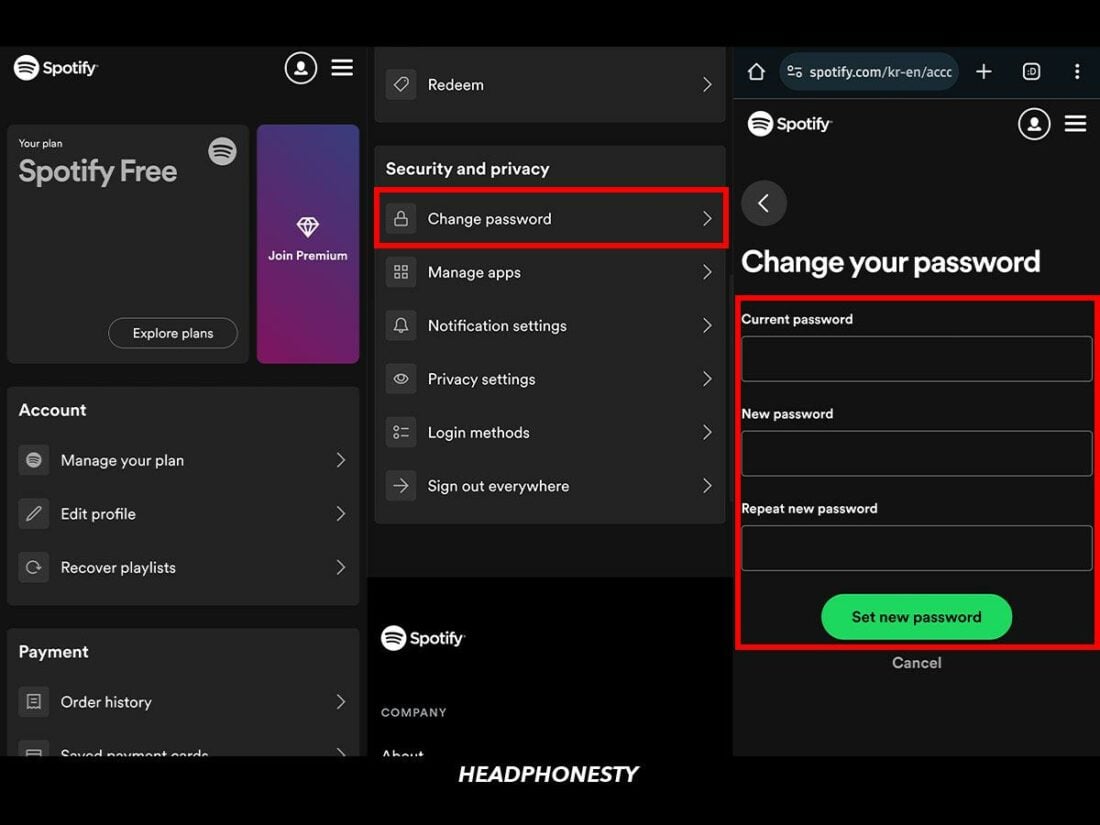
Head back to Account Settings and find the “Change Password” option. You’ll need your current password, so don’t pretend you don’t know it—we all know it’s your dog’s name plus “99”.
Type a new one, something like “Funkytown#2024”—way cooler and secure. The best part? You’ll be logged out of all devices instantly, which feels like a digital detox, but you get to come back smarter. If you forget it later, just use the “Forgot Password” link and let Spotify do the heavy lifting.

What if you want to switch your plan or payment method?
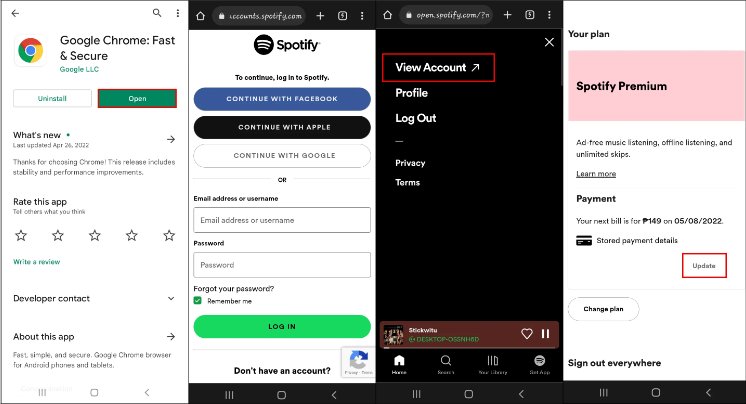
Maybe you’re tired of paying for Premium with your parents’ credit card, or you want to downgrade to the free version because you enjoy ads? (Weird, but you do you.) Go to “Subscription” in your account page.
You’ll see a big red button that says “Change Plan.” Click it, and pick the option that fits your wallet’s mood. For payment methods, go to “Payment Details” and update your card or PayPal like you’re refreshing your wardrobe. It’s instant—no waiting, no “processing” limbo.
Just remember: if you cancel your premium plan, your downloaded songs will start crying, so make sure your Wi-Fi is ready to say goodbye.
Want to switch your account to a different provider (like logging in with Facebook)?
This is the sneaky one. If you originally logged in with Facebook, you can unlink it and use a normal email instead. Go to “Account” and find the “Sign in with Facebook” section.
Click “Unlink Facebook”, and Spotify will ask you to set a new password. Do that, and you’re free from Zuckerberg’s gaze forever. If you want to link a new social login, just find the “Connect” option and pick your poison—Google, Apple, or a carrier pigeon if they ever add it.
Finally, let’s not forget the playlist reset—but that’s not an account change, just a soul change.
Changing your account details won’t wipe your history, which is a blessing and a curse. Your “Guilty Pleasures” playlist will still include that one cheesy pop song, and that’s okay. But if you want to start fresh with a new account entirely? That’s a different beast—you’d have to create a new one, which is like moving to a new city with no friends.
So, don’t do that. Just tweak what you have.
Remember, changing your Spotify account is like rearranging furniture—it feels weird for five minutes, then you wonder why you didn’t do it sooner. You’ve got this, music maestro.
![How to Reset and Change Spotify Password [Easy Method]](https://www.vidmore.com/images/tips/spotify-password-reset/set-new-password-spotify.jpg)

![Enhance Music Finds with Spotify Location Change [2026]](https://www.apeaksoft.com/images/solution/spotify-edit-profile.jpg)