How To Blur Out Background In Video
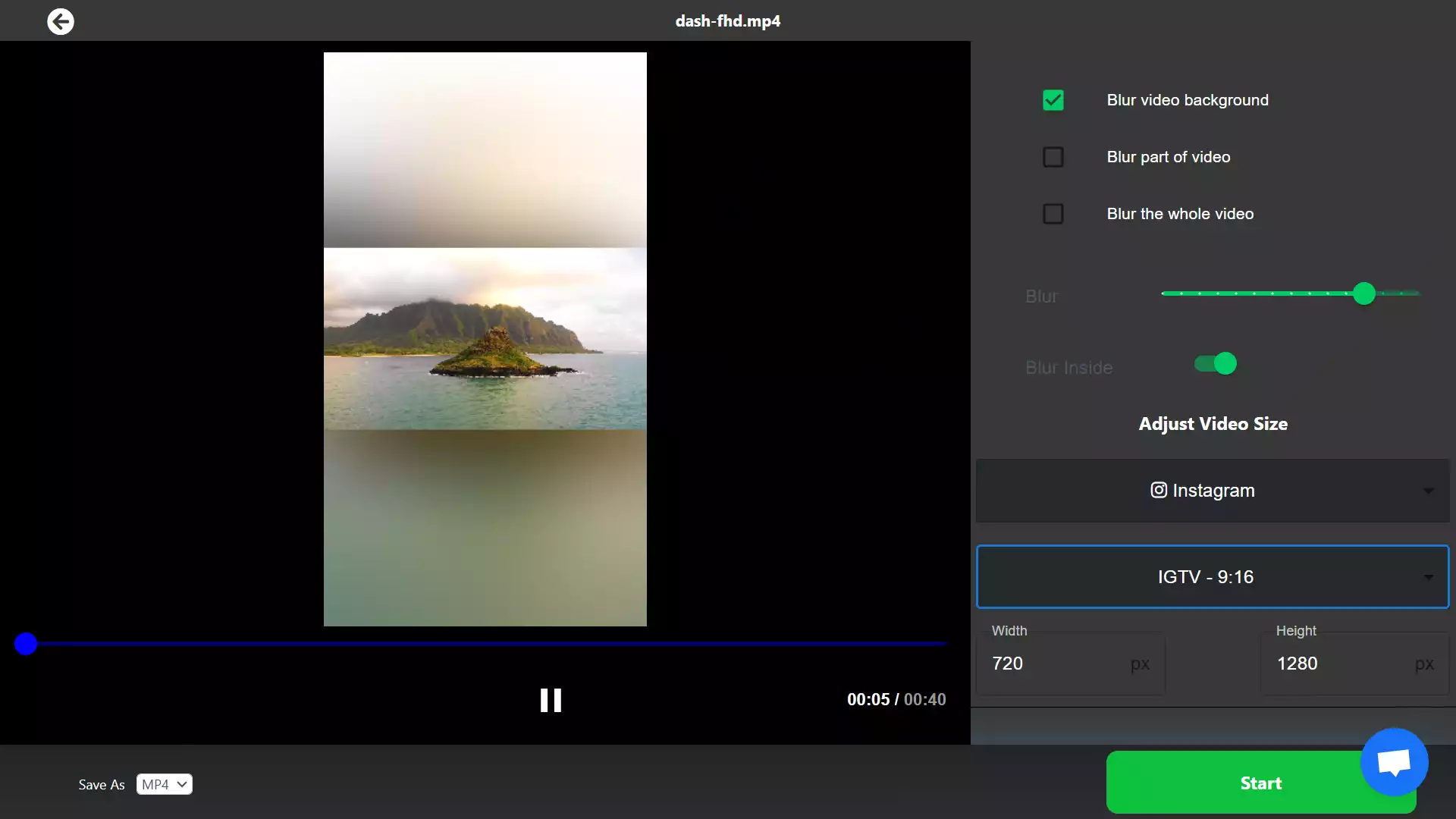
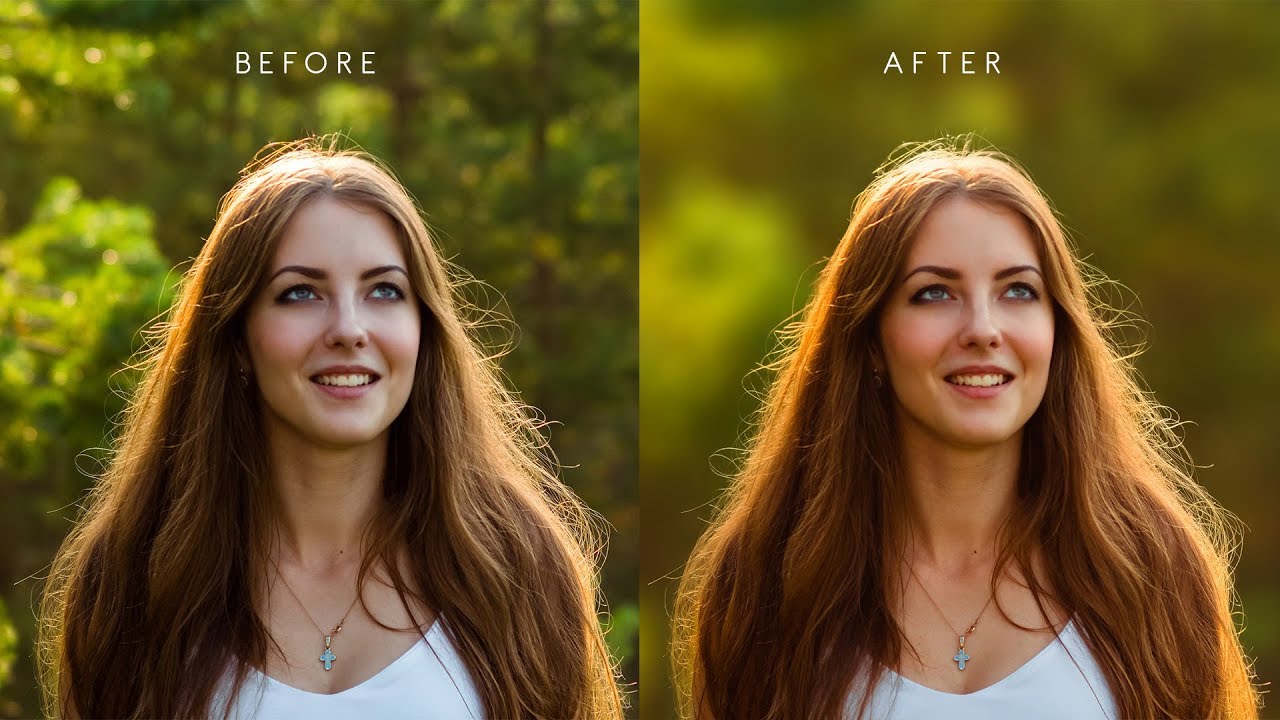
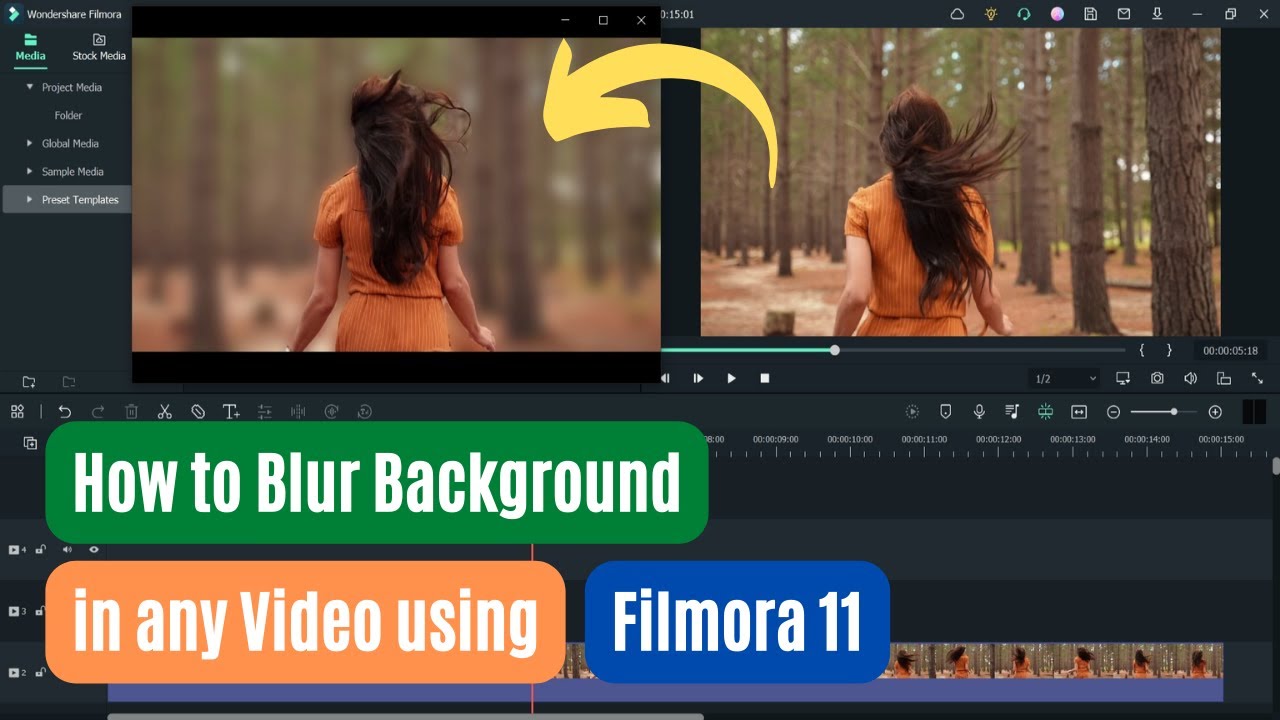
Ever watched a video where the person talking is sharp and clear, but the messy room behind them looks like a dreamy, soft watercolor? That’s the magic of background blur, and it’s easier to do than you think. It instantly makes your clips look professional, hides clutter, and draws the eye right where you want it—on you or your subject.
This trick isn’t just for filmmakers. Beginners love it because it covers up a messy desk during video calls, while families use it to make holiday videos feel cinematic without staging the whole living room. Hobbyists—vloggers, gamers, or cooking fans—use it to add depth and focus to their stories. The result is always the same: your video suddenly feels polished and intentional, no expensive camera required.
You’ve probably seen this effect everywhere. Think of a cooking clip where only the sizzling pan is in focus, or a travel vlog where the speaker stands out against a rainbow of city lights. Even gaming streams blur the game capture behind the player’s face cam to reduce visual noise. The variation is endless—you can blur a busy street, a bookshelf, or even a garden, turning chaos into a calm, professional backdrop.
Must Read
So, how do you start without feeling overwhelmed? First, record in good light—blurring works best when your face is lit separately from the background. Second, keep your camera steady, either with a tripod or by resting it on a stack of books, because shaky footage ruins the smooth effect. Third, and most importantly, try the “portrait mode” on your phone; nearly every modern smartphone has a video blur option built into the camera app.
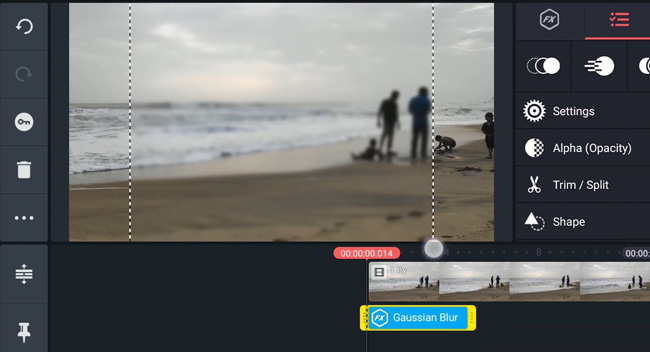
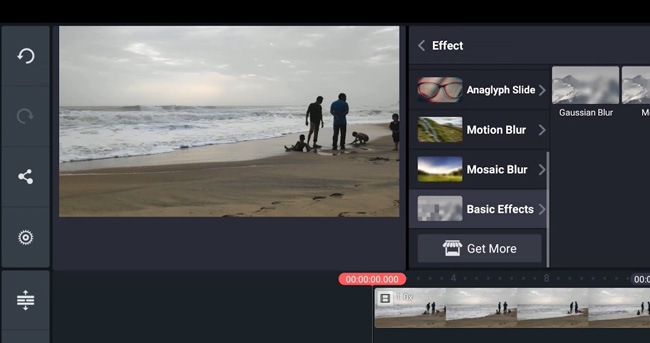
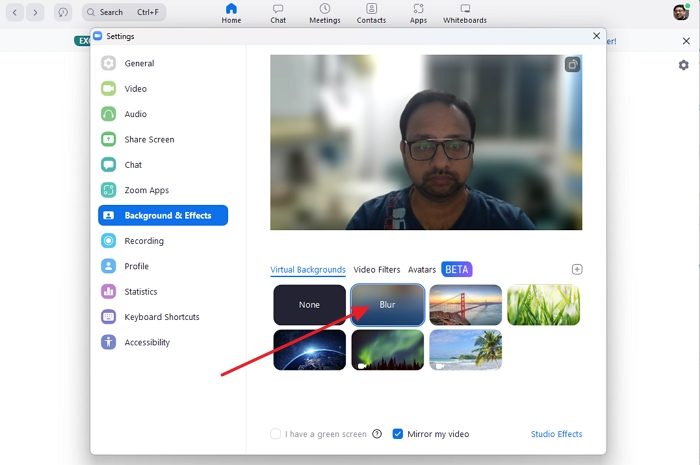
If your phone doesn’t have it, don’t worry. Free apps like CapCut, InShot, or DaVinci Resolve let you blur backgrounds with a simple masking tool. Just upload your clip, tap the “blur” effect, and drag a circle around your subject—the app does the rest. For live videos on Zoom or Teams, look for “background effects” in settings; you can blur in real time without any editing at all. Start with a short 10-second test clip to get comfortable, then practice on a longer video.
A final practical tip: keep your subject close to the camera and the background a few feet away. This physical distance gives the software more to work with, making the blur look natural and creamy instead of patchy. Also, avoid wearing clothes that match your wall color, or you might blur out half your shoulder—a classic rookie mistake. Remember, the goal is to enhance, not erase, so keep some context visible for a balanced look.
In the end, blurring backgrounds is a small skill with a huge payoff. You’ll feel a burst of pride when your video call makes you look like a TV host, or when your hobby clip finally looks “clean” to your friends. It’s quick, free, and endlessly rewarding—so grab your phone, press record, and give your next video that cinematic glow. You’ll wonder why you didn’t try it sooner.