How To Adjust The Size Of A Photo
Let’s be honest: trying to upload a photo and getting that dreaded “file size too large” error is the digital equivalent of trying to fit into your favorite jeans after Thanksgiving dinner. It’s tight, it’s frustrating, and you’re pretty sure the website is just being dramatic. But fear not, my friend, because resizing a photo is way easier than explaining to your aunt why you really can’t make it to her Tupperware party.
Think of your photo like a giant, overstuffed suitcase. You love everything in it, but the airline (or your email server) simply won’t let you board with a bag that weighs a ton. So, we’re not throwing away the memories; we’re just doing some clever packing to make everything fit. You’re basically a digital Marie Kondo, but for pixels.
The “I’m Too Lazy to Open Real Software” Method
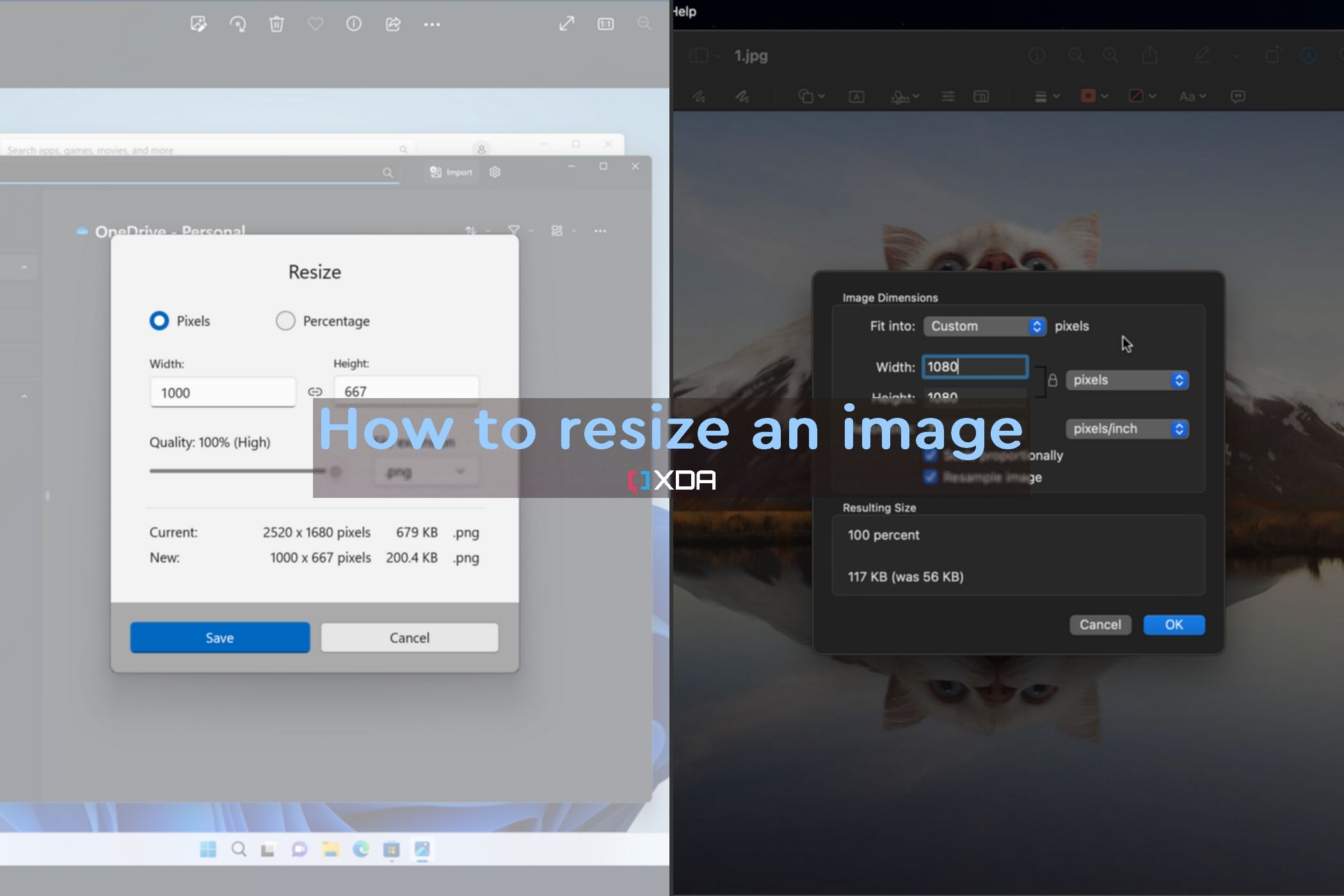
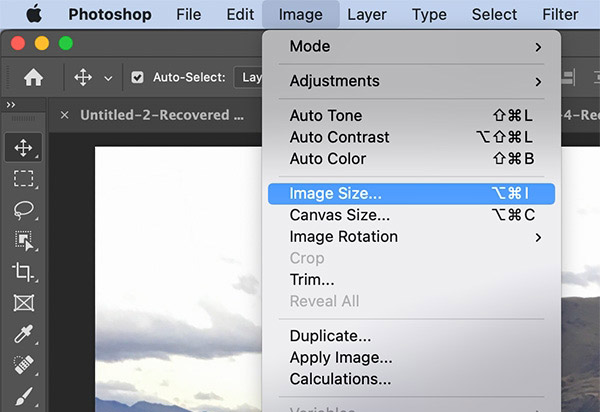
First up, the good ol’ built-in tools. If you’re on a Windows PC, just right-click that file and hit “Edit.” This opens up the Microsoft Photos app, and while it’s no Photoshop, it gets the job done like a reliable, slightly boring friend. Look for the “Resize” button—it’s usually sitting right up top, minding its own business.
Must Read
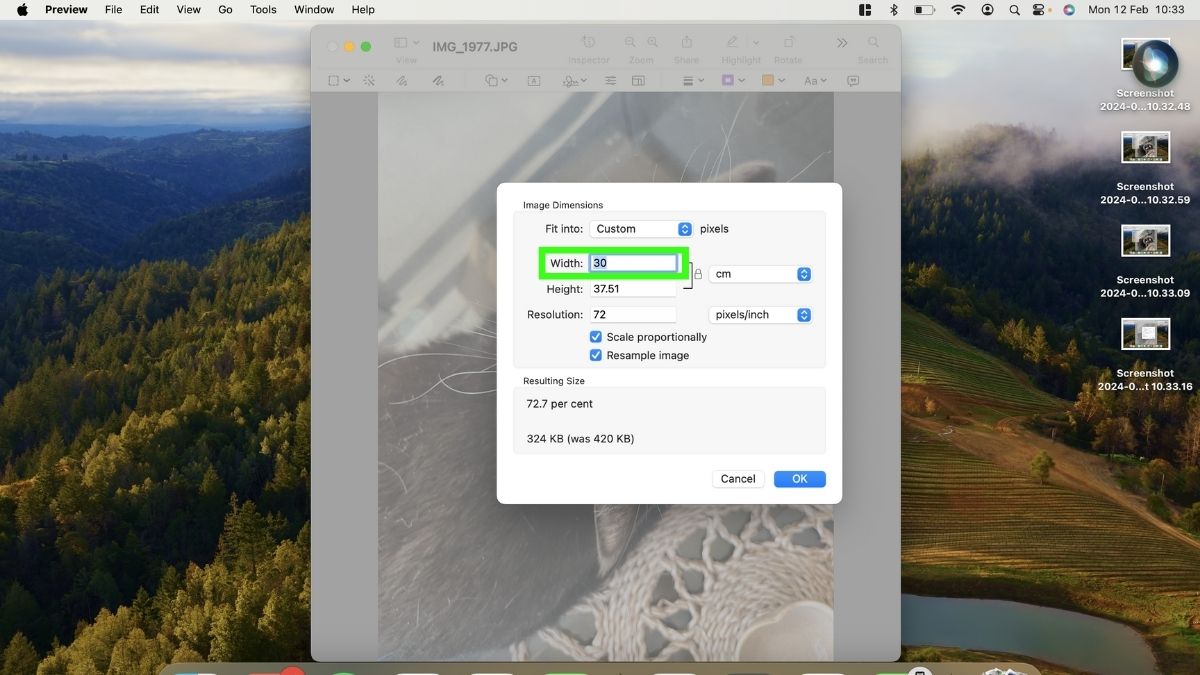
On a Mac, it’s even more literally child’s play. Open the photo in Preview (double-clicking usually does it), then hit “Tools” and “Adjust Size.” You’ll see a little box with numbers, and you can just type in a new width. It’s like telling the picture, “Hey, you need to slim down,” and the picture sadly but compliantly obeys.
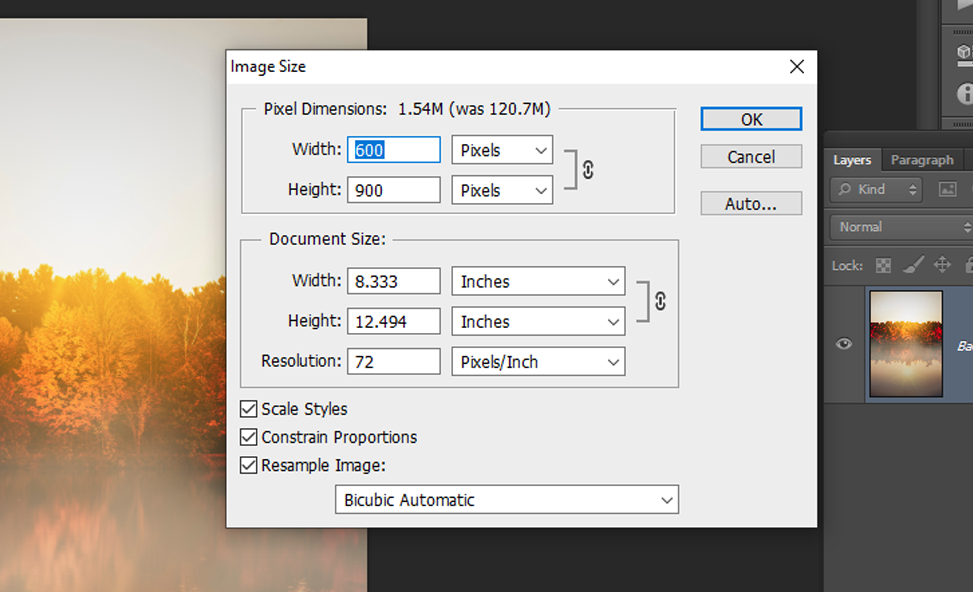
Pro tip: Always click the “lock” icon to keep the aspect ratio. Otherwise, you might stretch your grandma’s face horizontally, and that’s a family dinner you don’t want to attend. Trust me, I’ve made that mistake, and my grandpa still brings it up.
The “I Only Have a Browser” Lifesaver
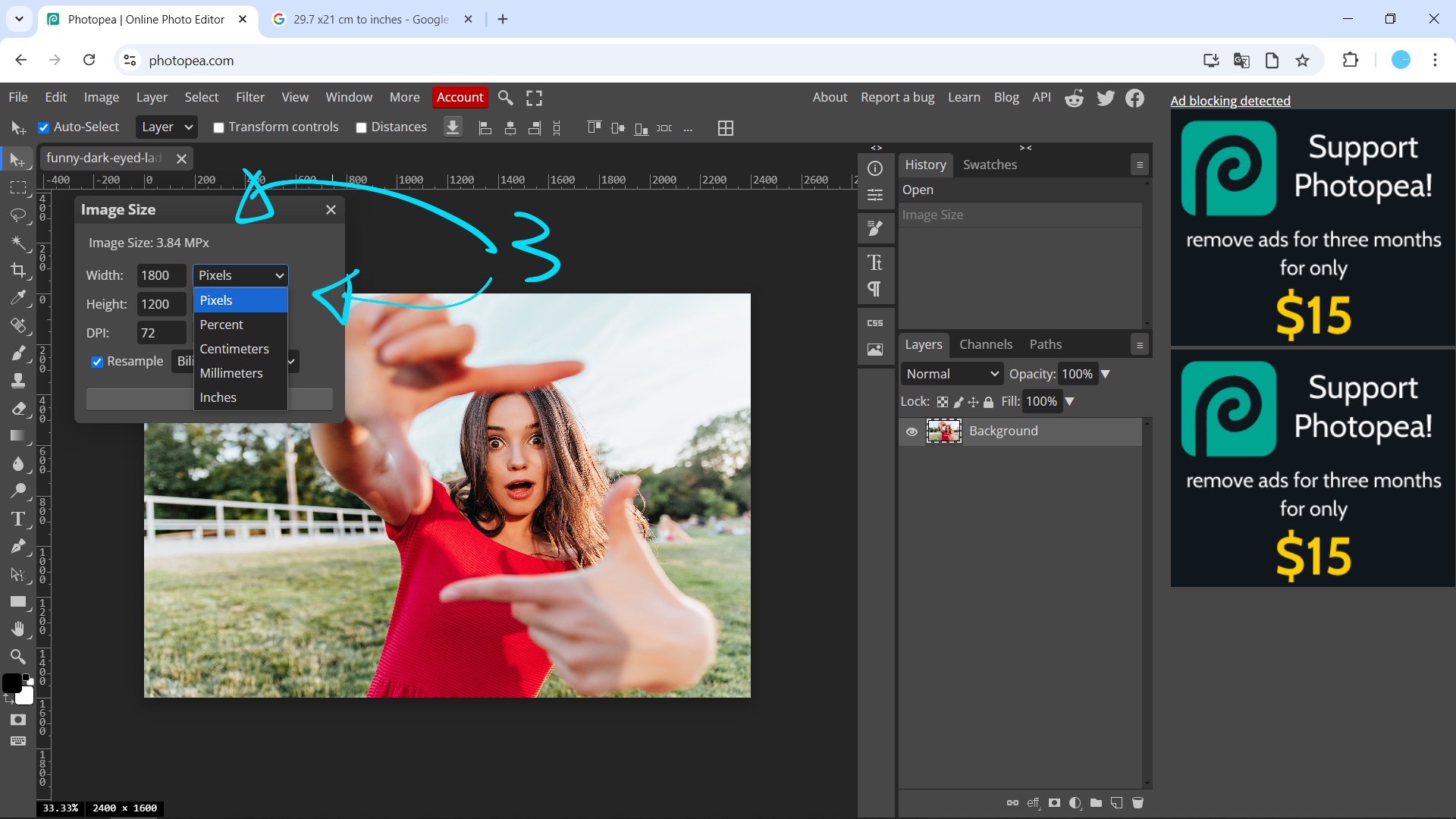
What if you’re on someone else’s computer and the software situation is drier than a desert cactus? No problem. Just Google “resize image online” and pick any free site that looks a little less sketchy than a pop-up ad for “one weird trick.” Sites like Bulk Resize Photos or PicResize work beautifully and don’t require a PhD in computer science.
You’ll upload your photo, type in your new pixel dimensions or a percentage, and hit go. It’s like putting your photo through a magical shrink ray. Just make sure you download the new file before closing the tab, because that photo lives on the web server’s mercy, which is roughly as persistent as your motivation on a Monday morning.

Now, a word on percentages. If you type in 50%, you’re cutting the width and height in half. That sounds small, but the file size drops by like 75% because math is weird and magic. You’ll feel a little like a wizard, but with fewer robes and more mouse clicks.
What About That “Quality” Thing?
Here’s the kicker: if you shrink a photo down, it’s usually fine. But if you enlarge a tiny picture, you’ll end up with something that looks like a pixelated mosaic from a cheap VHS tape. It’s called upscaling, and it’s basically like asking a blurry face to turn into a clear one—it’s not going to happen, and you'll just get a sad, fuzzy mess.
So, the golden rule is: Resize for the destination, not for the illusion of grandeur. If you’re emailing a photo of your cat to your boss, 1024 pixels is plenty. If you’re printing a poster for your band’s reunion tour, keep it big and beefy. Don’t be that person who brings a magnifying glass to a photo album.
And on the topic of email, this little trick will save your reputation. No one wants to open an email with a 25MB attachment that takes ten minutes to load. They’ll think you’re sending them a virus, or worse, a documentary about your lunch. A quick resize shows you respect their inbox, which is the modern equivalent of bringing a bottle of wine to a dinner party.

An Ode to the “Copy and Paste” Hack
Finally, let’s talk about the sneaky shortcut. If you’re in a chat app like WhatsApp or Slack, you can often just drag the photo into the chat box and let the app do the shrinking for you. It’s like valet parking for your images. But if you need to save it to your own drive as a smaller file, just paste the picture into MS Paint and save it as a JPEG. That alone will reduce the size, because Paint is a magical soul that only cares about your current mood, not your camera’s 48MP sensor.
So, there you have it. You have no more excuses. The next time a website yells at you, just remember: you’re the boss of your photos, not the other way around. Go forth, shrink stuff, and maybe, just maybe, you’ll finally be able to send that picture of your lasagna to your cousin without breaking the universe.
And if all else fails, just take a screenshot of the photo on your phone. It’s a total hack, but it’s the lazy person’s ultimate cheat code. You’re welcome.