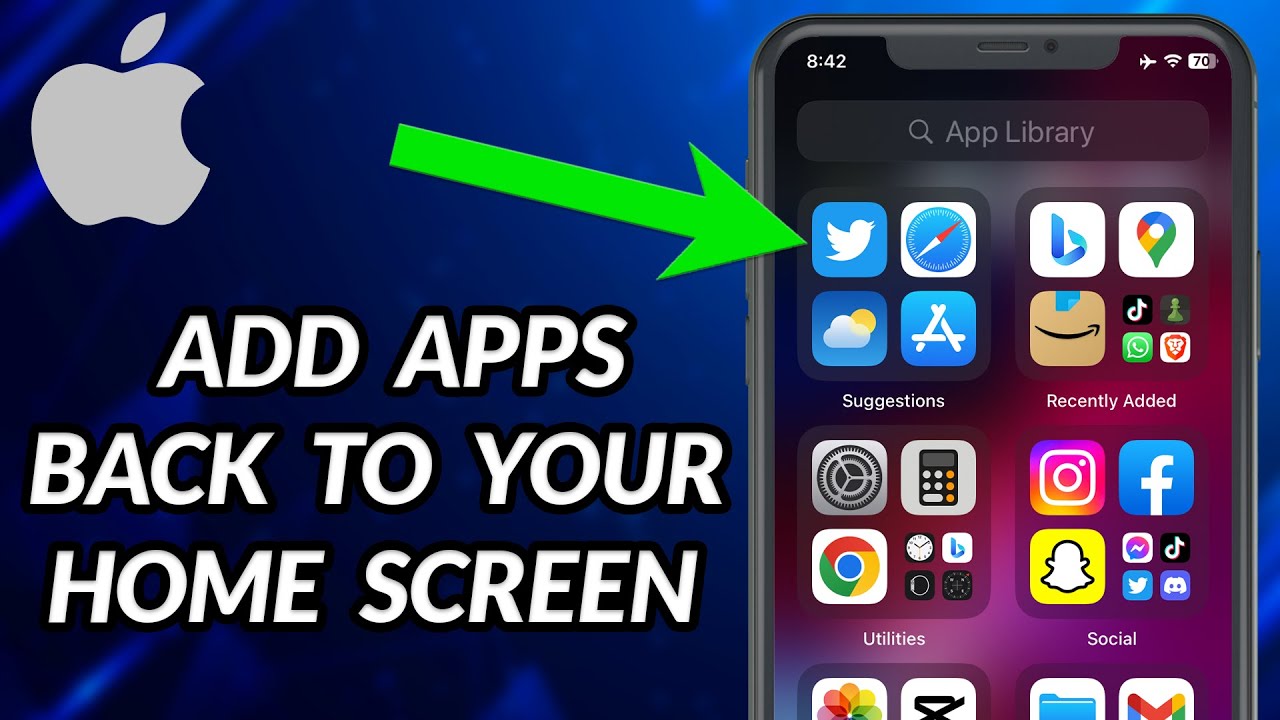
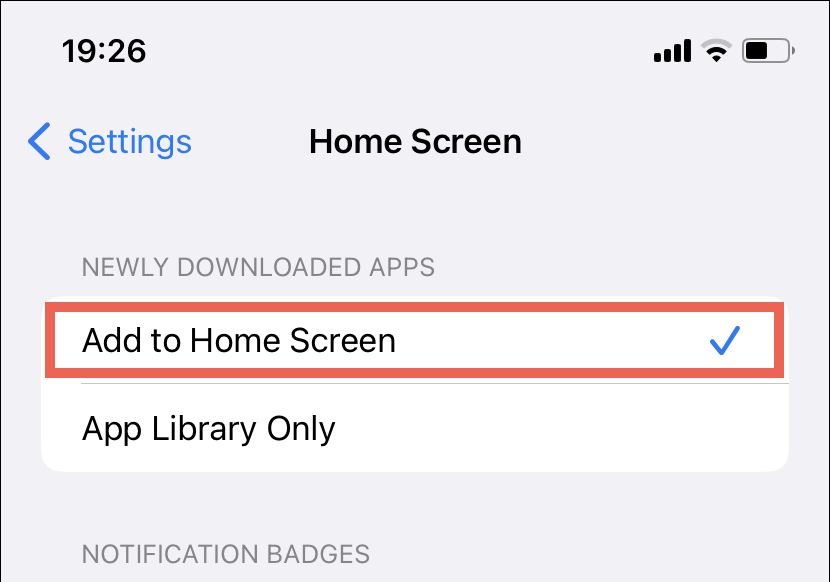
How To Add To Iphone Home Screen
:max_bytes(150000):strip_icc()/theedotsaddtohomescreen-82e43d65e4644b1bb2e7274b12062c12.jpg)
Let's be honest – your iPhone home screen is probably a chaotic mess of apps you forgot you downloaded, buried somewhere in a folder called “Misc.” You spend precious seconds every day swiping through screens, hunting for that one app that holds your boarding pass or your grocery list. But what if I told you there’s a magic trick to put any website, any tool, right on your home screen, like a tiny, perfect shortcut to your digital life?
You don’t need to be a tech wizard or download a single new app. This is the kind of power that makes you feel like you’ve hacked the Matrix, except it’s just a button in Safari. And once you learn it, you’ll wonder how you ever lived without your bank, your favorite playlist, or even a direct link to your silly little web game, all one tap away.
The Secret Door: It’s All in the Share Button
First, open Safari on your iPhone – you know, the compass icon that’s probably staring at you right now. Now, go to any website you love, like your go-to news site or that recipe page for the world’s best chocolate cake. No need to do anything fancy; just let the page load completely, because we’re about to work some serious magic.
Must Read
Now, look at the bottom of your screen (or top, if you have a newer model) for that little square with an arrow pointing up – that’s the Share button. Tap it, and a whole menu will fly up like a treasure chest of options. Don’t be intimidated by all the buttons; you’re on a mission, and your target is clear.
Scroll down that menu, past “Copy” and “Print,” until you see a big, friendly icon that says “Add to Home Screen.” Tap that bad boy, and you’re already 90% there.
Naming Your New Little Friend
Suddenly, a new screen will pop up with a preview of your shortcut and a text box asking for a name. The iPhone will suggest a boring name like “The Weather Channel,” but don’t settle for that. Get creative! Call it “Rain Check,” or “My Gossip Source,” or even “Chocolate Heaven” – this is your chance to personalize your digital kingdom.
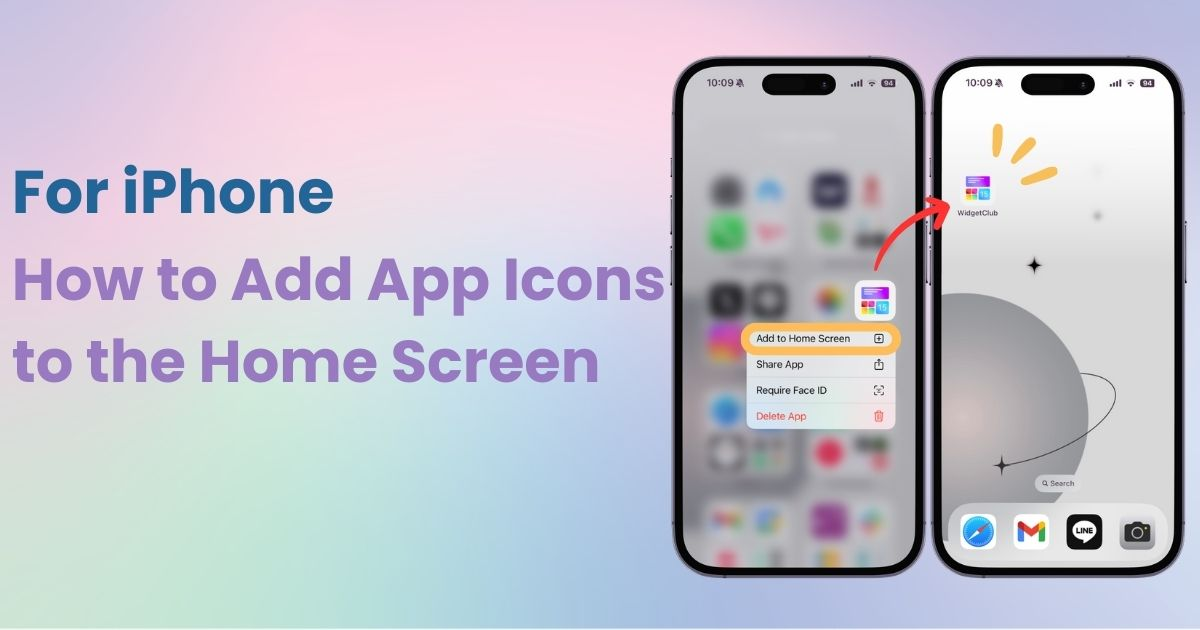
You can even edit the icon if you want, but the default one will have a cute little Safari logo on it, so it’s totally fine to leave it as is. Once you’ve typed in your perfect, sassy name, hit that blue “Add” button in the top right corner. Hold your breath for a second...
Ta-Da! Your Screen Just Got Smarter
Whoosh! The menu disappears, and if you swipe over to your home screen, there it is – a brand new icon, sitting pretty, just like a real app. It doesn’t need an App Store update, it won’t send you notifications unless the website does, and it opens directly to that page in one glorious tap. It’s like a bookmark that learned to walk and dress itself up.
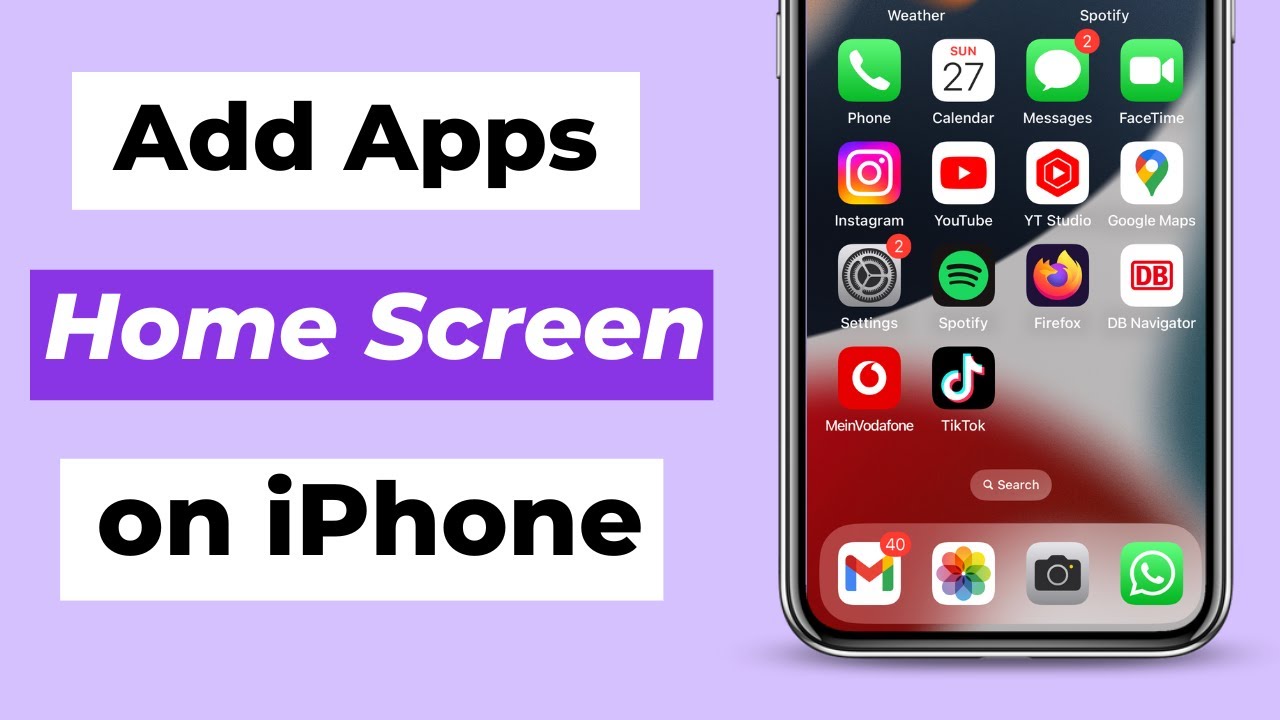
This is especially brilliant for your online banking – skip typing in that long URL every time, just tap that icon and pay your bills in seconds. Do you have a favorite YouTube channel you check obsessively? Add that channel’s page to your home screen, and now you’re just one tap away from your daily dose of cute puppies or epic fail compilations.
My personal favorite is adding a direct link to my library’s ebook portal – no more digging through emails to find the link, it’s just there, next to my calculator. Honestly, after you add one, you’ll start adding everything. You’ll have a screen full of shortcuts so fast, your friends will think you’re some kind of organizational genius.

The Glorious, Clutter-Free Future
Think of all the times you’ve opened Safari, tapped the address bar, and tried to remember that one specific webpage. Those days are over, my friend. This trick turns your home screen into a personalized command center, where only the most useful and beloved things live.
The best part? These shortcuts take up almost no space at all, unlike actual apps. So go wild! Add your subway schedule, your gym’s class booking page, and that live stream of your favorite birdhouse. Your phone is about to get a serious personality upgrade, and you’ll feel a ridiculous surge of pride every time you tap your custom icon. Go on, try it right now – your future self will thank you.