How To Add My Printer To My Network

Let’s be honest: the printer is the office equivalent of that one friend who shows up late to every dinner party—reliable at the core, but perpetually tangled in drama. The modern struggle isn’t just about paper jams; it’s about getting the darn thing to talk to your laptop from the kitchen while you’re in your pajamas. Adding your printer to your Wi-Fi network is less about IT wizardry and more about playing a gentle game of digital matchmaking. And spoiler alert: you don’t need a computer science degree to pull it off.
The Unboxing of Your Digital Destiny
Before you start shouting at a screen, take a breath. Most printers from the last decade come with a built-in Wi-Fi chip that’s basically begging to be introduced to your router. The first step is to find the “Setup” or “Network” button on your printer’s touchscreen—it usually looks like a tiny globe or a gear wearing a signal icon. If your printer is a vintage relic with a monochrome LCD, you’re looking for the “Wireless Setup Wizard” in the menu.
Think of this as the printer’s version of Tinder: it’s scanning for available networks, and you need to make sure your router’s name appears in the swipe pile. Pro tip: If your home network has a confusing name like “FBI Surveillance Van #4,” now’s a great time to rename it to something slightly more human—like “The Wi-Fi Cave.” The wizard will ask for your Wi-Fi password, so keep it handy; this is the one moment where your 2017 password manager fails you.
Must Read
The Quick & Dirty Method: WPS to the Rescue
Feeling impatient? Let’s talk about WPS (Wi-Fi Protected Setup), the fast-food of printer networking. It’s a tiny button on your router and often a similar button on your printer’s control panel. Press both within two minutes of each other, and boom—the universe (and your router) essentially whispers the Wi-Fi credentials into the printer’s ear. It’s like a secret handshake for gadgets, and it skips the password-typing entirely.
The catch? Not all routers have a physical WPS button, and some modern security setups disable it for safety. If you don’t see the button, don’t panic—just move on to the manual method. But if you do, this is the closest you’ll get to instant gratification since your last coffee sachet order.

The Software Side Hustle
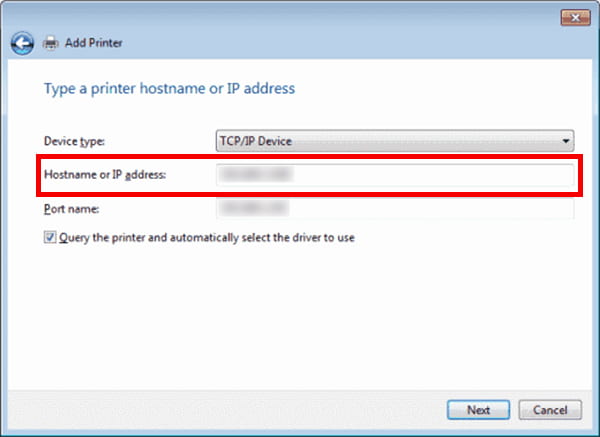
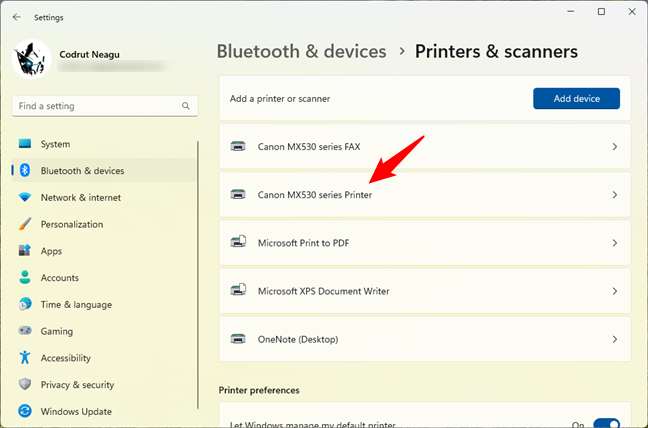
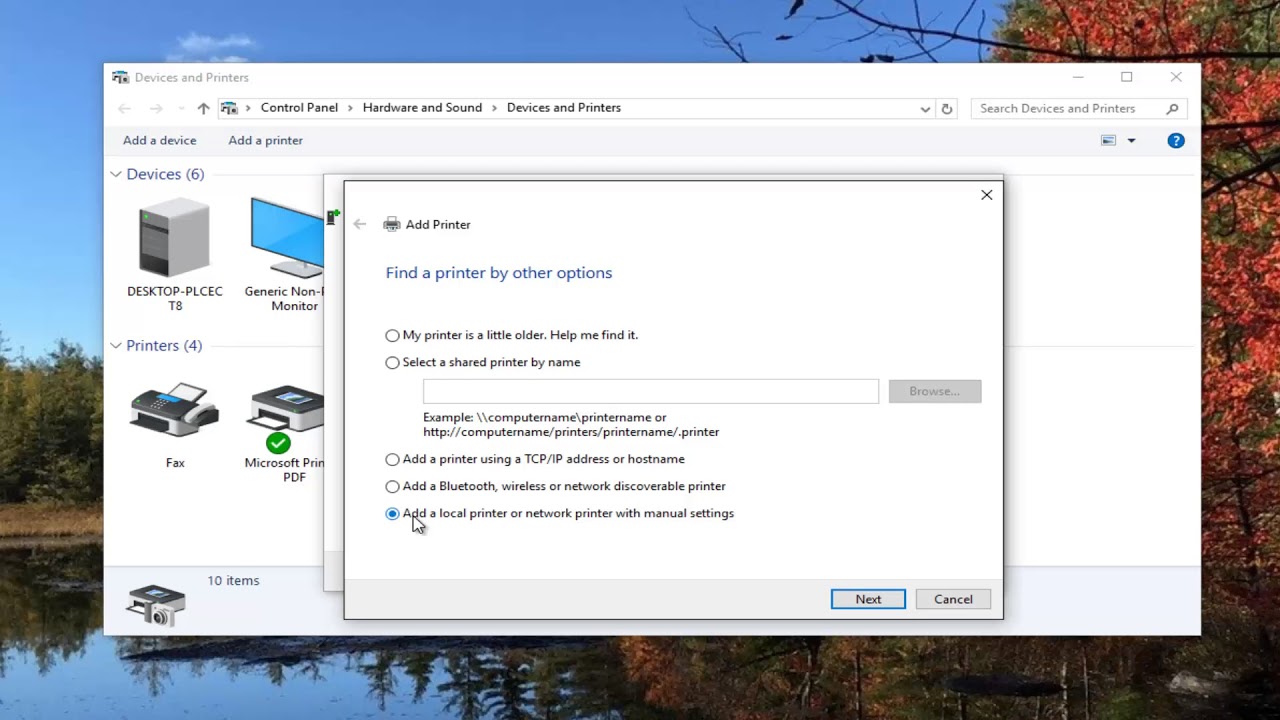
Once the printer is on your network, your devices need to find it. On a Windows machine, go to Settings > Devices > Printers & Scanners, then hit “Add a printer.” Windows will do a little dance, and your printer should appear—usually after a dramatic pause that feels longer than a movie trailer. On a Mac, head to System Settings > Printers & Scanners, hit the “+” button, and watch your printer pop up like a surprise cameo in a Marvel movie.
Now, here’s the sneaky part: your printer might install its own driver, but it’s better to download the official software from the manufacturer’s website. Why? Because generic drivers are like wearing shoes two sizes too small—they work, but you’ll be uncomfortable later. Go to HP, Epson, Canon, or Brother’s site, type in your model, and grab the full package. It’ll usually include a “Network Setup” helper that does the heavy lifting for you.
When Things Go Pear-Shaped (And How to Fix It)
Sometimes the printer plays hard to get. If it refuses to join the network, check if it’s too far from the router—Wi-Fi signals are shy, and they hate thick walls. Move the printer closer for the initial setup, then slide it back to its spot once it’s connected. Also, make sure your printer’s firmware is updated; an outdated printer is like a phone with a cracked screen—functional but moody.
Another classic glitch: your laptop and printer are on different network bands. If your router broadcasts both 2.4GHz and 5GHz signals, ensure the printer is connected to the same one as your computer. Many printers only support 2.4GHz, which is fine—just make sure your laptop is also on that band. It’s a bit like agreeing on which floor of the parking lot you’re meeting at.

The Final Test: The Holy Print
With everything connected, send a test page. Open a random PDF, hit Ctrl+P (or Cmd+P), and select your printer from the dropdown. If the page slides out with that warm, toner-scented aroma, congratulations—you’ve just tamed a wild beast. If nothing happens, check your printer’s queue for errors, and try restarting the printer, your router, and your computer in that order. It’s the classic “turn it off and on again” but with a twist of sophistication.
Fun fact: The average office worker prints about 10,000 pages a year. That’s a lot of trees sacrificing themselves for meeting agendas that could’ve been an email. So, when your printer finally works, you’re not just saving time—you’re giving that little plastic box a purpose.
And here’s the quiet reflection: in a world of cloud storage and digital signatures, we rarely think about the humble printer. But when it works—truly works—without a cable, without a struggle, it feels like a small victory over chaos. You didn’t just connect a device; you created a tiny ecosystem of convenience in your home office. So pour yourself a drink, admire that freshly printed page, and know that tomorrow, when you need to print a birthday card at 11 PM, you’ll be ready. That’s the slow, quiet luxury of a well-networked life.