How To Add Farsi Keyboard To Iphone
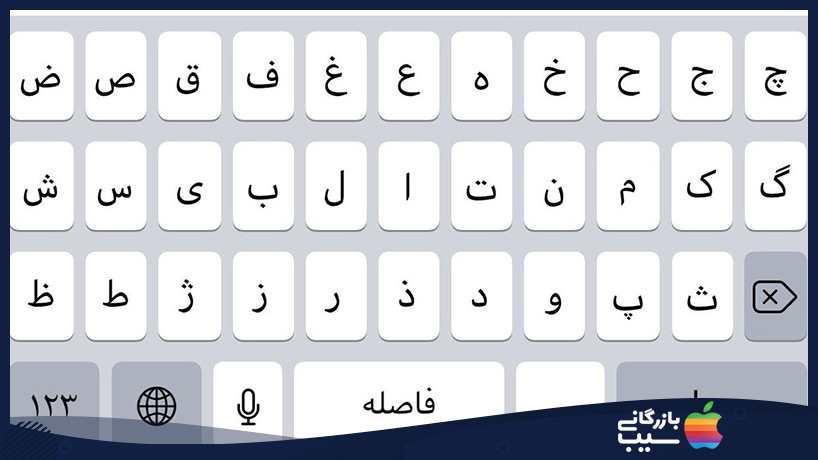
Ever tried to send a text to your Persian-speaking grandma and ended up typing gibberish? Adding the Farsi keyboard to your iPhone is a game-changer for anyone who loves languages, connects with family, or just wants to impress friends with fancy phrases. It takes less than a minute, and suddenly your phone becomes a bridge to a whole new world of conversation.
This little trick is perfect for everyone, from total beginners who’ve never touched settings to busy parents juggling multicultural households. If you’re learning Farsi, you can practice writing real words instead of relying on clunky online translators. For families, it means you can easily text relatives in their native script, making every message feel warmer and more personal.
Hobbyists and language lovers will love this too—imagine typing your favorite Persian poems, cooking recipes, or even just funny memes in the original script. You can switch between English and Farsi mid-sentence without breaking a sweat, which is brilliant for bilingual chats. Plus, it works everywhere: in WhatsApp, Notes, Safari, and even your photo captions.
Must Read
Getting started is genuinely as easy as pie. First, open your Settings app—that grey gear icon you probably ignore—and tap on General. Then, scroll down and hit Keyboard, followed by Keyboards again at the top. Now, tap Add New Keyboard and scroll through the long list until you find Farsi (it might be listed as “Persian” on some versions). Tap it, and you’re done—no downloads or restarts needed.
:max_bytes(150000):strip_icc()/002-how-to-install-new-keyboards-on-your-iphone-1999211-8c28e9b1602a44de9b5bd5bb2a767eaa.jpg)
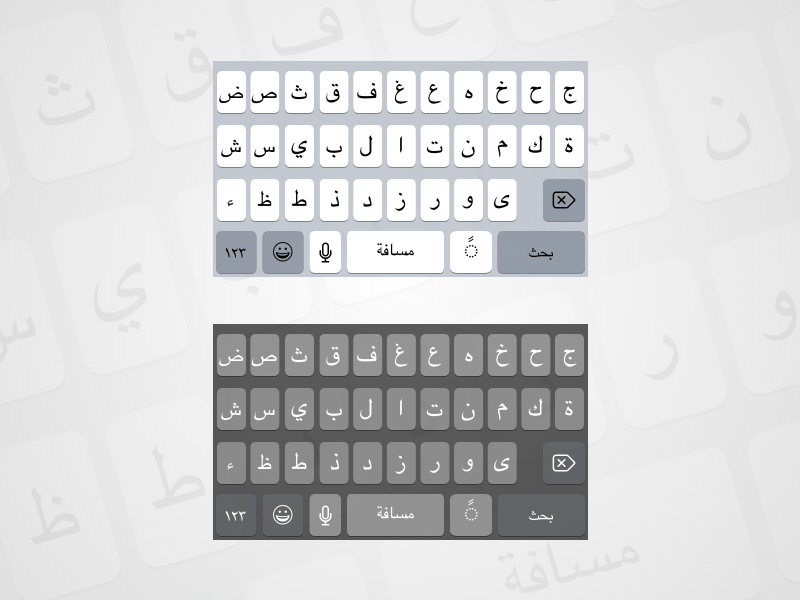
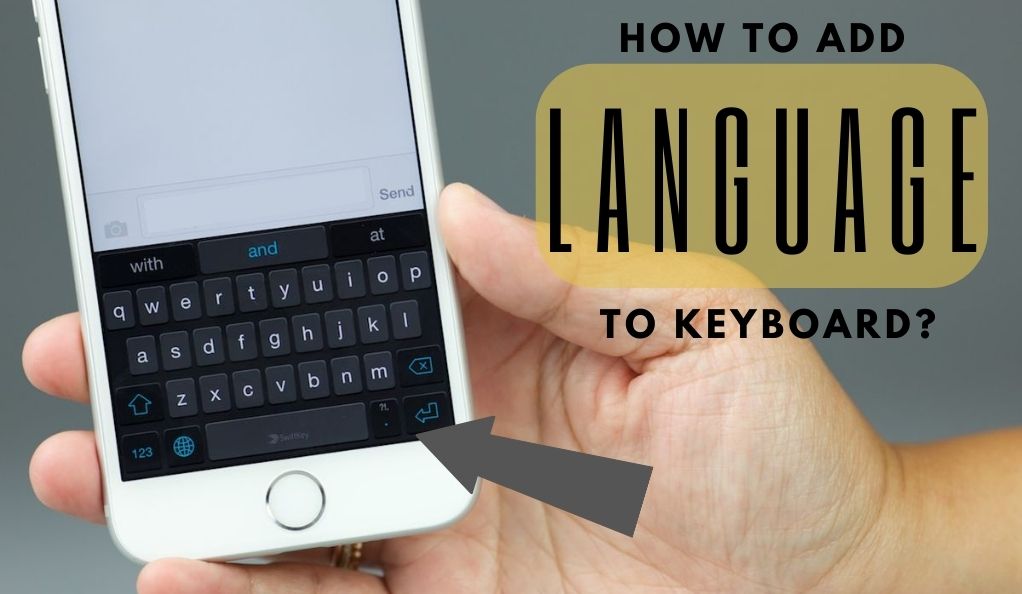
Once added, you’ll see a little globe icon or an emoji face on your keyboard’s bottom row. Tap that to switch between English and Farsi instantly, just like flipping a light switch. If you tap and hold the globe, you’ll see a pop-up menu of all your keyboards—handy when you have three or four languages installed. Pro tip: make sure your iPhone’s language is set to English for the keyboard to appear correctly in menus, though Farsi works fine as a separate keyboard.
Now, let’s talk about the fun variations. You can install the Farsi keyboard for standard typing, but also try the trackpad mode by holding down the spacebar to move the cursor—perfect for fixing typos in Persian script. Another cool trick is using the predictive text bar that appears above the keys; it suggests common Farsi words as you type, so you’ll learn new vocabulary without trying. And don’t forget to customize your keyboard settings—you can enable or disable auto-capitalization, which works differently for Farsi since it doesn’t have uppercase letters.
Here’s a simple tip to make your life easier: practice typing your own name or a short word like “salam” (hello) right after adding it. This builds muscle memory, so you won’t hunt for letters every time. If you accidentally type in English when you want Farsi, just tap the globe—it toggles back and forth smoothly. Also, remember that Farsi uses a right-to-left script, so your messages will automatically align correctly, and that feels oddly satisfying to watch.
Finally, don’t be shy to explore—use the Farsi keyboard to write a note to yourself, a birthday message, or even a grocery list. The more you play, the faster you’ll type, and soon you’ll be the go-to person in your circle for texting in two languages. It’s a small change with a huge payoff, turning a daily task into a tiny cultural adventure. So go ahead, add that keyboard, and enjoy the smile on your grandma’s face when she reads your perfectly spelled “دوستت دارم” (I love you).