How To Add A Printer On Dell Laptop
Picture this: you’ve just printed your boarding pass—wrong airport, tragic—and now you need to hook up a printer to your Dell laptop. Fear not, brave soul. This isn’t brain surgery; it’s more like teaching a golden retriever to fetch, except the printer is the dog, and the laptop is the treat. In the next few minutes, you’ll go from tech-toddler to printer whisperer, and you’ll only swear once. Maybe twice.
Step 1: The Unboxing Ritual (or, “Where’s the Damn Cable?”)
First, locate your printer’s power cord—it’s the one that looks like a chunky black snake with a bad attitude. Plug it in, hit the power button, and listen for the glorious mechanical burp that means it’s alive. Now, don’t panic if it wheezes, clicks, or sounds like a dying robot; that’s just printer anxiety.
Here’s a surprising fact: modern printers are not shy—they’ll broadcast their presence like a reality TV star. But first, you need to decide on your connection method. Wi-Fi or USB? USB is like a first date—direct, awkward, but reliable. Wi-Fi is like a blind date arranged by a mutual friend—slightly magical, but sometimes the printer ends up talking to the microwave instead.
Must Read
Step 2: The Windows Way (for the 90% of You)
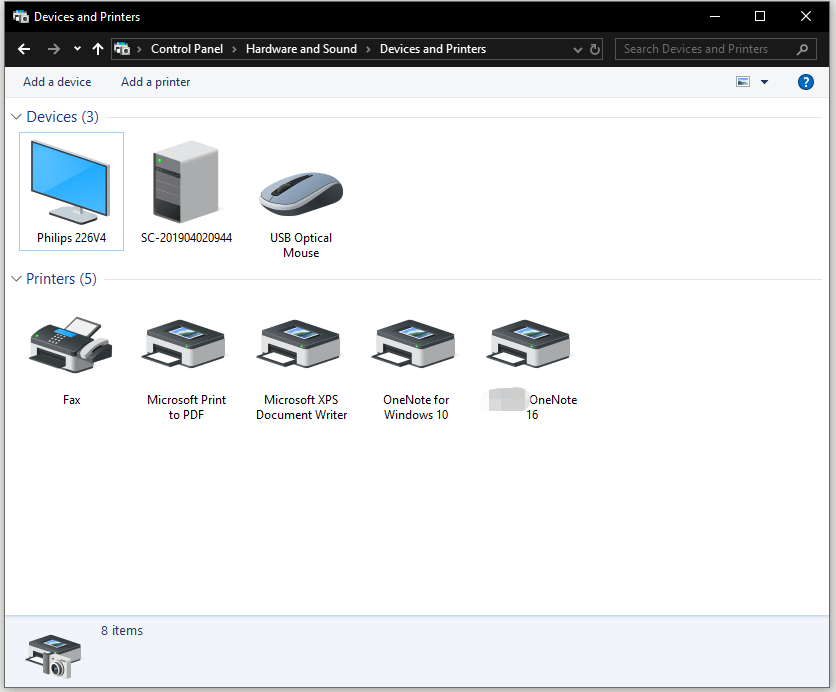
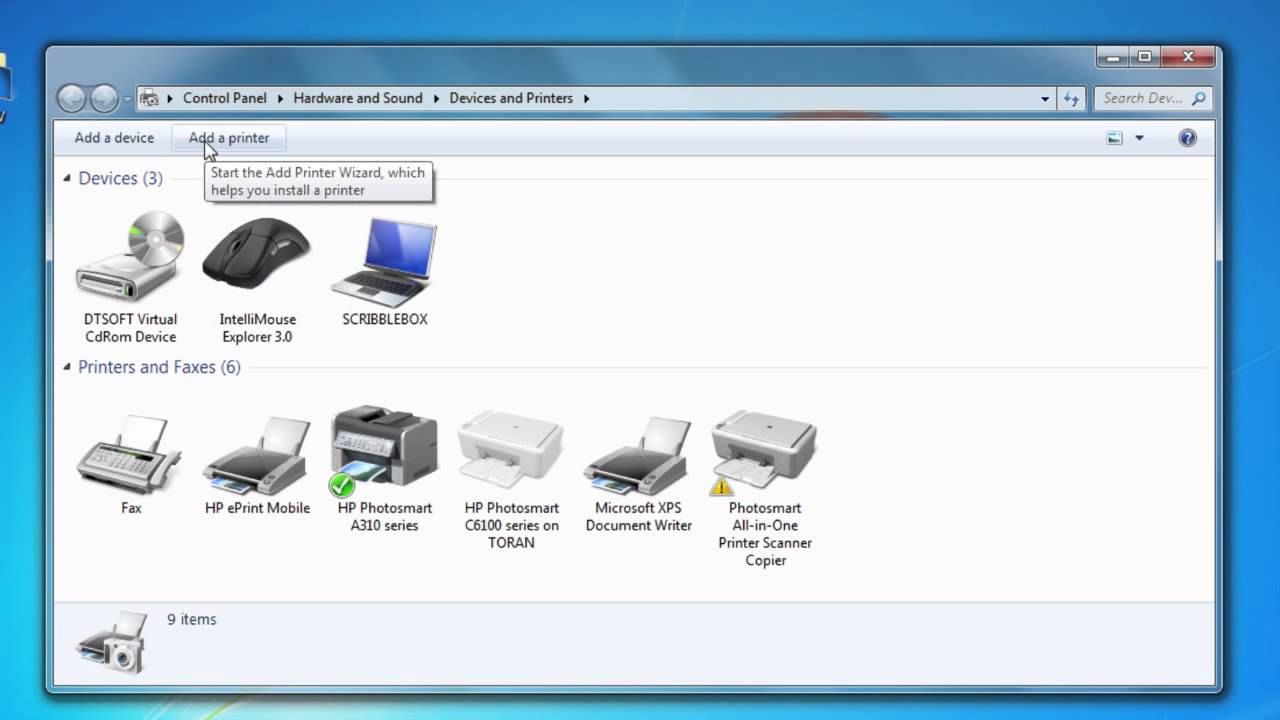
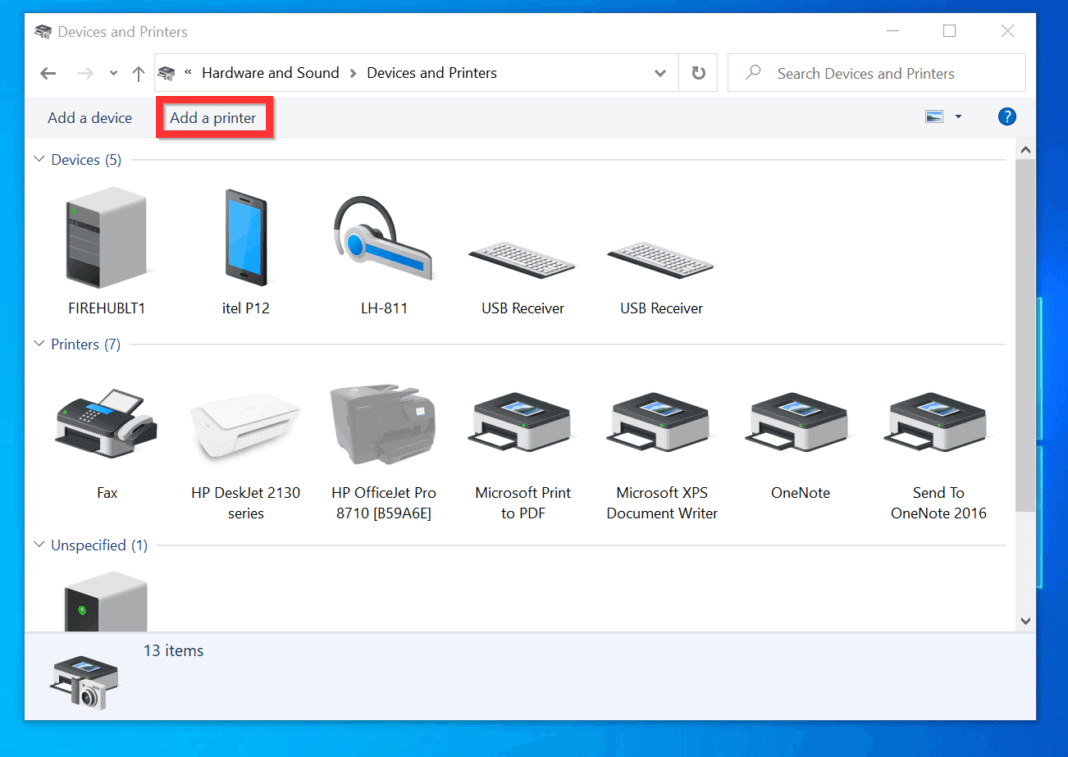
On your Dell laptop, click the Start button—the little Windows flag that looks like a four-pane window to an alternate universe. Type “Printers” into the search bar, and select Printers & Scanners from the list. You’ll see a big, friendly “Add a printer or scanner” button. Click it, and then do what I call the “Prayer of the Peripheral”: wait five seconds while Windows sniffs the air like a confused bloodhound.
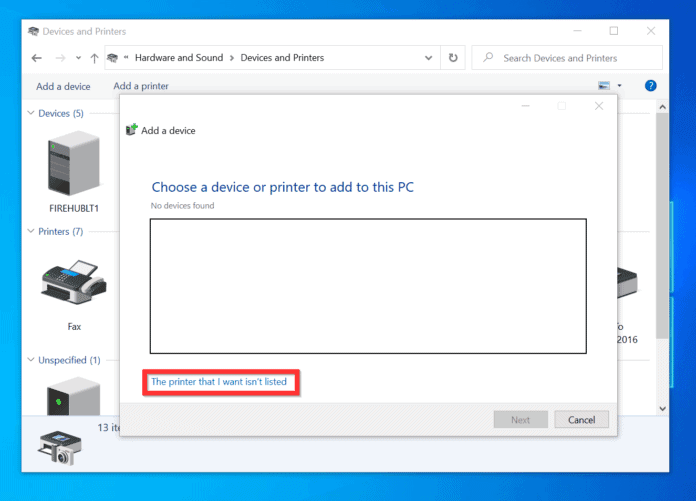
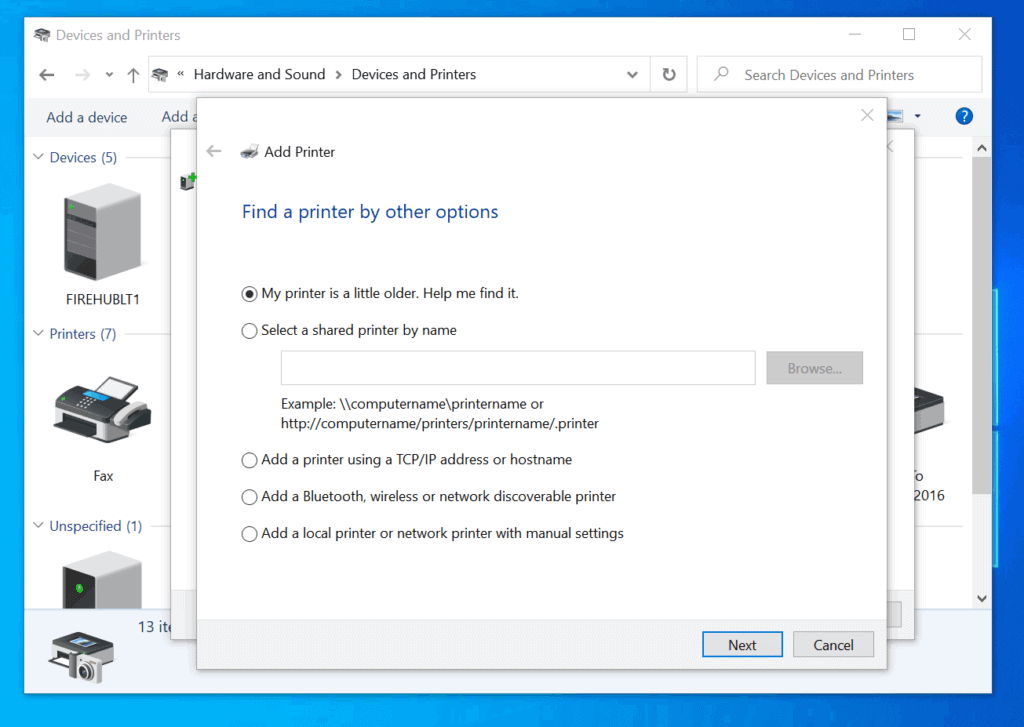
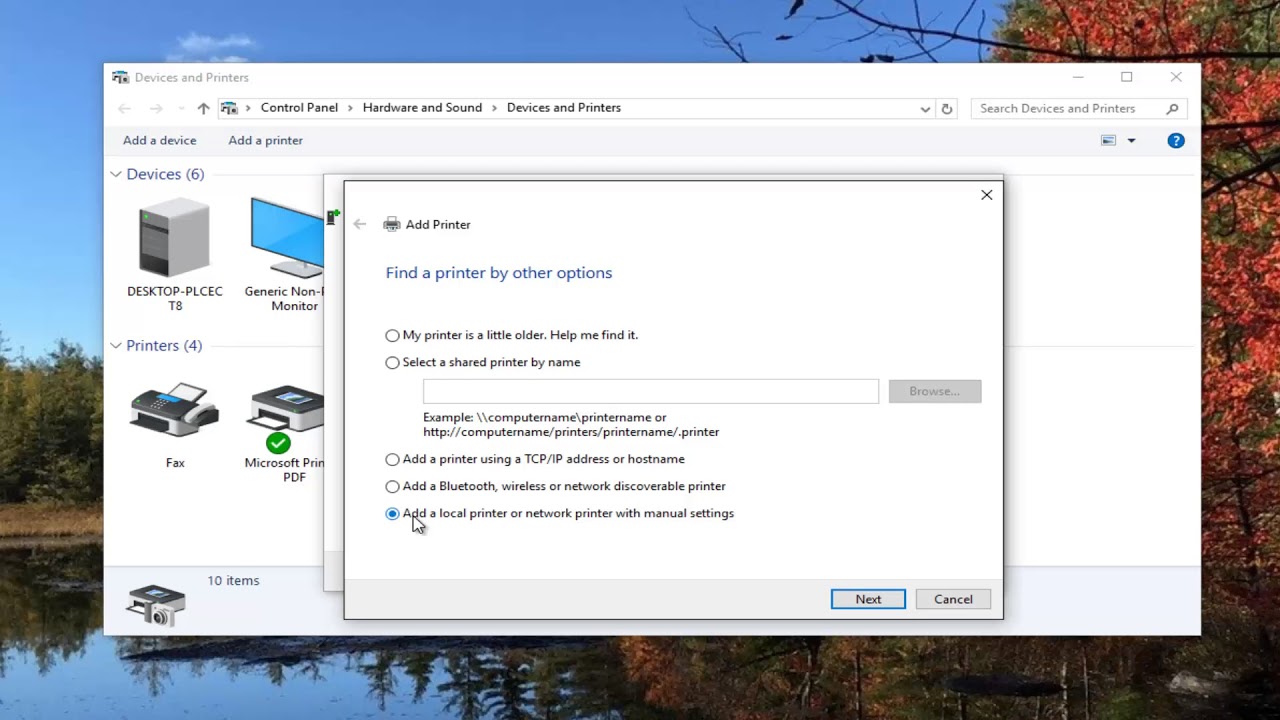
If your printer appears, click it, hit “Add device,” and let out a triumphant whoop. If it doesn’t appear, don’t throw your laptop out the window—yet. Instead, click “The printer that I want isn’t listed.” This opens a secret wizard menu that looks mildly threatening, but it’s actually your friend. Choose “Add using an IP address” if you know your printer’s network address (check its little screen), or pick “Add a Bluetooth, wireless or network discoverable printer” and cross your fingers.
Step 3: The USB Alternative (Old-School, Zero Drama)
If your Wi-Fi is being a diva, just grab the USB cable. Plug one end into the printer, the other into your Dell’s side port—that little rectangle that’s been waiting for this moment all day. Windows will usually do a happy dance and auto-install the drivers, but if it doesn’t, you’ll see a notification saying “Setting up device.” That’s not a question; it’s a threat.
Pro tip: If Windows asks you to download a driver from the internet, don’t click that sketchy banner ad that says “HP Printer Support 2024 – Free Fix.” That’s as legit as a three-dollar bill. Go to the manufacturer’s website (Dell, HP, Epson, etc.) and search for your exact model. Downloading the official driver is like feeding your printer gourmet food instead of dumpster scraps.
Step 4: The “I’ve Done Everything” Panic Button
Did you press all the buttons, waited 47 minutes, and still nothing? Here’s the trick that saves marriages: restart both devices. Turn off the printer, unplug it for 30 seconds, and restart your laptop. This is the tech equivalent of “have you tried turning it off and on again?”—but it works 80% of the time, every time, like a weird cologne ad.
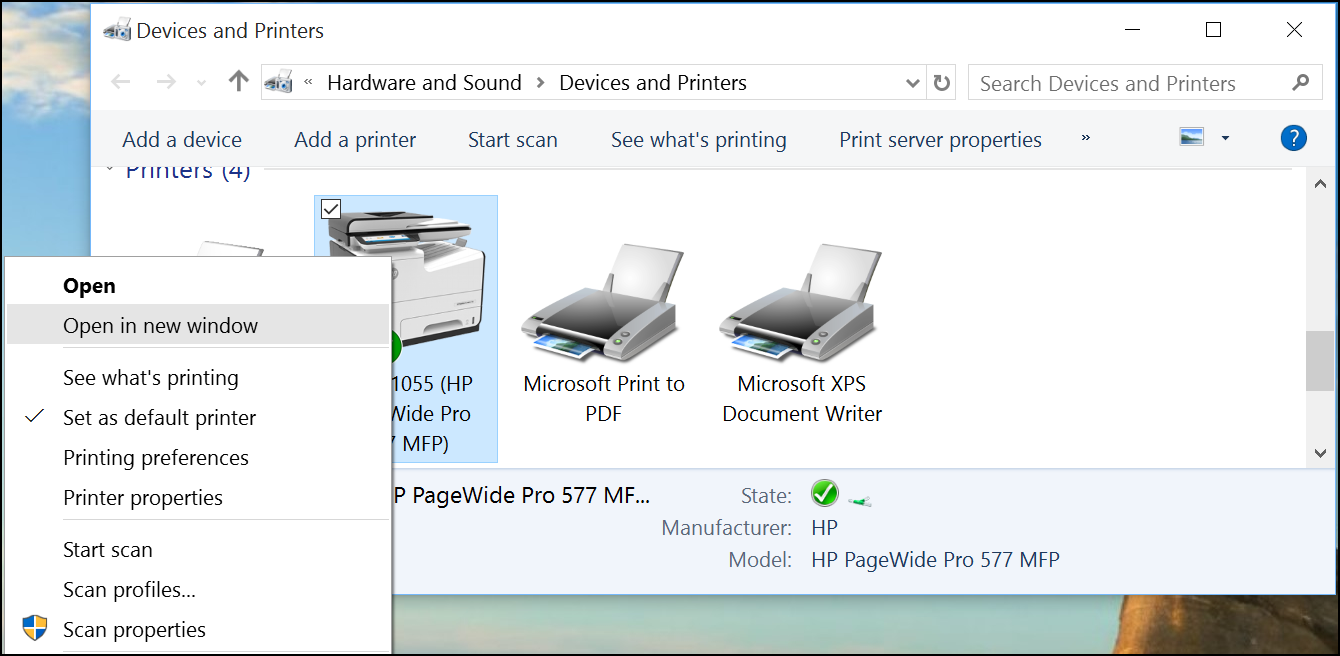
Still broken? Check if the printer is set as the default device. Go to Settings > Bluetooth & devices > Printers & scanners, click your printer, and hit “Set as default.” You’d be shocked how many people print to an invisible fax machine from 2005.
:max_bytes(150000):strip_icc()/004_how-to-connect-a-printer-to-a-laptop-4588717-5c8026acc9e77c0001fd5b15-9c7f943a1823461b9a02428ef1cced2d.jpg)
Step 5: The Test Print (Moment of Truth)
Now, print a test page. Click your printer, then “Print test page.” Watch the paper go in, hear the gears grind, and pray. When that page slides out with a crisp, glorious “This is a test page” text, you’ll feel a dopamine hit stronger than your morning coffee. But remember: printers are like pets—they love attention, hate being ignored, and will randomly jam just to remind you who’s boss.
So there you have it. You’re now certified in the ancient art of Printer-Fu. Go forth and print memes, recipes, and one-page novels about your cat. And if it all fails? Just call tech support, but warn them: you’ve got jokes and a laptop that’s seen things. Good luck, you magnificent paper-wrangler.