How To Add A Bot To My Discord Server
So, You Want a Robot Friend?
Let’s be honest. Your Discord server is probably a ghost town right now. Or worse, it’s just you and your buddy arguing about pizza toppings at 2 AM.
You need help. You need a bot—a little digital buddy that never sleeps, never complains, and never steals your snacks.
Adding one is easier than teaching your grandma to use a smartphone. Promise.
Must Read
Step One: Pick Your Poison
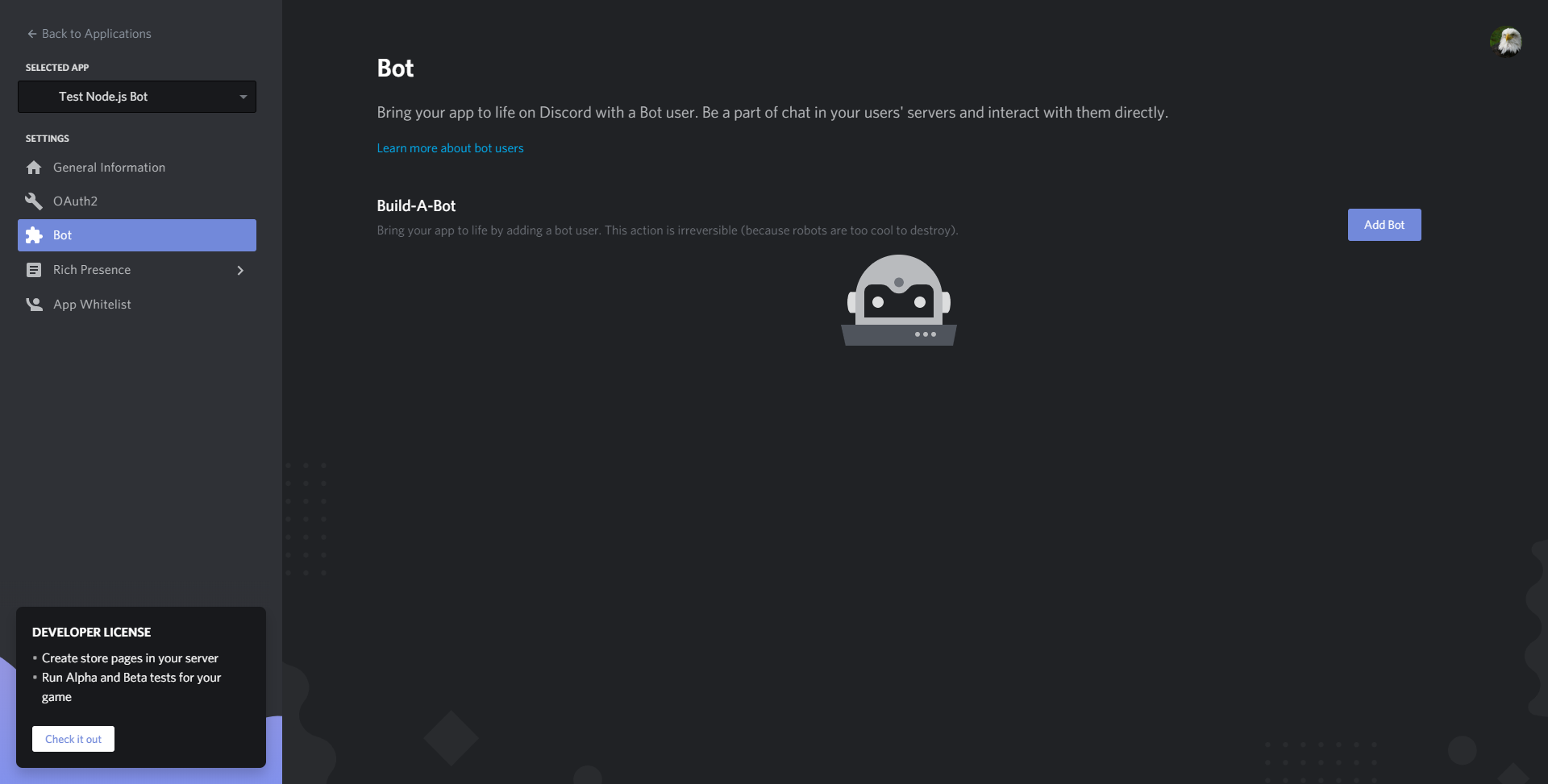
First, you must choose a bot. This is like picking a Pokémon, but with more menus.
Popular choices are MEE6 for leveling, Dyno for moderation, or Carl-bot for welcome messages. Or just pick one with a cute avatar. We don’t judge.
Go to its official website. Do not click the first link that says “FREE DISCORD NITRO BOT.” That’s a trap. You’re better than that.
Step Two: The “Invite” Button Is Your Friend
On the bot’s site, you’ll see a big shiny button that says “Invite” or “Add to Discord.” Click it. It won’t bite.

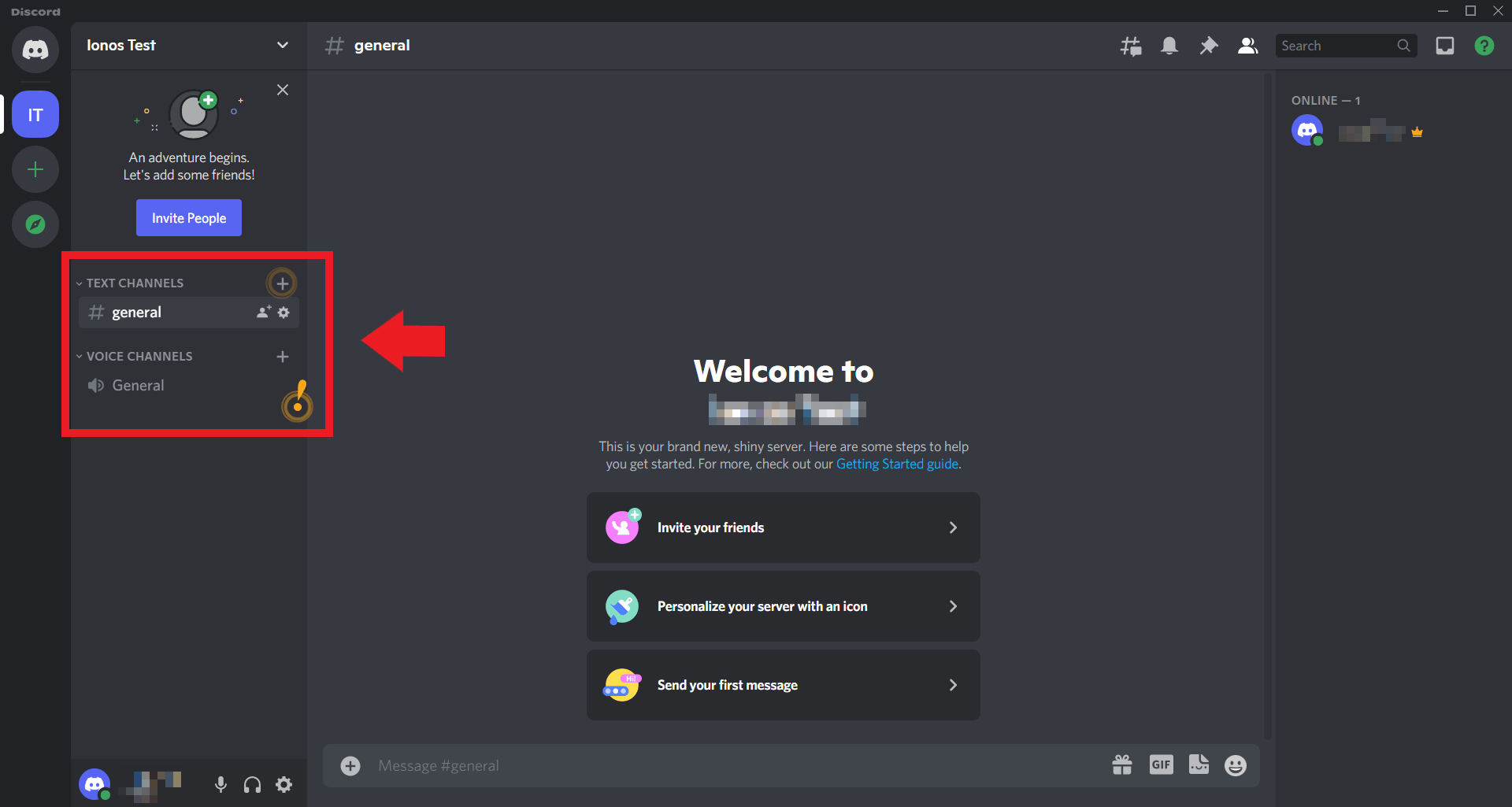
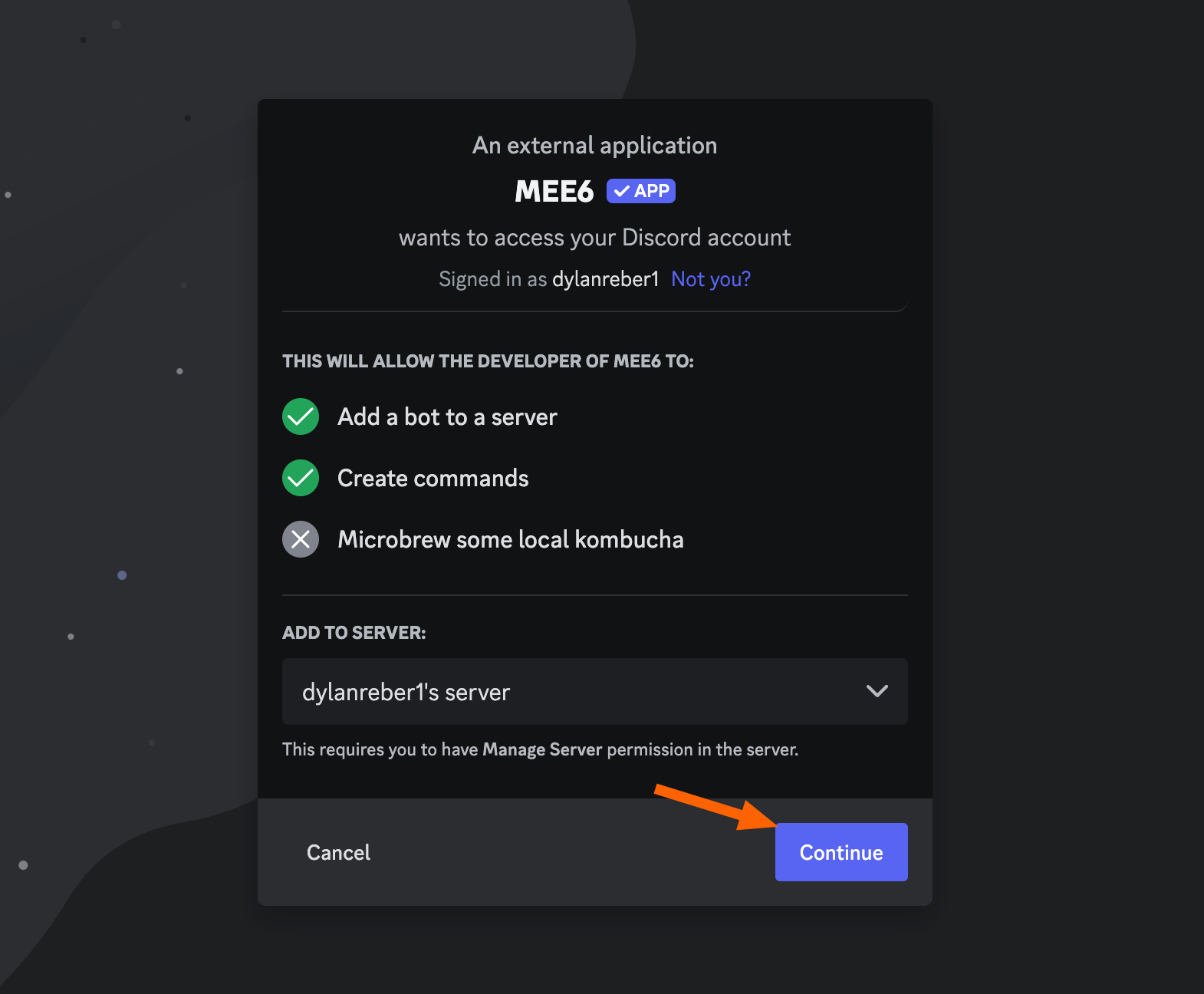
Discord will open a new page. It will ask you to pick a server from a dropdown list. This is where you select your own server—the one you made at 3 AM during a caffeine high.
If you don’t see your server, check if you’re logged in. And no, you can’t add a bot to a DM. That’s just weird.
Step Three: The Permission Dance
Now comes the scary part. Discord will show you a list of permissions. It looks like a legal contract, but it’s just checkboxes.
The bot asks for things like “Read Messages,” “Send Messages,” and sometimes “Ban Members.” Don’t panic. That’s normal.
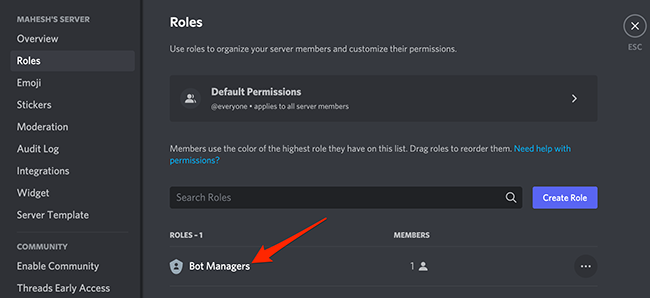
Here’s my unpopular opinion: Don’t give the bot admin. Seriously. You don’t need your music bot to delete your entire server because you mispronounced a song title.
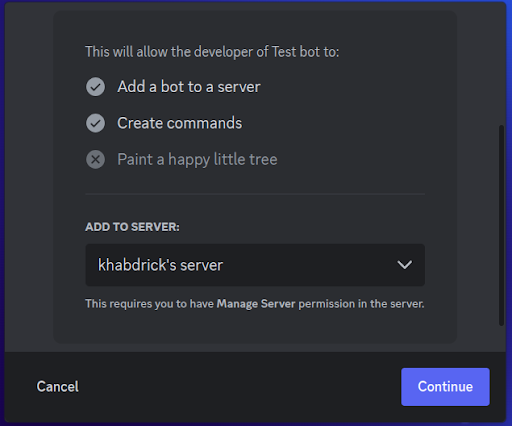
Give it only what it needs. If it’s a music bot, let it speak and connect. If it’s a mod bot, let it warn people. But admin? No, thank you.
Click “Authorize.” Go on. The bot won’t explode. Probably.
Step Four: The Captcha From Hell
Sometimes Discord shows you a tiny puzzle. It’s like “Select all images with a train.” Except the trains look like blurry potatoes.
Just click through it. Laugh at how bad the pictures are. Then move on.
You’re now the proud parent of a robot. Congratulations. You have more digital children than responsibilities.
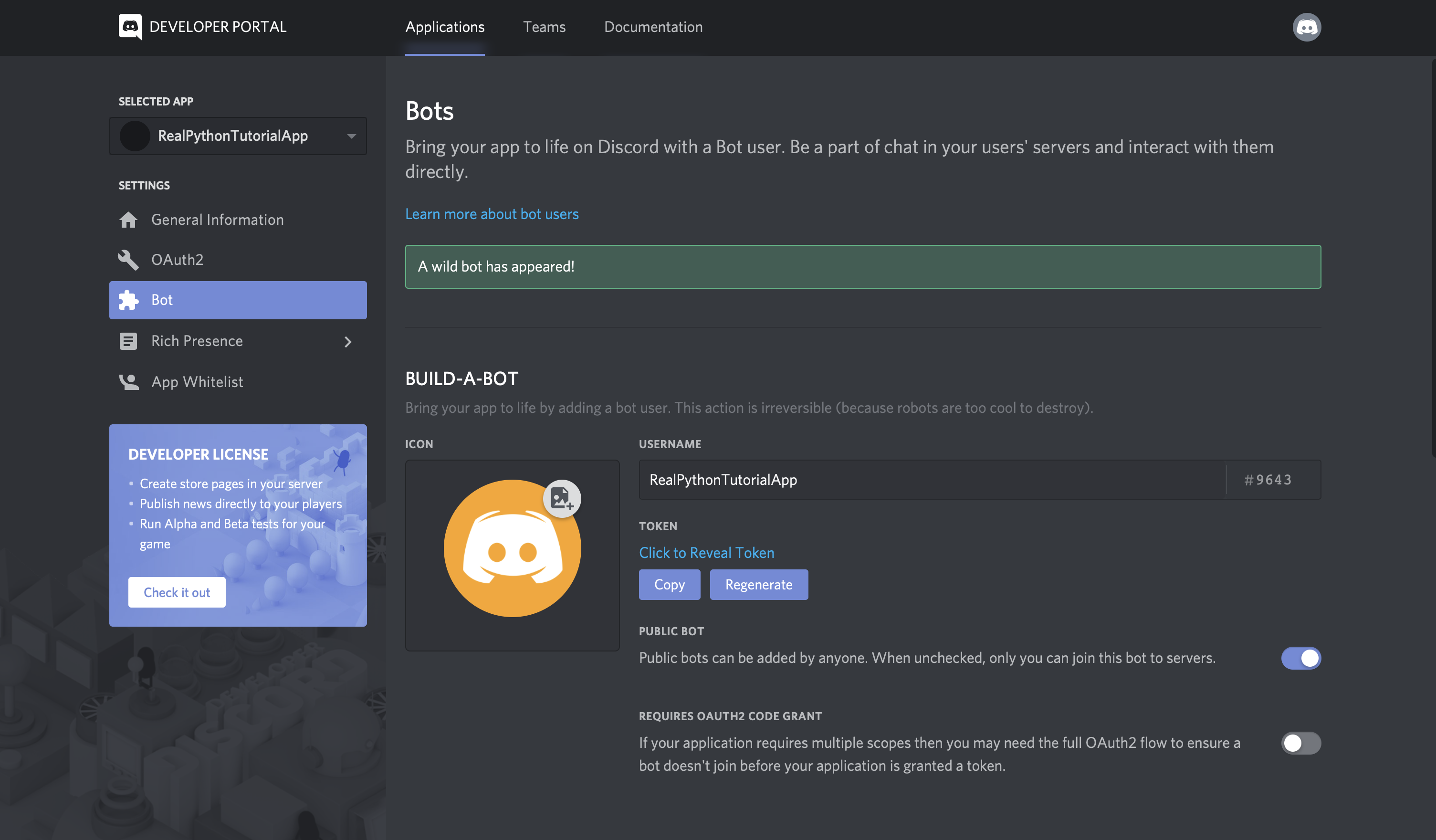
Step Five: Make It Behave
Your bot is in your server, but it’s not doing anything yet. That’s fine. It’s shy.
Type a simple command like “!help” or “/help” in your chat. The bot should reply with a list of its powers.
If it doesn’t reply, check if it’s online. If it’s offline, you picked a lazy bot. Try again with a different one.
Step Six: The “Oops” Button
What if you hate the bot? Or it keeps posting memes you don’t like? Easy.
Right-click the bot’s name in the member list. Select “Kick from Server.” Done. No hard feelings. It’s a machine.
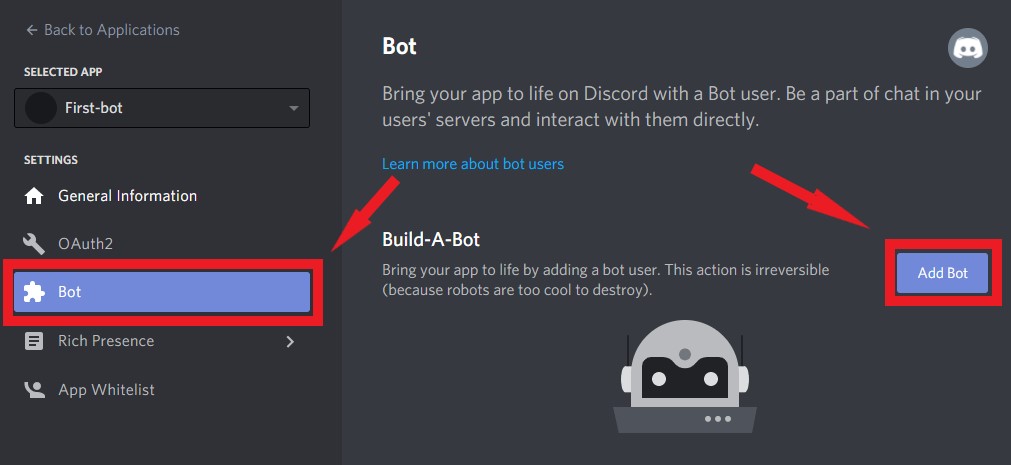
And if you want to add it back later? Just repeat the whole process. It’s like an on-again, off-again romance, but without the crying.
Why Bother at All?
Bots are like digital pets. They greet new members, play music, and even remind you to hydrate. One bot can turn your dead server into a lively party.
And honestly, having a bot is better than talking to humans. They don’t judge your spelling. They never say “lol” sarcastically.
So go ahead. Add a bot. Embrace the chaos. Your server will thank you—or at least, it won’t be so quiet.
And if your bot starts talking back? Unplug your computer. Run. That’s a different article.
![How to add bots to Discord [quick guide] | Zapier](https://images.ctfassets.net/lzny33ho1g45/4wBx4nPUPTAfr83LHuyRGs/5accfdf086284457588038496ae68e21/more_commands.png?w=1400)