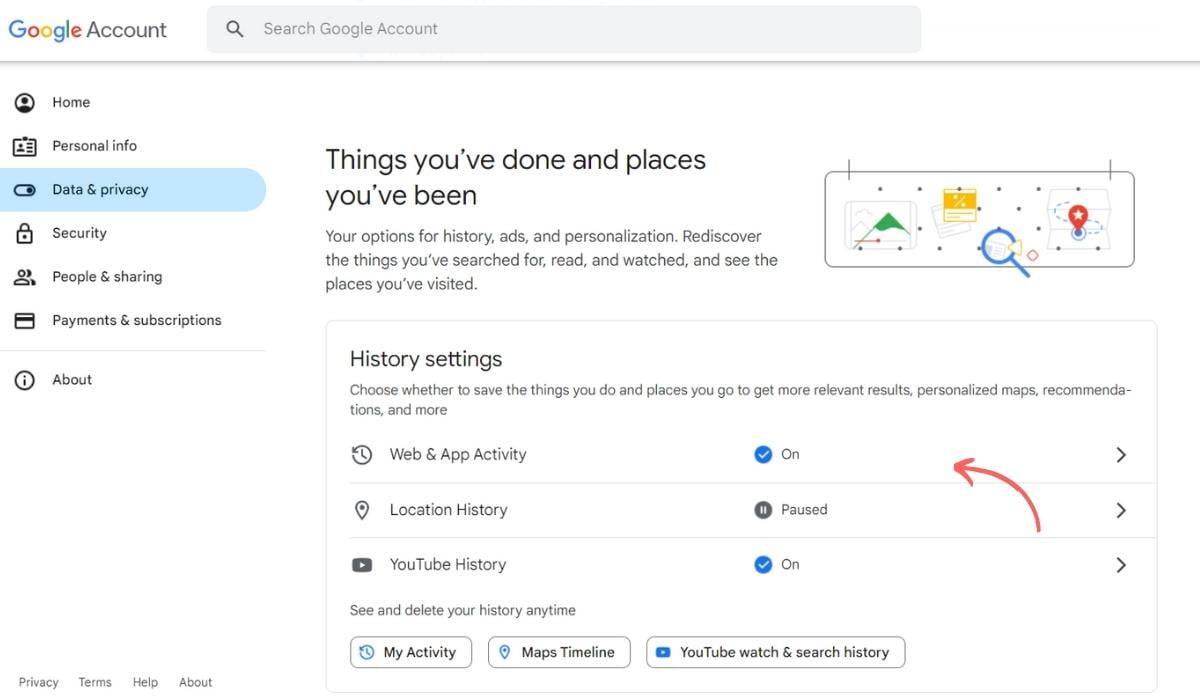
How Do You Delete Things On Google
Ever typed something into Google and wished the search engine would just forget it? We’ve all been there—whether it’s an embarrassing autocomplete suggestion or a search you regret from three years ago. The good news is that Google isn’t a magical all-knowing vault; it’s a tool you can actually manage. Learning how to delete your digital footprints is not just about privacy—it’s about taking back control of your online story.
Deleting things on Google isn’t a single button—it’s a small toolkit of options. The core purpose is simple: you can clear your search history, remove autocomplete predictions, or even delete specific queries from your account. This matters because your history shapes the ads you see, the recommendations you get, and sometimes the embarrassing suggestions that pop up when you’re sharing a screen. The benefit is a cleaner, more personalized—or more anonymous—browsing experience that puts you in the driver’s seat.
Think of a student researching a sensitive topic like mental health or a legal issue at a shared library computer. Without deleting the history, the next user might see those searches, which could be awkward or even harmful. In daily life, you might want to clear a search for a surprise birthday gift or a medical symptom before your partner borrows your phone. Even small things—like removing a misspelled autocomplete that keeps showing up—can make your everyday searches feel less cluttered and more yours.
Must Read
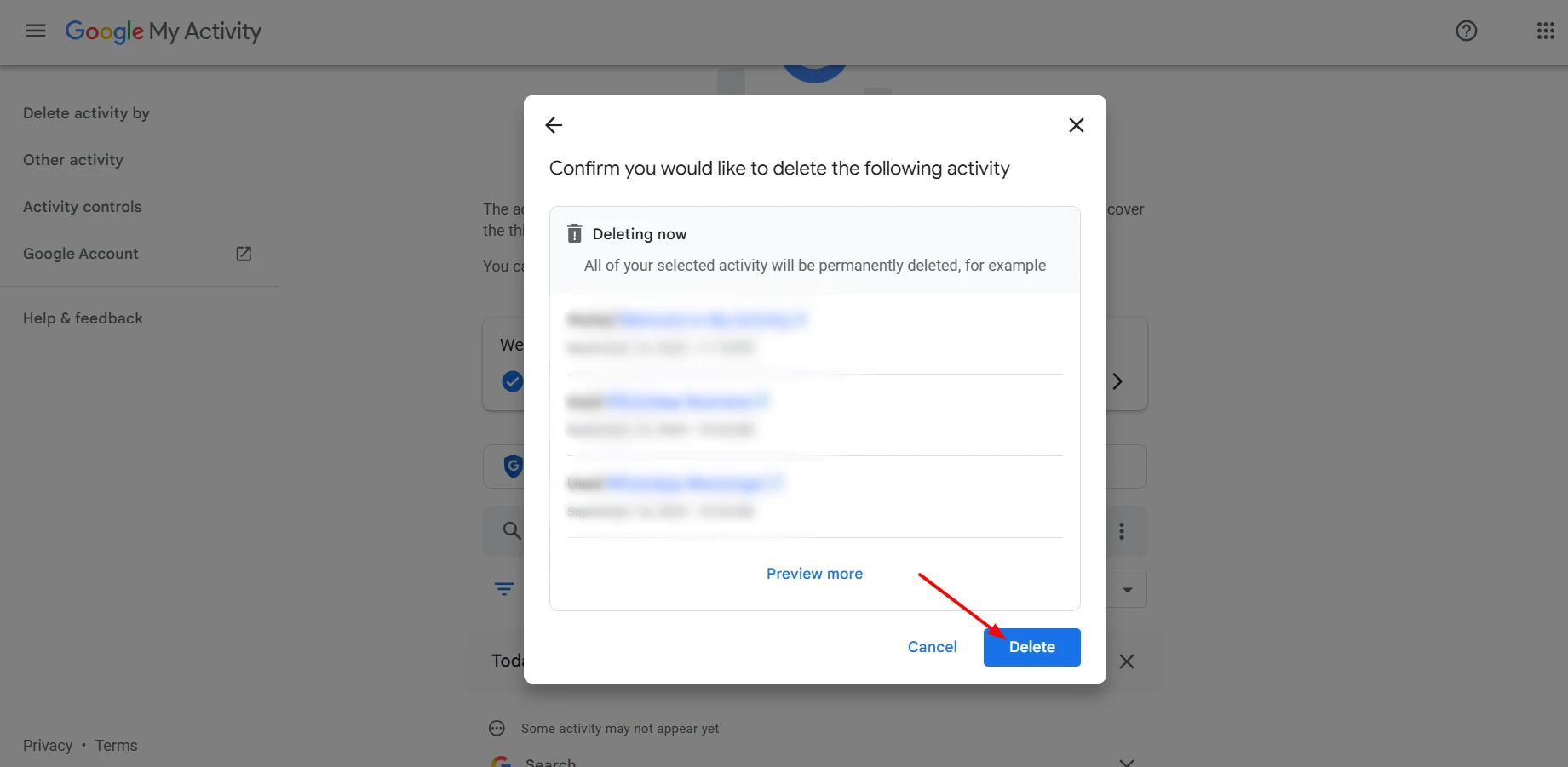
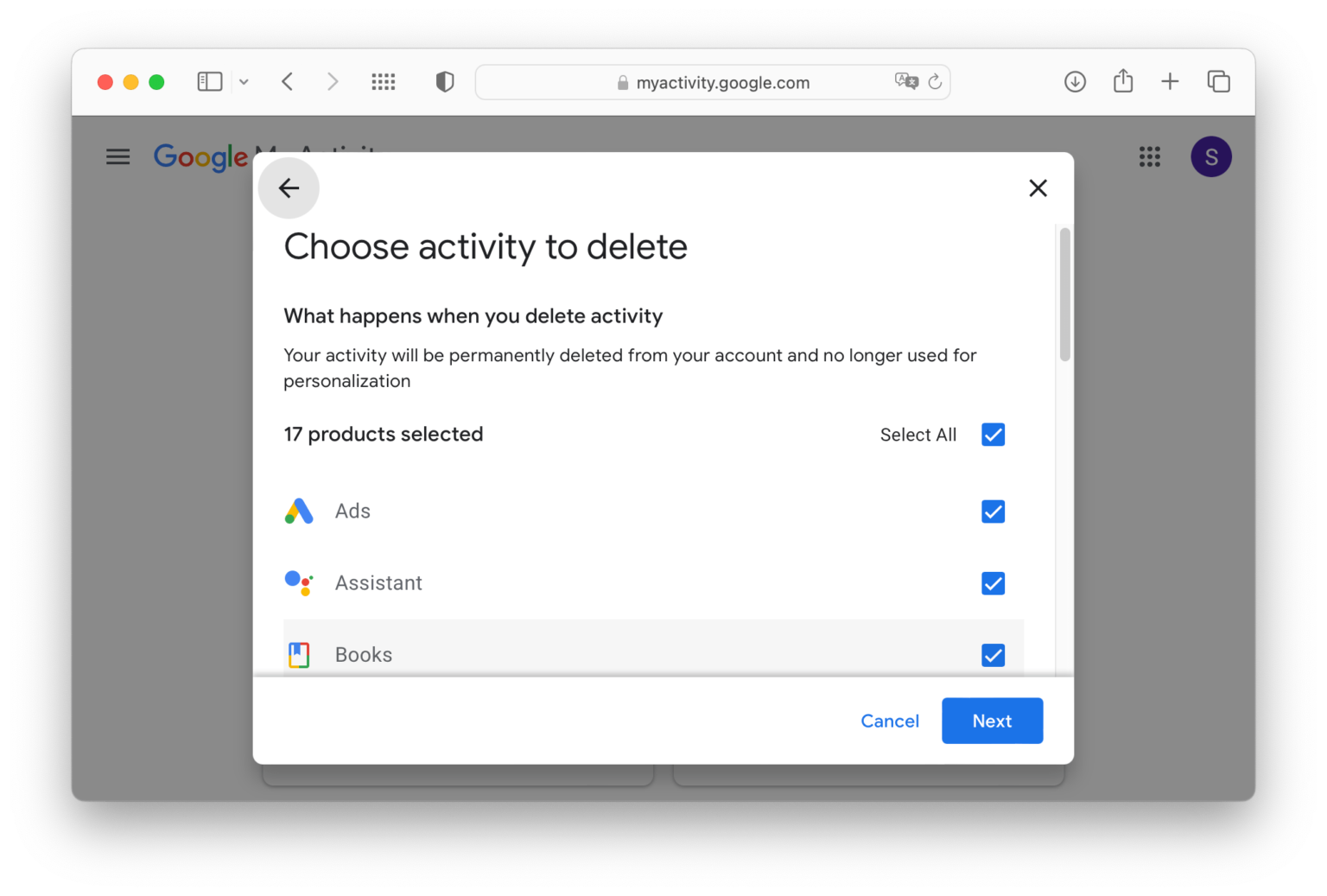
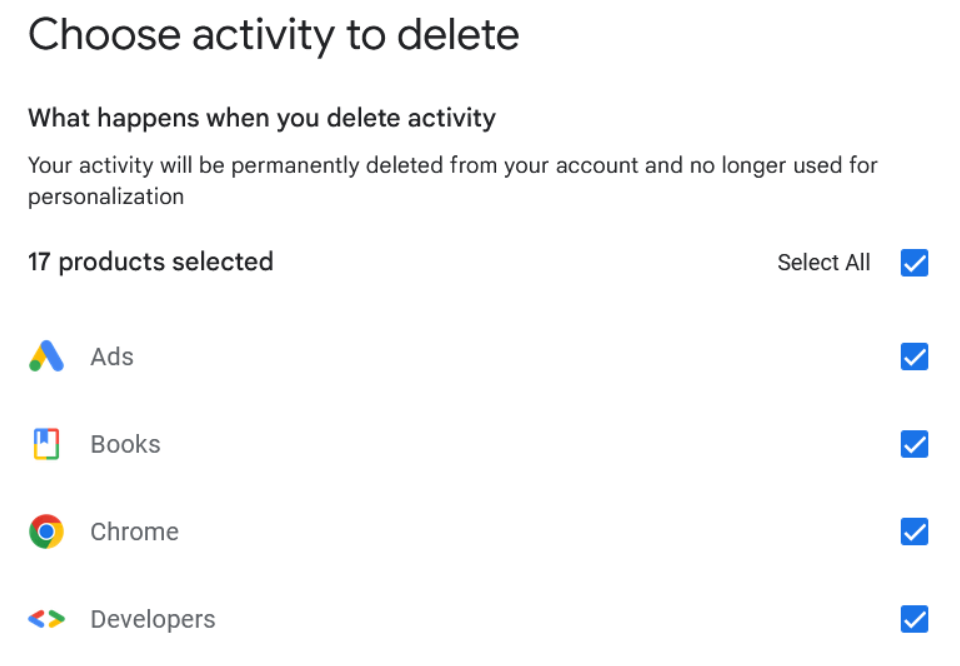
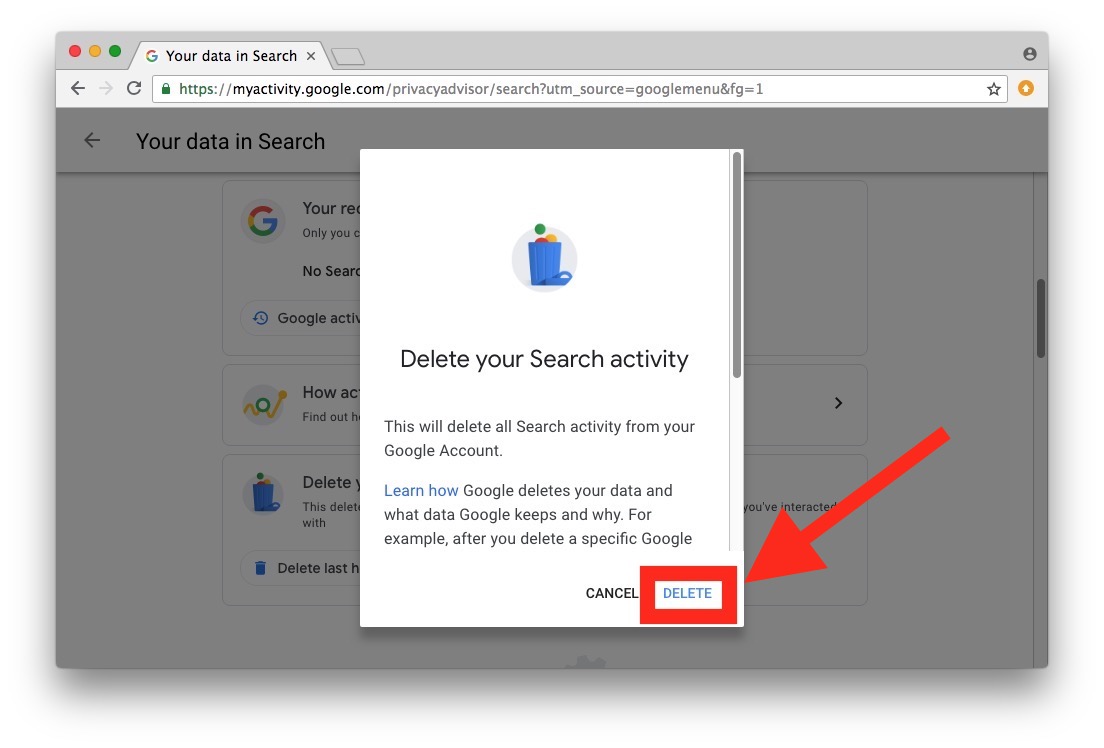
So, how do you actually start? The easiest way on a computer is to go to myactivity.google.com—that’s your control room. From there, you can click “Delete” on individual items or choose “Delete activity by” to wipe out everything from a specific date range. On your phone, open the Google app, tap your profile picture, then “Search history,” and you’ll see a trash icon to delete entries. Don’t forget the autocomplete trick: when you see a suggestion you dislike, hover over it and click the “X” that appears on the right—it’s like erasing a mistake from a whiteboard.
Another practical tip is to use Incognito Mode (or “Private Mode” in apps) for searches you’d rather not save at all. But remember, that only prevents this device from logging your history—it doesn’t hide your activity from your internet provider or the sites you visit. For deeper cleanup, you can also use Google’s “Auto-delete” feature, which lets you set a timer to automatically purge your history after 3, 6, or 18 months. That’s a brilliant “set it and forget it” approach for busy people.
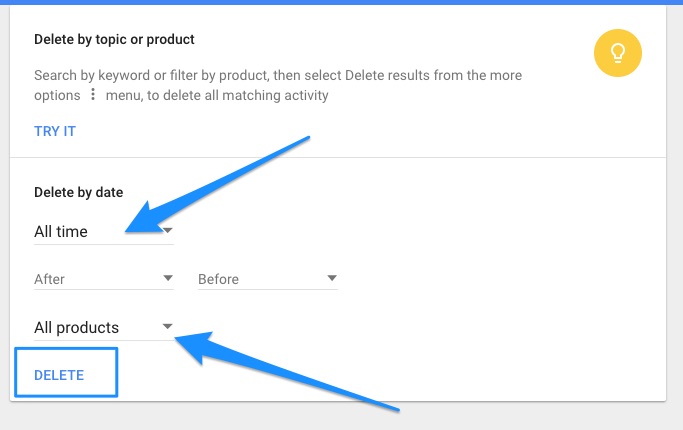
Once you start experimenting, you’ll notice how refreshing it feels to have a tidy search history. Try deleting just one week’s worth of queries today and then check your autocomplete the next morning—it’s oddly satisfying. You can also explore the “Other Google activity” section to clear your YouTube watch history or your location timeline, which is great for privacy nerds. Just remember: deleting your history does not delete your account or your emails—it only removes the log of what you’ve searched. So don’t be scared; click around and see what happens. The worst that can occur is a blank search bar, and that’s just a new beginning.
Finally, make this a small habit, not a big chore. Once a week, spend thirty seconds clearing out anything you don’t want to linger. It’s like tidying up your digital desk—quick, calming, and it keeps your online self truly yours. Go ahead and try it right now. Your future self, and your future search suggestions, will thank you.