How Do I Send A Video Through Gmail
Your Video, Their Inbox: The Great Gmail Adventure
So, you’ve got a hilarious birthday clip or a breathtaking vacation video, and you’re staring at Gmail’s compose button. You think, “Can I just slap this file in and hit send?” Oh, you sweet summer child. That’s where the fun begins, because Gmail has a 25 MB limit, and videos are usually the size of a small elephant.
Don’t panic. Sending a video through Gmail isn’t a techy chore; it’s a mini-puzzle with a few clever tricks. You’re not just sending a file—you’re becoming a digital courier, dodging download limits and choosing the perfect delivery method. It’s like deciding between sending a postcard or renting a delivery truck.
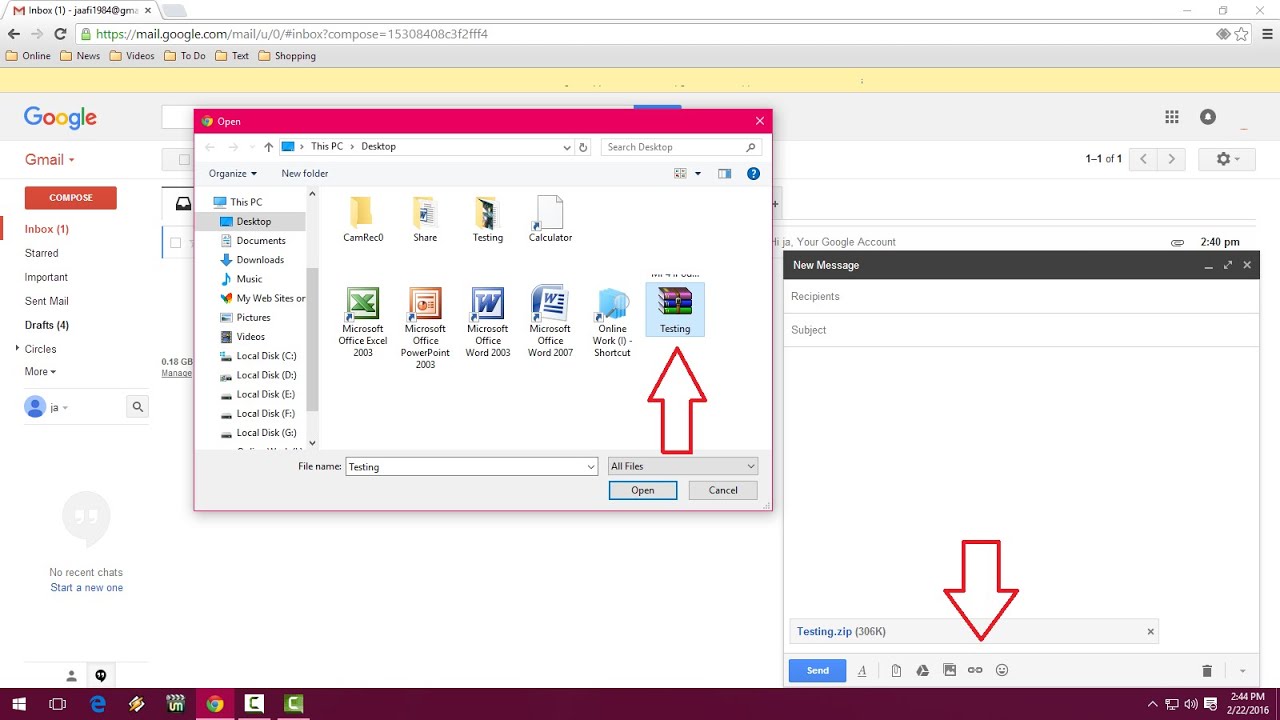
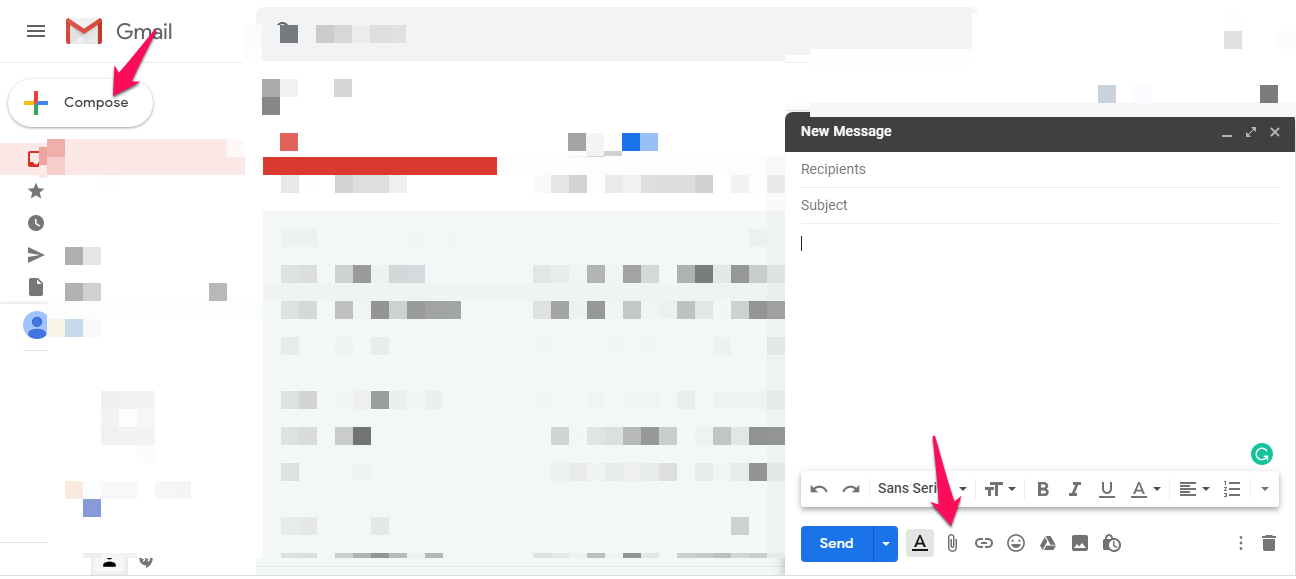
Let’s start with the easiest scenario: your video is smaller than a potato. If it’s under 25 MB, you simply attach it like any other file. Click the paperclip, find your clip, and watch it upload while you sip your coffee. That’s it—no drama, no wizardry, just pure, simple victory.
Must Read
When Your Video Is a Chunky Monster
But what if your video is a whopping 500 MB? That’s not a file; that’s a movie premiere. Here’s the secret: Gmail will kindly notice the size and offer to upload it to Google Drive instead. You click “Yes, please,” and Gmail does the heavy lifting for you.
It’s like handing your video to a super-efficient postal worker who flies it to a cloud for safekeeping. Then Gmail creates a link, and you just type your message and press send. Your recipient clicks the link, and boom—they’re watching your masterpiece in the cloud, no giant attachment clogging their inbox.

You get to choose how much access they have too. You can make it anyone with the link can view, which is perfect for sharing with your grandma who’s not tech-savvy. Or you can restrict it to specific people, turning your video into a VIP-only event.
Why This Is Secretly Entertaining
Here’s the kicker: this whole process is a little game of send-and-behold. You watch the upload bar creep forward, then you see Gmail’s little “Uploading to Drive…” message appear with a mini progress circle. It’s oddly satisfying, like watching popcorn pop in slow motion.

And the best part? You don’t have to compress, resize, or sacrifice quality. No more sending a pixelated mess that looks like a 1990s webcam feed. You keep your crisp, glorious 4K footage, and Gmail handles the rest. You become the hero who sends gorgeous videos without a single “file too large” error.
Plus, you can follow up with a cheeky text: “Check your inbox! It’s a drive link, not a file—so don’t click the play button if your Wi-Fi is slow.” That little warning makes you feel like a tech wizard, even if you’re just clicking buttons.
What If They Want the Actual File?
Sometimes, your friend wants to download the video to their phone, not just stream it. In that case, you can still use the Google Drive trick, but make sure you set the sharing to “Viewer” so they can grab it. Or, you can send it via a file-sharing service like WeTransfer or Dropbox first, then paste that link into Gmail.

That’s the pro move: create a link, paste it into your email, and write something funny like “Here’s the chaotic footage from last night. Enjoy!” It keeps your Gmail clean and gives them a permanent copy. There are no messy attachments, no bouncing emails, just a clean, shareable link.
And if you’re feeling extra lazy, you can even record a quick video using Google Meet and send a recap link, but that’s a different rabbit hole. For now, just know that your video will not be lost—it just takes a detour through the clouds.

The Final Send: Your Moment of Glory
Once you’ve hit that blue “Send” button, take a deep breath. You’ve successfully navigated Gmail’s size limits, chose a clever cloud workaround, and delivered joy to someone’s digital hands. It’s not just an email; it’s a thoughtful package with a bow on top.
So next time you have a video that’s too big, don’t sweat it. Just remember: Gmail is your friend, Google Drive is your backup dancer, and the link is your golden ticket. You’re not sending an attachment—you’re sending an experience, and that’s way more fun.
“Turns out, sending a video is less about the file and more about the creativity. And honestly, that’s a pretty great trick to have up your sleeve.”
Now go find that ridiculous clip of your dog chasing its tail. Attach it, let Gmail work its magic, and send it off with a cheerful “You’re welcome.” Your recipient will laugh, you’ll feel like a champion, and the world gets a little more connected—one cloud-based video at a time.