How Do I Reset My Simplisafe Keypad

Last Tuesday, I stood in my pajamas, staring at my SimpliSafe keypad like it had personally insulted my coffee. The screen was frozen on a dim, unresponsive “OFF” while my cat yowled from the hallway, clearly judging my life choices. I pressed every button in a desperate, rhythmic dance—nothing. Not even a beep of sympathy.
That’s when I realized: this little plastic brick had become the gatekeeper of my sanity. And honestly? You’ve probably been there too, right? That moment when your home security system decides to take a nap mid-week, and you’re left feeling like a tech caveman trying to start a fire with wet sticks.
But here’s the good news: resetting a SimpliSafe keypad is way less painful than you think. No, you don’t need a degree in electrical engineering, and no, you don’t have to call that grumpy customer service line at 2 AM. Let’s walk through it together, step by step, without the jargon.
Must Read
The “Why” Before the “How”
First, let’s talk about why your keypad might be acting like a moody teenager. Common culprits include dead batteries, a temporary Wi-Fi hiccup, or just a glitch in the matrix—yes, that’s a legit technical term. Sometimes, the keypad just needs a quick kick (metaphorically, please don’t literally kick it) to re-sync with the base station.
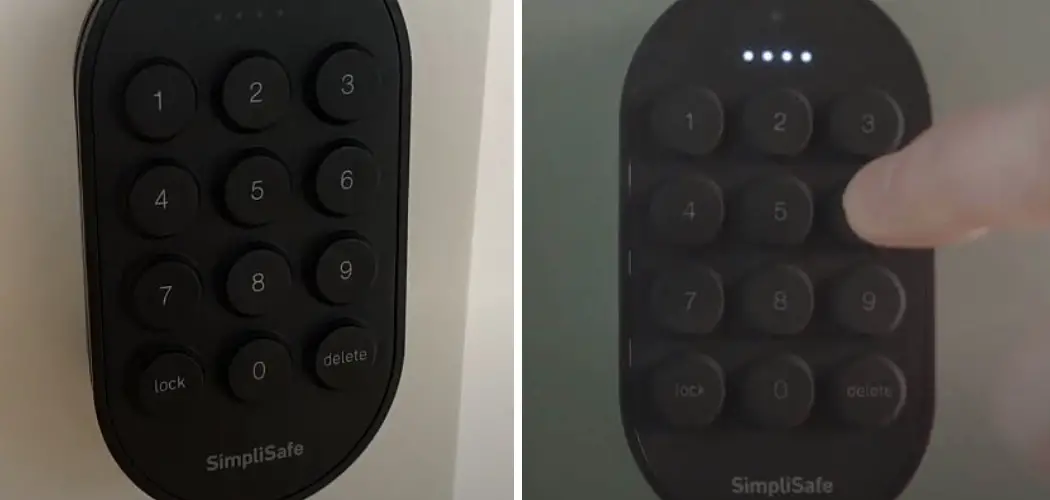
If the screen is totally black or showing a stuck icon, your first move is to check the power. SimpliSafe keypads run on either AA batteries or a wall adapter, depending on your model. If you see a low battery warning, swap those out first—trust me, this solves 80% of my personal tech rage.
But what if the keypad is powered and still unresponsive? That’s when we bring out the big guns: the factory reset. Don’t panic—this doesn’t wipe your entire system settings. It just reboots the keypad’s brain, like a mini nap for your security setup.

Step 1: The Classic Unplug and Plug
Okay, let’s start with the simplest trick that works more often than I’d like to admit. If your keypad is wired, unplug it from the wall. If it’s battery-operated, just pop the batteries out. Wait about 30 seconds—yes, actually count, don’t just rush back—then plug it back in or reinsert the batteries.
Watch the screen. It should light up, show the SimpliSafe logo, and then prompt you to enter your PIN. If that happens, you’re golden. Give yourself a pat on the back; you just fixed it without a single curse word (mostly).
But if it’s still staring back at you with that blank, dead-eyed look, we move to Level 2. And no, this isn’t a video game—but yes, you should feel a tiny bit of adrenaline.
Step 2: The Hard Reset (The “Hold Your Breath” Move)
Grab a paperclip or a pin—anything thin and pointy that won’t damage the little hole. Look at the back or side of your keypad; you’ll see a tiny, recessed reset button. It’s shy, so you might need a flashlight to find it. (I lost mine behind a couch cushion once—don’t be me.)
Press and hold that button for about 10 to 15 seconds. You’ll probably hear a soft beep or see the screen flash. Keep holding until the display goes completely dark, then release. This forces the keypad to restart from scratch, clearing any temporary glitches.
Now, wait for the reboot. It might take a minute or two, so go grab a snack or pretend to water a plant. When it comes back, you’ll likely see a “Setup” or “Pairing” mode. That’s normal—it’s just looking for your base station like a lost puppy.

What If It Still Won’t Pair?
Ah, the plot twist. If your keypad reboots but refuses to reconnect to the base station, you’re not stuck forever. First, check that your base station is powered on and not in some weird offline limbo. A quick reboot of the base station (unplug, wait 30 seconds, plug back) often does the trick.
Then, on the keypad, you’ll need to enter your system’s master PIN when prompted. If you forgot that PIN—hey, it happens—check your SimpliSafe app or any initial setup paperwork. No luck? You might have to do a full system reset from the base station, but that’s a last resort for another day’s anxiety.
For the brave souls: if nothing works after 15 minutes, just call SimpliSafe support. They’re surprisingly helpful, and they won’t judge you for the cat sitting on your keypad. (Mine did, but that’s a separate story.)
My Unfiltered Final Thoughts
Look, technology is great until it isn’t—and then it’s just a expensive paperweight with buttons. But the keypad reset is genuinely one of those “did I really just fix that with a paperclip?” moments. You’ll feel like a hacker from a 90s movie, minus the dramatic sunglasses.
So, next time your SimpliSafe keypad freezes, take a breath. Remember that it’s not plotting against you—it’s just a bit tired. Give it a little reset, a little patience, and a little “you’re fine, buddy” reassurance. Then go back to your coffee, your cat, and your gloriously secure home.
And hey, if you ever get stuck again, just re-read this. I’ll be here, metaphorically holding your hand, but not physically—that would be weird.