How Do I Combine Several Pictures Into One

I still remember the day I tried to create a photomontage for my best friend's birthday. I had a bunch of funny pictures of us from our crazy college days, and I wanted to combine them into one epic image. Little did I know, it would become a frustrating adventure that would test my patience and editing skills.
As I sat in front of my computer, staring at the Photoshop interface, I realized I had no idea where to start. I mean, how do you take multiple pictures and merge them into one seamless image? It sounds easy, but trust me, it's not as simple as it sounds. You'll need to know some basic editing skills and have a bit of creativity to make it work.
Why Combine Pictures?
So, why would you want to combine pictures in the first place? Well, my friend, it's a great way to tell a story or convey a message that one single image can't. By merging multiple pictures, you can create a visual narrative that's more engaging and interesting than a single photo. Plus, it's a fantastic way to preserve memories and create a unique piece of art.
Must Read
For instance, imagine you're a travel blogger and you want to showcase your amazing trip to Europe. By combining pictures of different landmarks, food, and cultural experiences, you can create a single image that captures the essence of your journey. It's a great way to share your adventures with others and inspire them to explore new places.
Choosing the Right Tool
Now, when it comes to combining pictures, you'll need to choose the right tool for the job. There are many photo editing software options available, ranging from beginner-friendly apps like Canva to more advanced programs like Adobe Photoshop. Each tool has its own unique features and capabilities, so it's essential to choose the one that suits your needs and skill level.
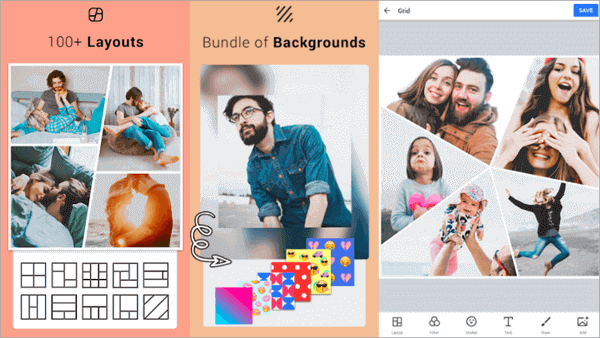
As a beginner, I started with Canva, which is an amazing platform for non-designers like me. It offers a wide range of templates and design elements that make it easy to create stunning visuals. Plus, it's super
On the other hand, if you're more advanced, you might prefer Adobe Photoshop, which offers more advanced features and customization options. It's a powerful tool that can help you create professional-looking images, but it does require some practice and patience to master.
Basic Editing Skills
Once you've chosen your tool, it's time to learn some basic editing skills. This includes understanding how to resize and crop images, as well as how to adjust brightness, contrast, and color balance. Don't worry, these skills are easy to learn, and you can find plenty of tutorials and online resources to help you get started.

For example, when combining pictures, you'll need to ensure that the lighting and color tone are consistent across all images. This can be a bit challenging, but with practice, you'll get the hang of it. Just remember, the key is to experiment and have fun with the process.
As you become more confident in your editing skills, you can start to experiment with more advanced techniques, such as layering and masking. These techniques can help you create complex and detailed images that will take your photomontage to the next level.
Tips and Tricks
So, what are some tips and tricks for combining pictures like a pro? Well, first of all, make sure you plan ahead and have a clear idea of what you want to create. This will help you save time and avoid frustration in the long run. Also, don't be afraid to experiment and try new things – it's all part of the creative process!
Another tip is to use a consistent theme or style throughout your images. This will help create a cohesive look and make your photomontage more visually appealing. And, of course, don't forget to save your work regularly – you never know when you might need to go back and make changes.
Finally, remember that practice makes perfect, so don't be discouraged if your first attempts at combining pictures don't turn out as expected. Keep trying, and you'll eventually develop the skills and confidence you need to create stunning photomontages that will impress your friends and family.