How Can You Search An Image On Google
Last Tuesday, I was in the middle of a full-blown panic. My friend swore she saw a specific, neon-pink, inflatable flamingo pool float at a garage sale, but she couldn’t remember the brand. All she had was a blurry photo of it half-hidden behind a stack of old VHS tapes.
Instead of describing it with words—which, let’s be honest, would have taken eleven increasingly dramatic text messages—I did the only logical thing. I opened Google, clicked the camera icon, and uploaded her terrible photo. Within seconds, I had the exact product, three online stores selling it, and a coupon code.
That’s the magic we’re talking about today. You don’t need to be a tech wizard to reverse-search an image; you just need to know where to click. And trust me, if I can do it while half-asleep and mildly caffeinated, you absolutely can too.
Must Read
The “Wait, You Can Do That?” Moment
Most people still type words into the search bar, which is so 2010, right? Google has been quietly letting you search by image for years, and it’s honestly the most underrated party trick of the internet. You can find the original source of a meme, identify a random plant, or check if that “rare” vintage jacket is actually a knock-off.
Here’s the kicker: it works both ways. You can upload a picture from your phone, or you can just paste a URL if you found the image on a website. The goal is the same—Google looks at the pixels, not the words, to find matches.

Why does this matter? Because it turns you from a passive consumer into a digital detective. You’re no longer asking, “What is this?”; you’re asking, “Where did this come from, and who else is using it?”
Method One: The Classic Upload (For the Faint of Heart)
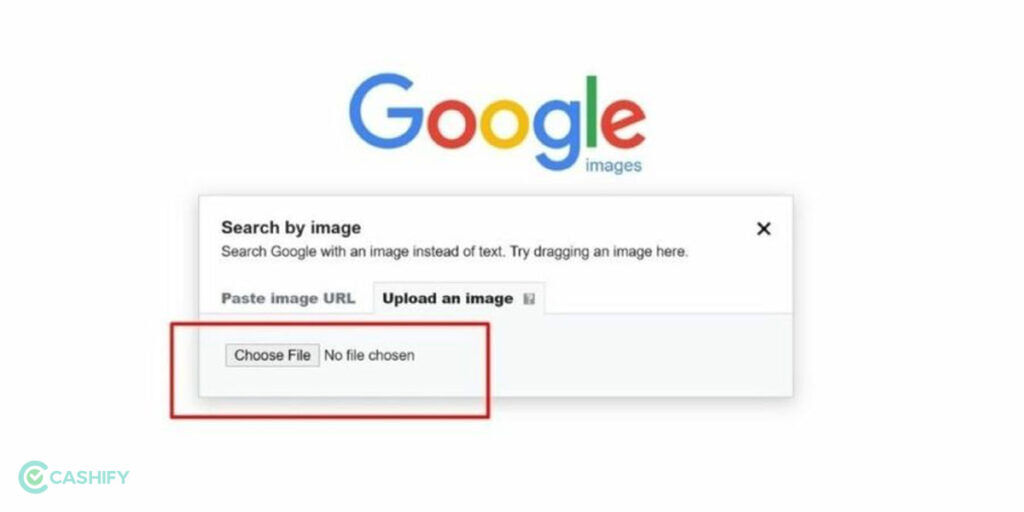
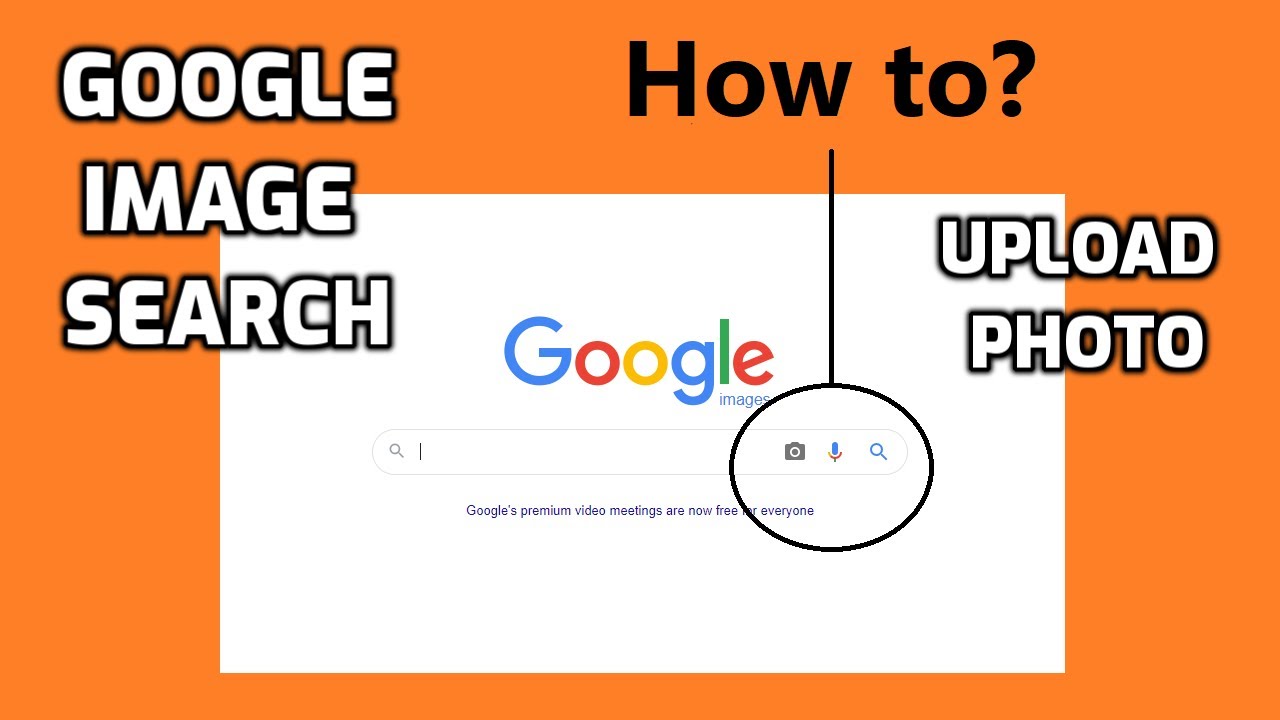
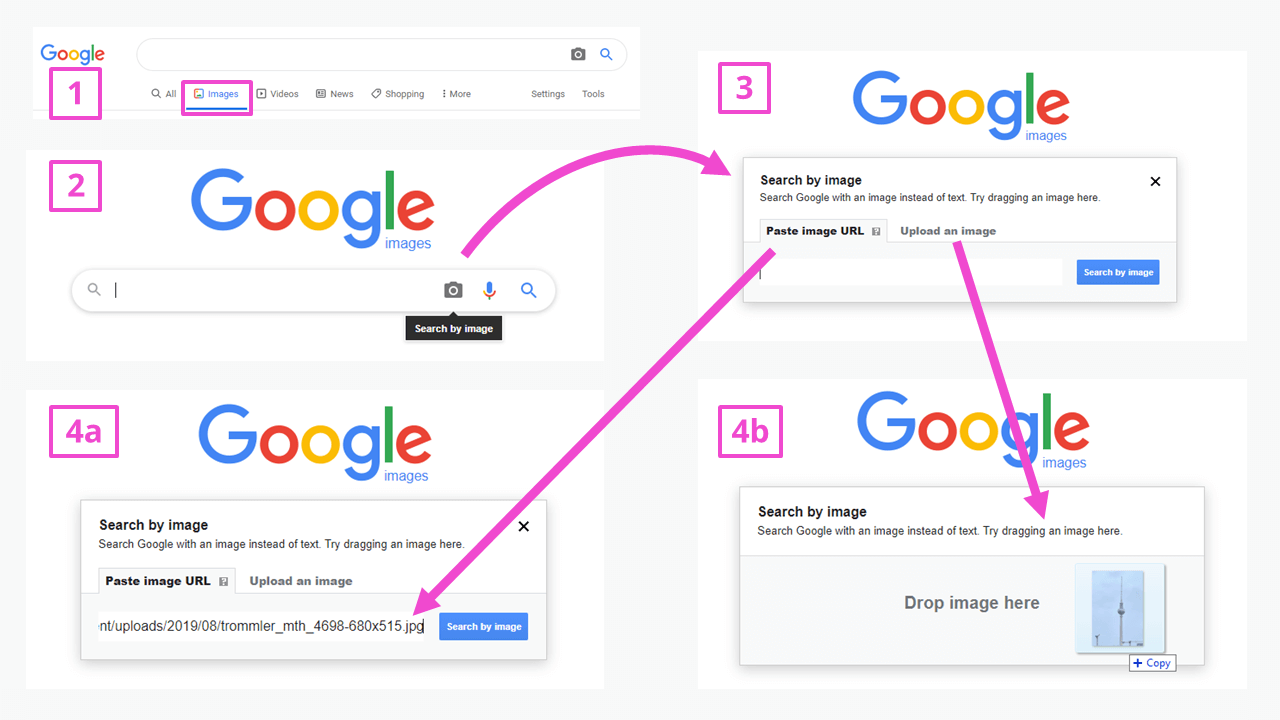
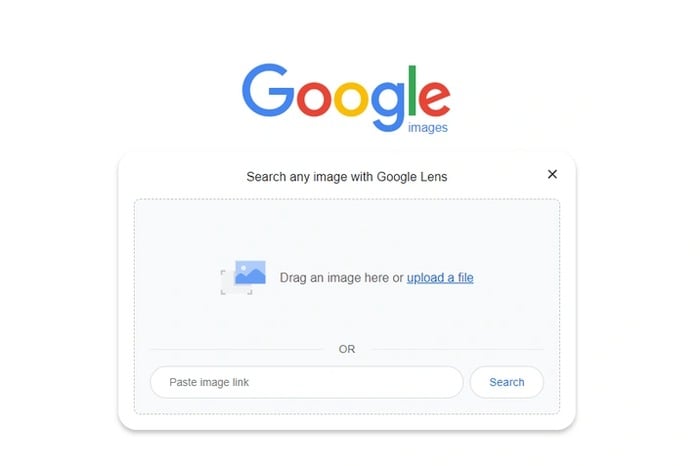
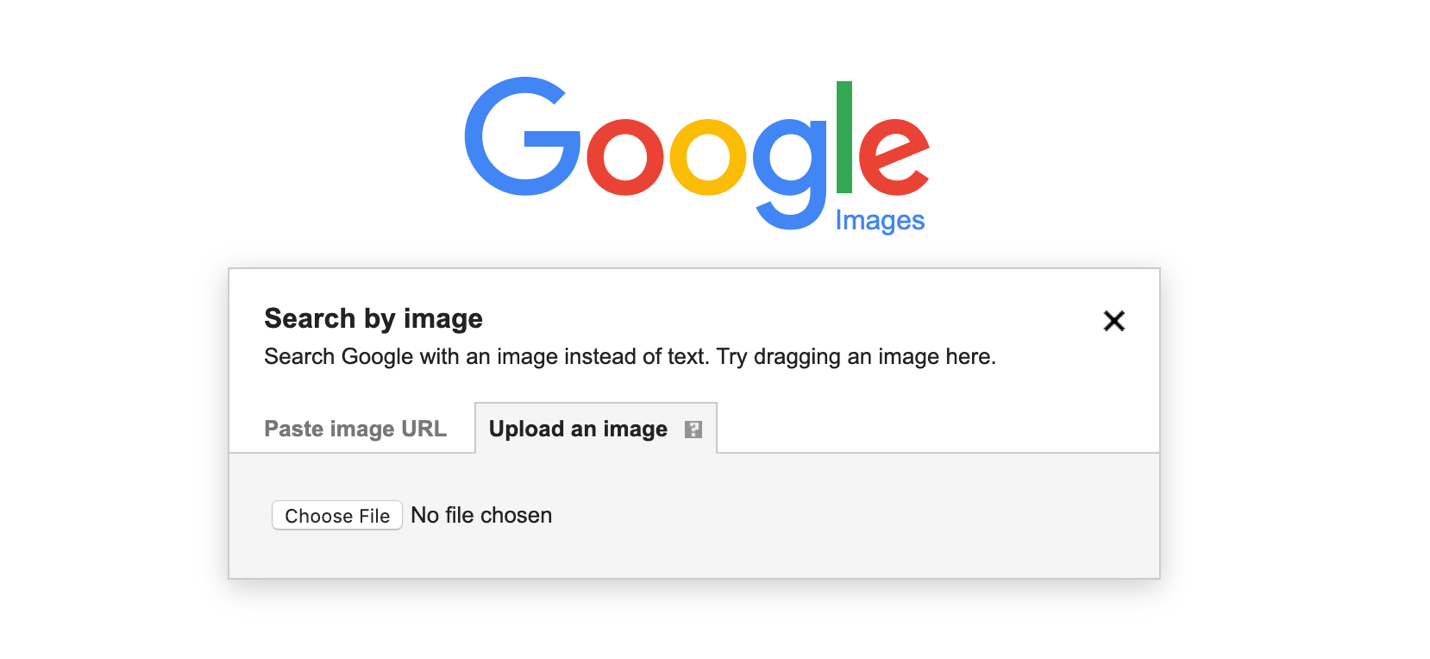
This is the most straightforward way, and it’s perfect for when you have the image saved on your device. Head to images.google.com—not the regular Google, but the image-specific one. You’ll see a tiny camera icon in the search bar, usually on the right side. Click it, and a little box pops up.
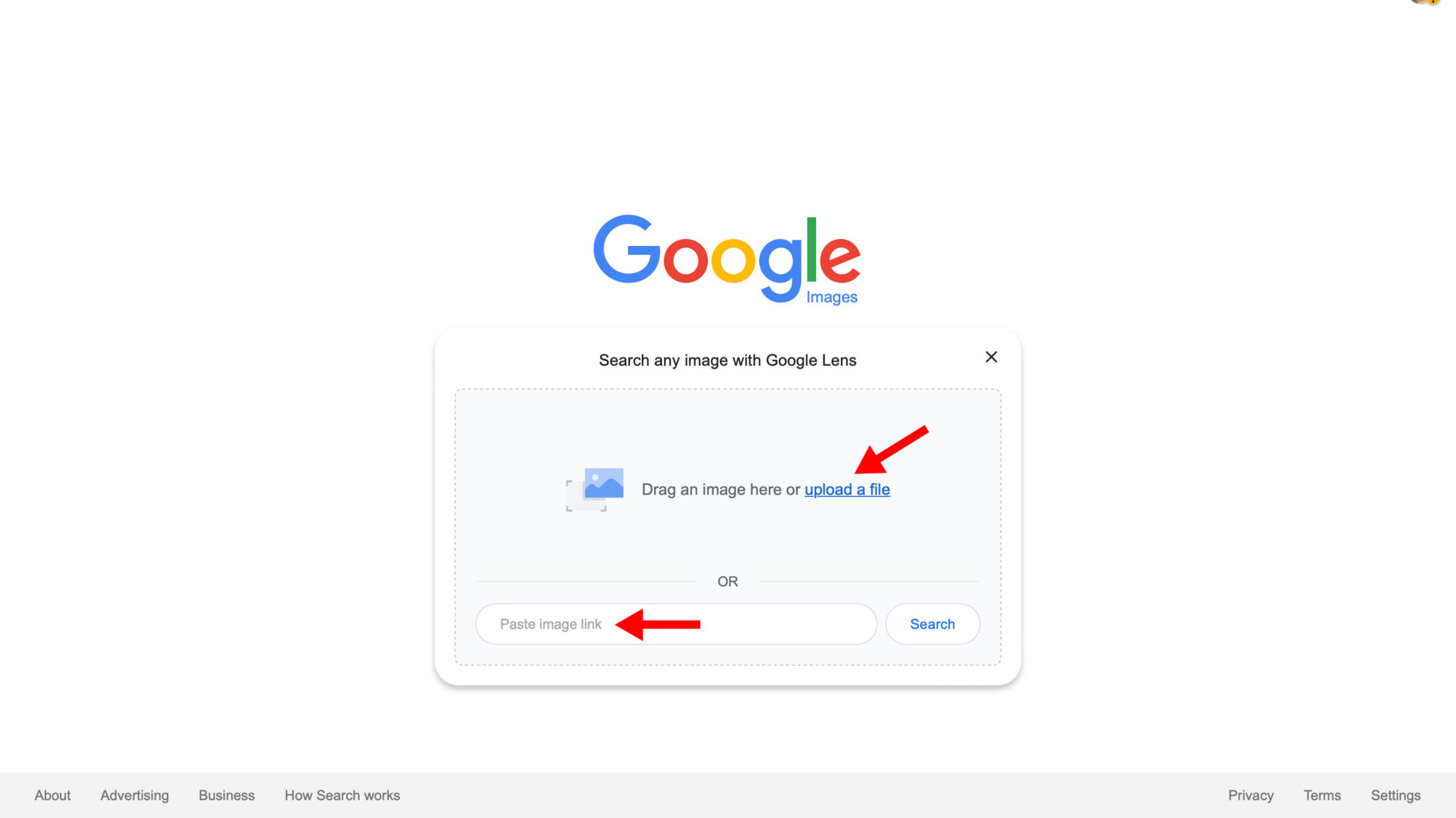
It will ask you to either “Paste image URL” or “Upload an image.” Just choose the upload option, drag your file in, or browse for it. That’s it. No hidden menus, no confusing settings, just a simple drag-and-drop or click-and-select.
Side note: if you’re on your phone, the camera icon might be tucked away in the search bar’s corner. Don’t panic if it looks slightly different—Google loves to shuffle the deck chairs, but the ship is still the same.
Method Two: The Right-Click Shortcut (For the Speedy)
Let’s say you’re browsing a website, and you see an image you love. You don’t want to download it first, because that’s unnecessary extra steps. Instead, just right-click on the image (or long-press on your phone’s screen).
A drop-down menu will appear, and you’ll see an option that says “Search image with Google” (or something similar, like “Search Google for this image”). Click that, and a new tab will open with all the results. It’s almost too easy, and honestly, it feels a little bit like cheating.

But here’s the irony: this method only works in Chrome or Google’s own apps. If you’re using Safari or Firefox, you’ll need to go back to the upload method. Google is a bit of a territorial cat when it comes to its features.
Method Three: The “I Only Have a URL” Trick
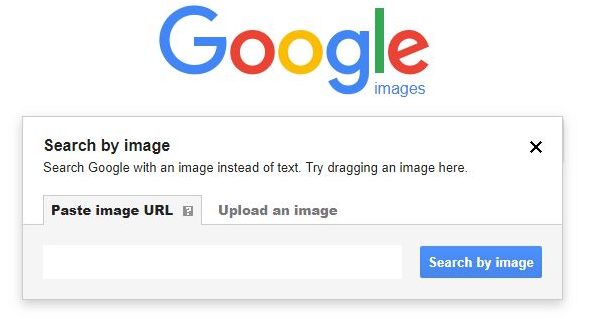
What if you didn’t save the photo, but you remember the exact webpage? Copy the image’s URL by right-clicking and selecting “Copy image address.” Then go to Google Images, click the camera icon, and paste that URL into the dedicated field.
This is a lifesaver for online shopping. If you see a dress on a site but want to find a cheaper version elsewhere, paste the image URL and watch Google pull up every retailer that sells the same damn dress. Warning: you might spend way too long comparing prices, but that’s a rabbit hole I fully support.
But Wait, There’s a Catch (Isn’t There Always?)
Google isn’t perfect. It struggles with text-heavy images (like memes with funny captions) or photos with extreme filters. If you’re trying to find a specific photo of a sunset, Google might just give you a bunch of generic sunsets instead. It’s not being difficult; it’s just that sunsets all look the same after a while.
Also, remember the privacy angle. When you upload an image, Google processes it but doesn’t store it publicly. You don’t have to worry about your random selfie ending up on some weird website. That said, don’t use it to stalk your ex’s profile pictures—that’s a different kind of search, and I’m not here to judge, just to inform.
So next time you’re stuck with an unidentified photo, don’t describe it in a desperate group chat. Open Google, upload, and feel like a cyber-sleuth. You’ll find the answer faster than I found that flamingo—and I’m still proud of that win.