How Can I Share My Screen On Zoom
Okay, let’s be real for a second. You’re in a meeting, someone says “just share your screen,” and suddenly your brain goes blank. It’s like being asked to perform a magic trick without knowing the trick, right?
But here’s the secret: sharing your screen on Zoom is ridiculously easy. It’s basically the digital equivalent of holding up a photo at a dinner table. No cape, no wand, just a few clicks.
The Big Green Button
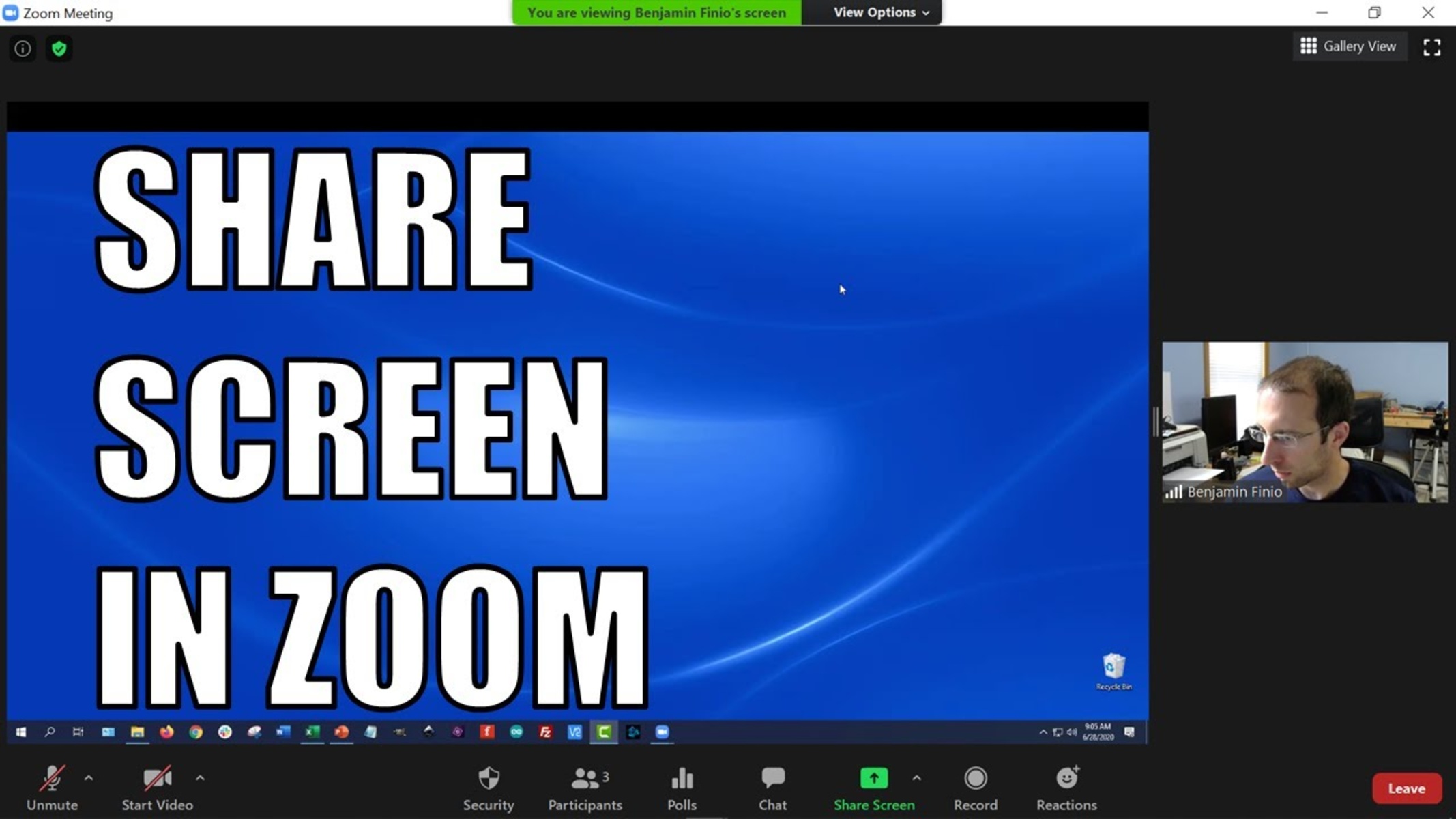
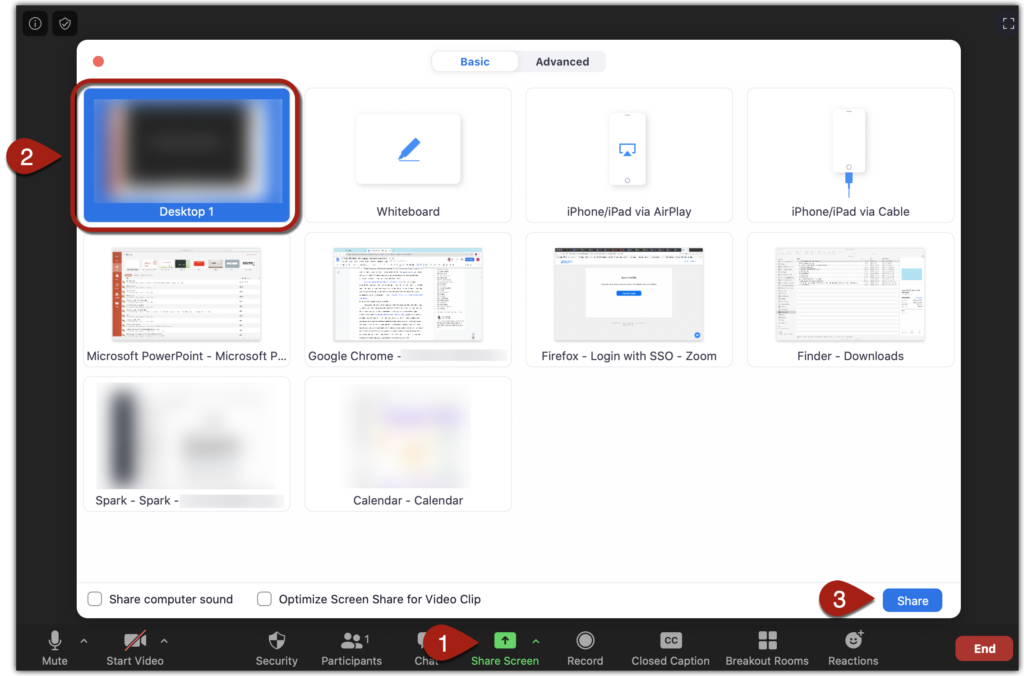
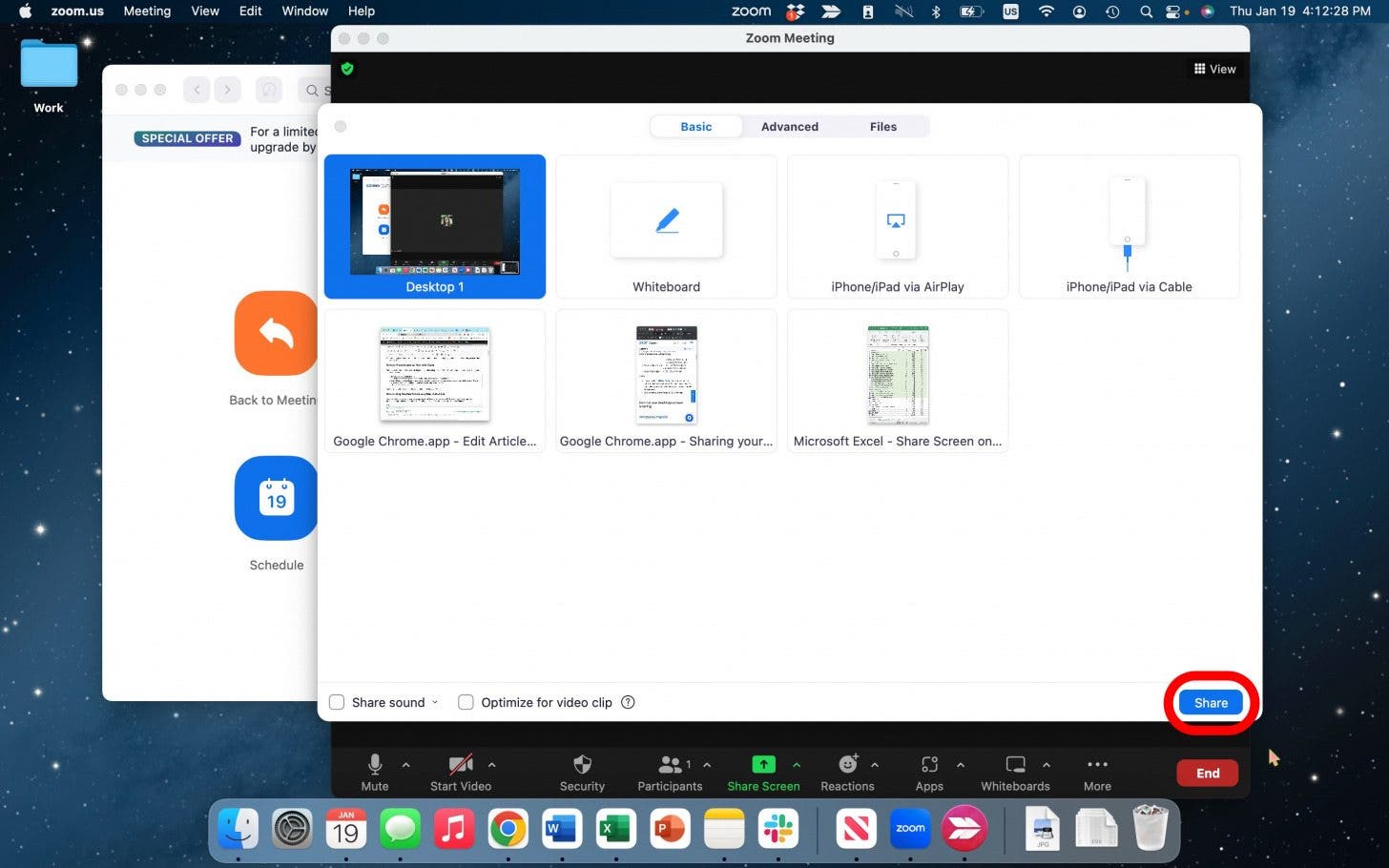
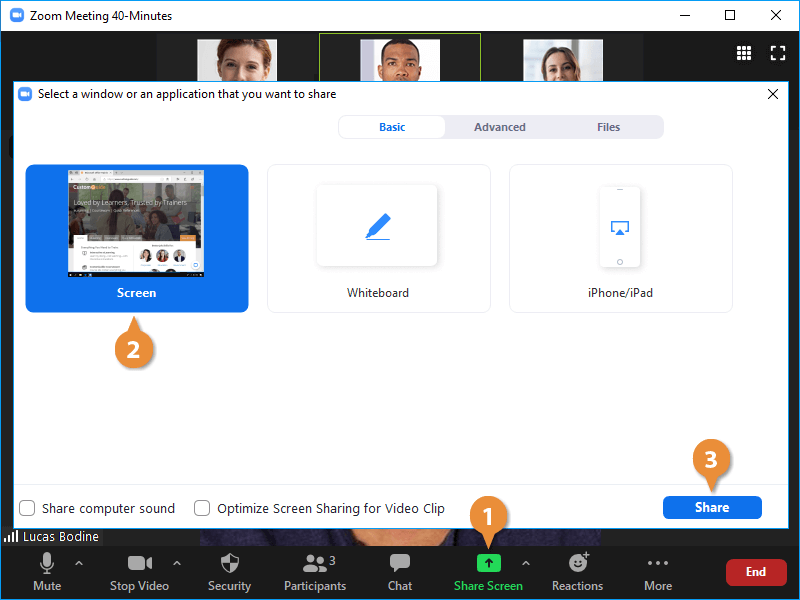
Look at the bottom of your Zoom window. See that bar with all the icons? You’re looking for a green button that says “Share Screen.” It usually sits right in the middle, like the popular kid in a school photo.
Must Read
Go on, hover over it. It won’t bite. In fact, it might even show a little video preview of your desktop just to say “hi.”
What Do You Actually Want to Show?
Once you click that button, a window pops up with a bunch of options. This is the fun part—you get to choose your audience’s reality. Do they see your entire desktop, with its chaotic mess of sticky notes and half-opened tabs? Or just that one specific spreadsheet that makes you look super organized?

For a full tour, pick “Desktop.” For a laser-focused look, pick that single application window, like your browser or your PowerPoint. It’s like choosing between showing someone your entire apartment or just your beautifully clean kitchen. Which is more impressive? You decide.
The Sound of Sharing
Here’s a tiny checkbox that people often miss: the one for “Share computer sound.” If you’re trying to play a video or show a meme with audio, you need to tick that box. Otherwise, it’s just awkward silent mime theater.
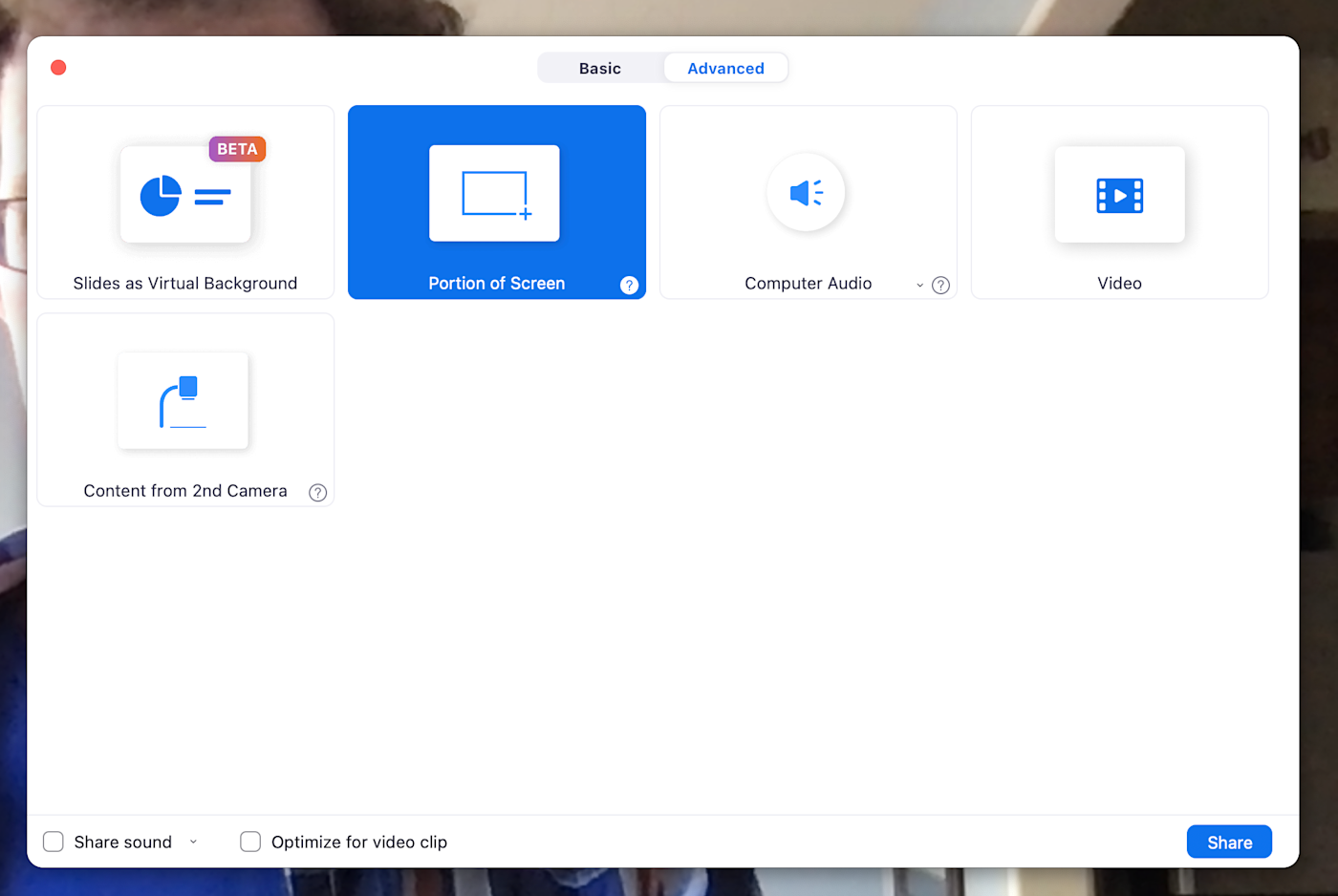
And don’t worry about the other options like “Whiteboard” or “iPhone/iPad.” They’re cool party tricks for later. For now, just stick to the basics.
Click, and Behold!
After you click the little blue “Share” button at the bottom right, boom. You’re live. Everyone sees your screen, and you’ve officially become the wizard of the call. The cursor becomes your virtual laser pointer.
Suddenly, you’re not just talking about the funny chart; you’re showing it. It’s like going from telling a joke to acting it out with full sound effects. Way more engaging, right?

Wait, I Want to Stop!
Panic not. To end the show, just hover your mouse at the top of your screen. A floating menu bar appears, and you’ll see a red button that says “Stop Share.” Click it.
It’s that simple. You’re back to just being a floating face in a grid, which, let’s be honest, is a relief. No more worrying about someone seeing that weird bookmark folder you’ve had since 2014.
So go ahead, try it next time. It’s not a performance—it’s just a conversation with visuals. And once you do it once, you’ll wonder why you ever thought it was hard. It’s just a click, a choice, and a little bit of courage.