How Can I Password Protect A Folder

So, you’ve got a folder on your computer that contains your secret cookie recipe, your “Novel_in_Progress_FINAL_v12_REALFINAL.docx,” or maybe just a collection of deeply embarrassing memes. The moment someone else touches your mouse, your heart does that little panic tap-dance. You need a lock, my friend, but not the kind you buy at Home Depot—a digital one.
The Year Is 2025, and Folders Still Don’t Have Locks
Here’s a shocking fact: Windows and macOS don’t have a simple “right-click, add password” button for folders. It’s 2025, we have cars that park themselves, but a basic filing cabinet for your digital junk is apparently rocket science. This gap in the universe is why third-party apps and clever workarounds exist, and why I’m here to save your bacon.
Before we dive in, let’s clear up one thing: hiding a folder is not the same as protecting it. Hiding is like putting a paper bag over your head and whispering “you can’t see me.” It works on toddlers, not on tech-savvy snoops. We’re going for actual, “enter-the-password-or-face-a-digital-tornado” energy.
Must Read
Method 1: The “Boring but Bulletproof” Route (Windows)
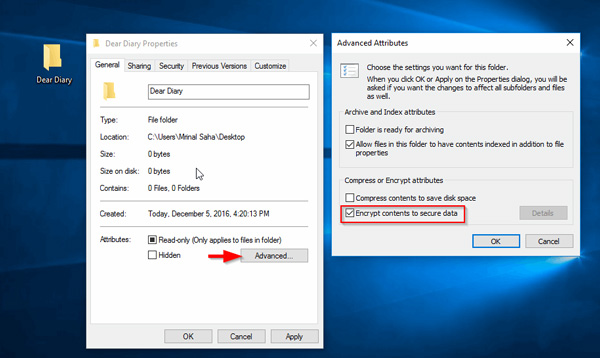
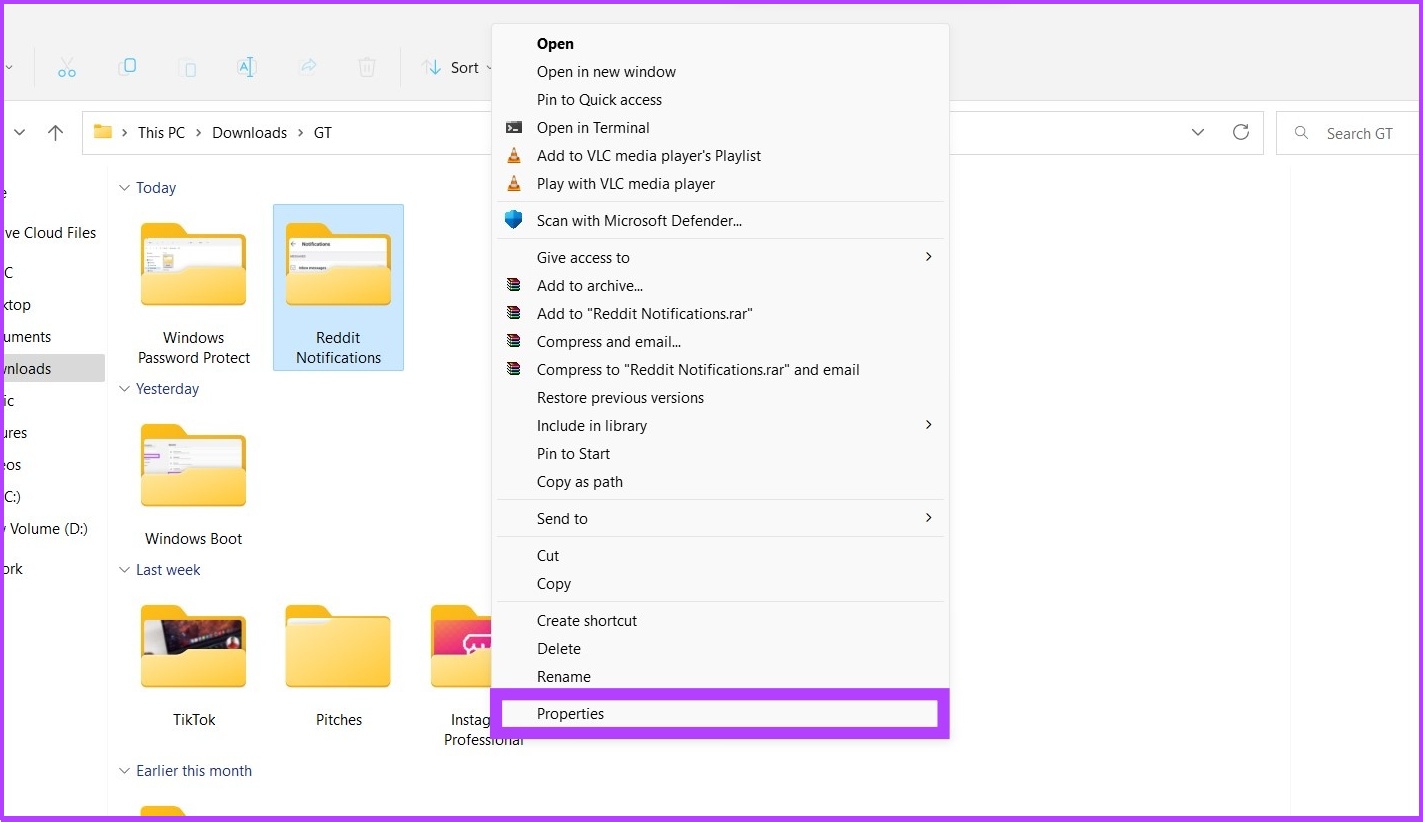
If you’re on Windows, your best friend is a free, open-source tool called 7-Zip. It’s not pretty, but it’s stronger than a double espresso. Right-click your folder, choose “Add to archive,” and then set a password. Boom—your folder becomes a single, locked file that screams “I HAVE SECRETS” every time someone tries to open it.
The downside? You’ll have to unzip it every time you want to see your memes, which is a total buzzkill. The upside? It’s practically unhackable—even the FBI would need a coffee break after a few tries. For a free tool, that’s a steal.
Method 2: Be a Mac Snob (But a Smart One)
For my Apple-loving friends, you have a trick up your sleeve called Disk Utility. You can create an encrypted “sparse image” (fancy talk for a virtual drive) that asks for a password before it mounts. Think of it as a digital vault that only opens when you whisper the magic words.
The process is a bit clunky—you’ll feel like a hacker from a 1995 movie—but it’s free and built right into your Mac. Just remember your password, because if you forget it, Apple will not send a rescue puppy. Your data becomes a beautiful, encrypted paperweight.

Method 3: The “Third-Party App” Fancy Pants Move
If you want the modern, drag-and-drop, “look-ma-no-hands” experience, get an app like Folder Lock or VeraCrypt. These are the Ferraris of folder protection. They let you create a vault, lock it with a password, and even hide it in plain sight. Some even offer a “panic button” that closes everything instantly—perfect for when your mom walks in while you’re “working.”
The catch? Many good ones cost a few bucks. But let’s be honest: isn’t your peace of mind worth the price of a fancy coffee? I’d say the ability to sleep at night without dreaming of your boss finding your “Open_Letter_to_HR_FINAL.docx” is worth every penny.

The “Oops, I Forgot” Warning
Here’s the punchline: forgetting your password is the #1 way people lose their data. Not hackers, not malware—just their own scrambled brains. So write it down on a sticky note and tape it to your monitor. That’s ironic, but it works. Or better yet, use a password manager—but that’s a whole other rabbit hole of chaos.
So go forth, lock down your treasures, and next time someone asks “what’s in that folder?” you can just smile, sip your drink, and say, “Wouldn’t you like to know?” Then watch them squirm. You’ve earned it.