How Can I Change My Vpn Location
Okay, so you’re sitting there, watching a show that’s only available in Japan, or trying to book a flight from a country where you’re not actually standing. Your VPN is on, but your virtual self is still hanging out in, like, Ohio. Boring. You need to change your VPN location, and you need to do it now. Don’t worry, I’ve got you—it’s way easier than trying to assemble IKEA furniture without instructions.
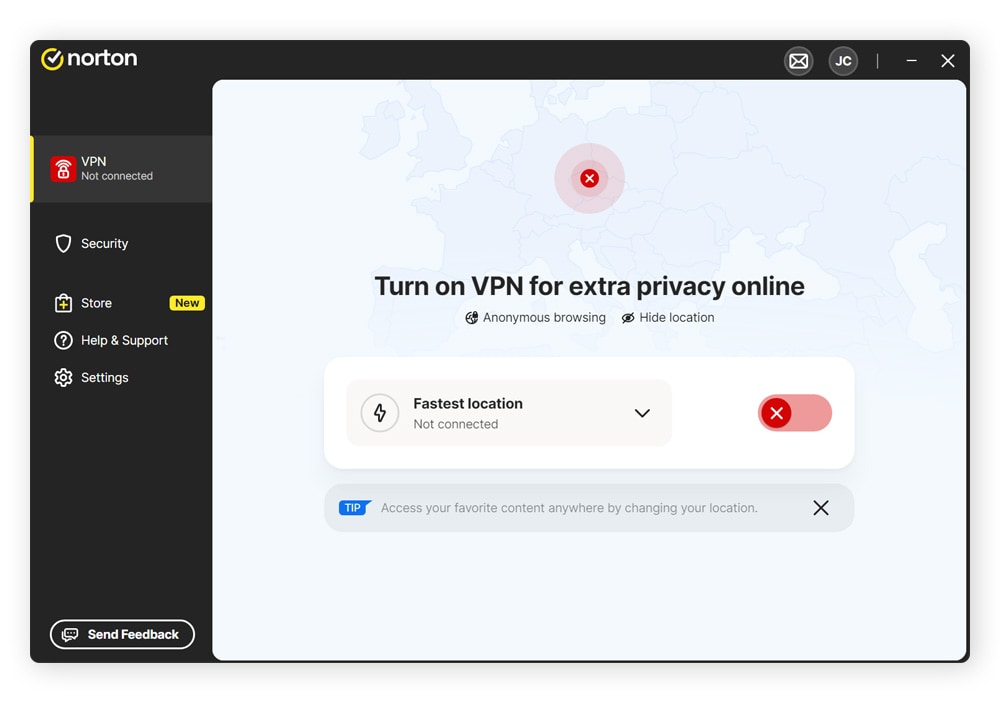
First things first, let’s talk about the giant elephant in the digital room: your VPN app. That little icon in your tray or menu bar is your passport to the world. It’s also where you’ll do 99% of your location-shifting work. So, click it. Go on, give it a friendly double-click. See that big list of countries? It looks like a weird geography test, right? But this is a test you actually want to pass.
The Big, Obvious Button (No, Seriously)
Inside your VPN app, you’ll usually see a giant power button and a server list. The secret isn’t in the button; it’s in the list. Look for a dropdown menu or a search bar that says “Location,” “Country,” or “Server.” Click on it. You’ll get a list of places that range from “United States” to “Luxembourg” (because why not?).
Must Read
Now, here’s the fun part: pick a spot. Want to pretend you’re sipping espresso in Rome? Tap Italy. Need to access a UK-only bank site? Go with London. The app will usually show a little “connect” button next to the location. Hit it, and watch the magic happen. Your IP address just packed its bags and moved faster than your neighbor who complained about the noise.
And that’s it. Seriously. That’s the whole trick. You don’t need to sacrifice a goat or restart your router. Just click, connect, and go. Your new location is now officially "home."

But Wait, What If I’m On My Phone?
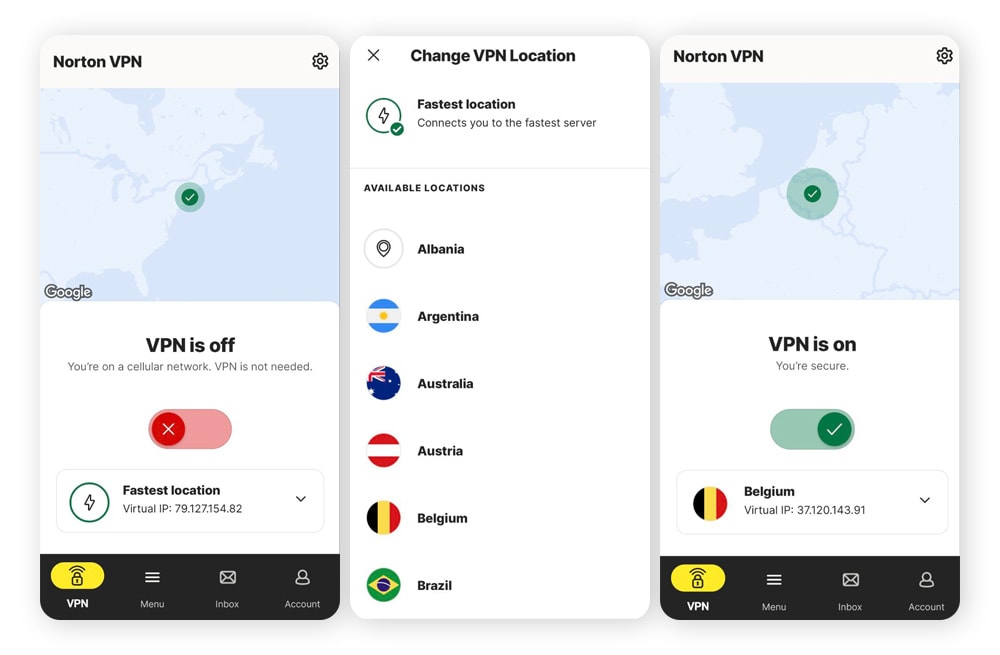
Ah, good question. Mobile apps are a little like their desktop cousins, but they’re often more… photogenic. The layout is different, but the logic is the same. You’ll usually see a big “Power” button, and right below it, a list of regions. Or, sometimes, they hide the location list behind a tiny flag icon. Sneaky, right?
So, tap that flag. Or tap the tiny “locations” text. You’ll see the same list of countries, but with prettier pictures. Just tap a country, and the app will do its little dance. You’ll feel a vibe shift, like you just stepped off a plane. Except you’re still sitting on your couch in your pajamas. It’s great.

The "Oh No, It Didn't Work" Emergency Protocol
So you clicked, you rolled the dice, and you got… the same location? Annoying. Don’t slam your laptop shut just yet. First, check the connection status. Does it say “Connected” or “Connecting”? If it says “Connecting,” your VPN is just being lazy. Give it a second. Coffee takes time, and so does virtual travel.
Still stuck? Here’s a wild idea: disconnect completely. Then, pick a server that’s not the “Fastest” default. Defaults are like vanilla ice cream—safe, but boring. Choose a specific city instead of a whole country. If the app lets you, grab a server in “Los Angeles” instead of just “United States.” This gives your VPN a fresh route, like using Google Maps to avoid traffic.
And if it still shows the old spot, force quit the app completely. On a phone, that means swiping it away. On a computer, that means right-clicking and quitting. Reopen it, and try again. You’d be amazed at how many tech problems are solved by “turn it off and on again.” It’s like the miracle cure for the digital age.
Fast Switching Is a Real Thing
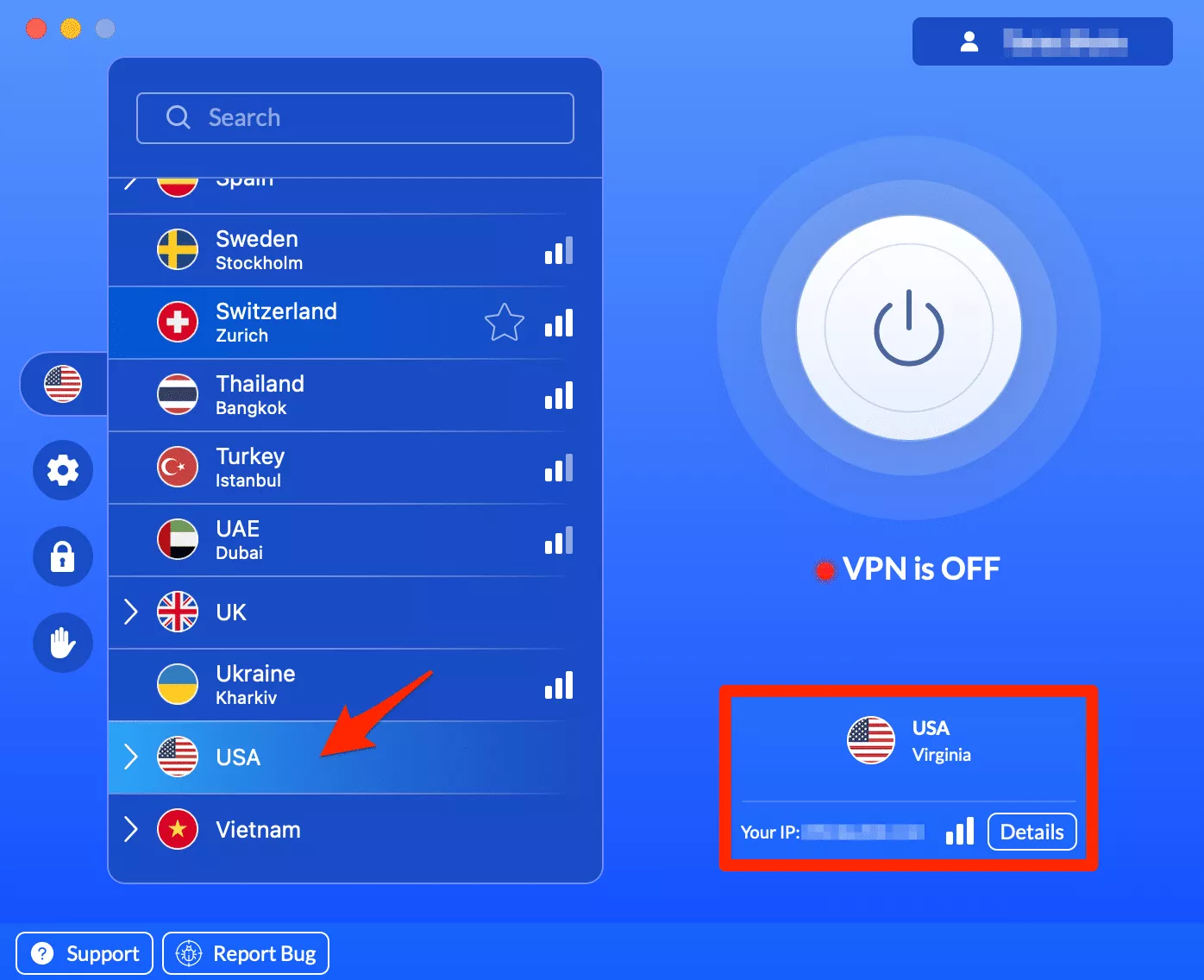
Here’s where things get fun. Did you know you can set up "favorites"? Most modern VPNs let you star specific locations. So, if you’re a digital nomad who roleplays as a New Yorker on Tuesdays and a Berliner on Fridays, you can save those. No more searching through the list like a maniac.
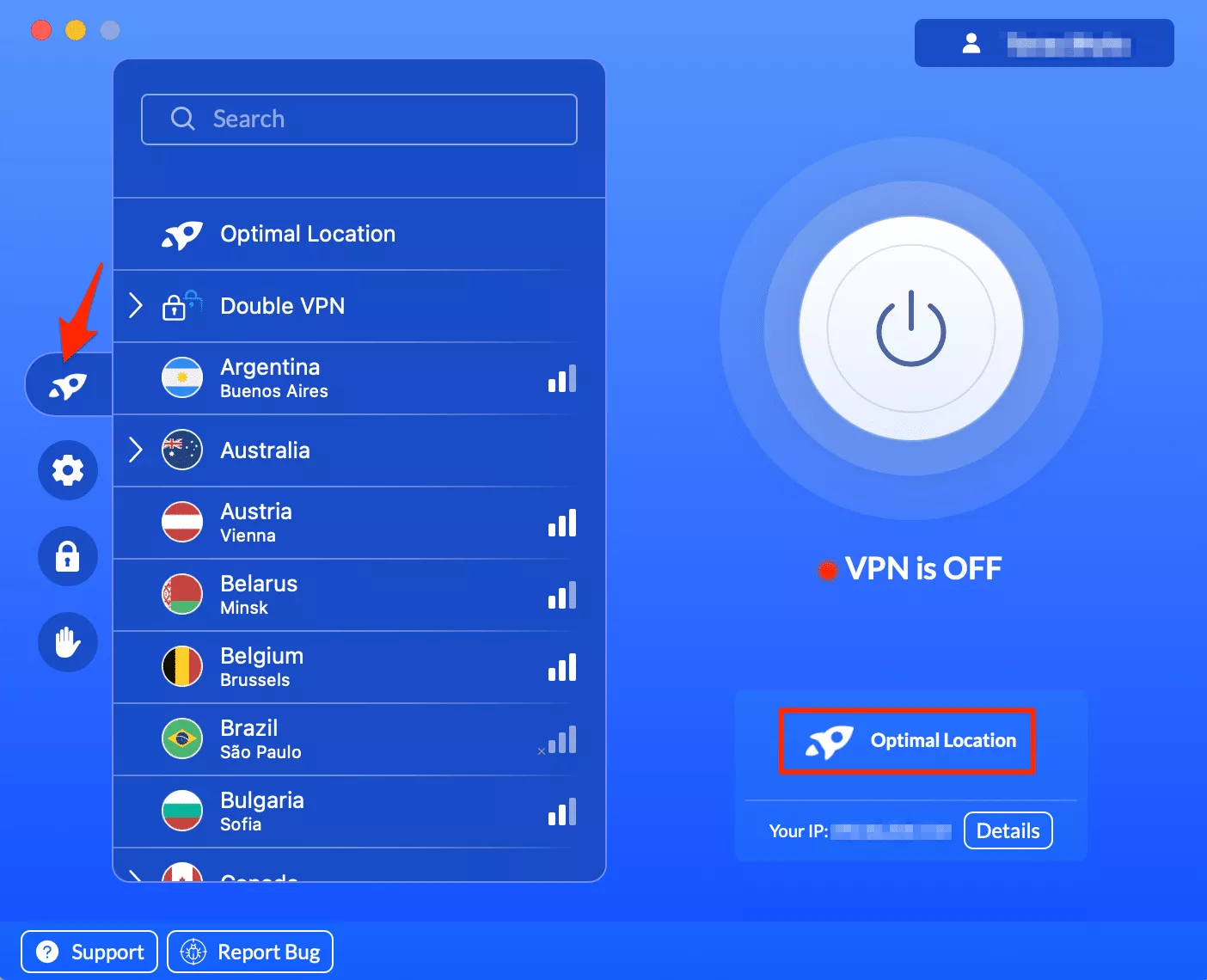
Also, look for a “Quick Connect” button. It’s usually a lightning bolt icon. That button chooses the best server for you, which is usually the closest one. That’s great for speed, but terrible for pretending you’re in Australia. If you’re trying to fool a website, you need to be manual. Be picky. Choose weird places. It’s your digital playground, and you’re the only one on the swings.
Why Bother In The First Place?
Let’s be real. You might be asking, “Why should I bother changing my location?” Well, besides unlocking that sweet, sweet British Netflix that has all the Bake Off episodes, it’s about privacy. Changing your location hides your real IP address from prying eyes. It’s like wearing a Halloween mask, but for your internet connection. You get to be whoever you want, wherever you want.
It’s also about prices. I’m not saying you should lie, but I am saying that flights and hotel rates magically drop when you browse from, say, India or Argentina. It’s not unethical; it’s just smart. You’re playing the global game, and your VPN is the cheat code.
So go ahead. Click that flag. Change that drop-down. Move yourself to Timbuktu or Tokyo. It takes two seconds, and it’s the most satisfying no-moving-movers experience you’ll ever have. Just don’t forget to change it back before you try to order food delivery. Local apps get super confused if they think you’re in a different time zone. Trust me on that one.