Connect Computer To Wireless Printer

Let’s be honest—there was a time when printing a document felt like preparing for a space launch. You’d wrestle with a chunky USB cable, pray to the tech gods, and perform a little dance around the desk. These days, we have wireless printers, which sound like magic but can sometimes feel like a stubborn puzzle box.
But here’s the good news: connecting your computer to a wireless printer is way easier than untangling your earbuds. It’s like teaching your laptop and printer to be best friends—they just need a proper introduction. Once they’re linked, you can print from the couch, your bed, or even while hiding from your kids in the bathroom. That’s the dream, right?
Why Bother Cutting the Cord?
Remember the old days? You’d have to get up, walk to the printer, plug in a cable, and sit back down—it was basically a cardio workout. Going wireless means your printer can live anywhere, not just within a three-foot radius of your desk.
Must Read
More importantly, it saves your sanity. Imagine you’re in a rush to print a boarding pass, and you realize the cable is in a drawer—under three years of old receipts. Wireless is about freedom, like giving your printer its own zip code.
Plus, it’s a total game-changer for families. Your partner can print a recipe from the kitchen while you’re printing a work report from the office. No more “I need to print first!” battles.
Step One: Make Sure They’re on the Same Team
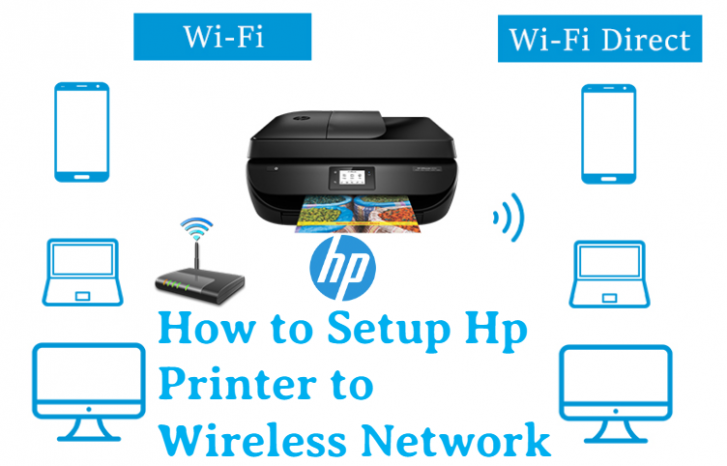
Think of your Wi-Fi network as a bar. Your computer and printer need to be at the same bar to talk to each other. So, first, check that both are connected to the same network name (SSID). It’s a classic mistake—your phone is on the “Home_5G” network, but your printer is on “Home_Guest.” They’re at different parties.
If your printer has a small screen, go into its menu and look for Network Settings or Wi-Fi Setup Wizard. Follow the prompts, and don’t panic if it takes a minute. It’s like waiting for your coffee to brew—nothing bad is happening; it’s just thinking.
Most modern printers also have a WPS button—a tiny magic button that acts like a handshake. If your router has one too, just press both, and they’ll introduce themselves. It’s the closest thing to tech matchmaking you’ll ever see.

Step Two: The Computer’s Turn
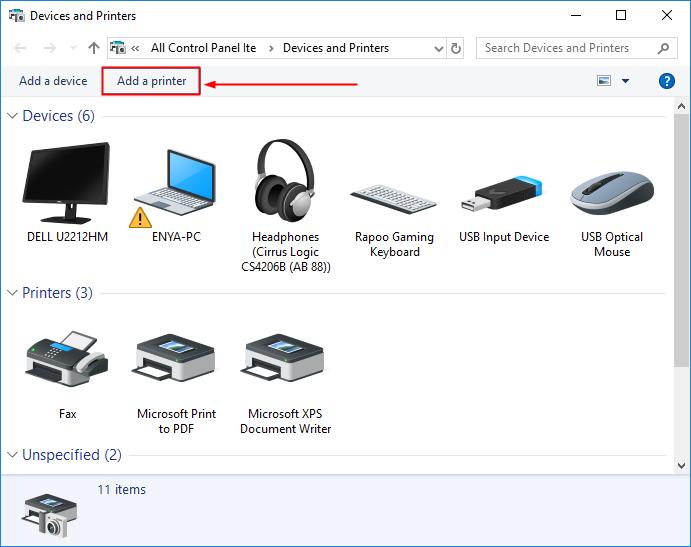
Now, on your computer, go to Settings (on a PC) or System Preferences (on a Mac). Look for “Printers & Scanners” or “Add Printer.” Click “Add” and wait for your printer’s name to pop up. It usually has a friendly name like “HP-Deskjet-4155” or “Epson-WorkForce.” If you see it, select it and hit “Add.”
If it doesn’t show up, don’t throw your coffee. Try turning the printer off and on again—sorry, but it’s the oldest trick in the book for a reason. Also, check if your printer has an app. Many brands (HP, Canon, Epson) have apps that walk you through this with more hand-holding than a gentle grandma.

Sometimes, Windows or macOS will download a driver automatically. That’s like your computer saying, “I got you, buddy.” Just let it do its thing.
When Things Get Weird
Every once in a while, your computer might say it’s connected, but the printer just sits there, silent and judgmental. If this happens, check for two things: is the printer on sleep mode, and is it out of paper? Both are silent killers.
Another lifesaver: restart both the computer and the printer. It’s not a cliché; it’s a spiritual reset. And if you’re still stuck, just search online for “your printer model + connect to Wi-Fi.” You’ll find a YouTube video with a guy who sings while his printer works perfectly—don’t hate him.

Finally, remember that a wireless connection is just a friendship. Sometimes it needs a little maintenance. Run a printer test page once a month, just to say hello.
The Payoff
Once you’ve got it working, you’ll feel a tiny rush of victory. You’ll print a random page just to enjoy the magic. You’ll print a photo of a cat, just because you can.
So go ahead—cut the cord, embrace the chaos, and let your printer be free. Your future self, printing from the sofa with a snack in hand, will thank you.