Command For Network Configuration
You know that feeling when you walk into your house after a long day, drop your bags, and just want to collapse? Then you reach for your phone, only to realize you’ve forgotten the Wi-Fi password—again. We’ve all been there, staring at a wall of technical jargon in the router settings, feeling like you need a computer science degree just to binge-watch your favorite show.
But here’s the secret: there’s a magical little tool hiding inside your computer that can save you from that headache. It’s called the command for network configuration—or ipconfig on Windows, and ifconfig on Mac and Linux. It sounds scary, but honestly, it’s just a friendly little chat you have with your computer to ask, “Hey, what’s going on with my internet?”
Why should you care?
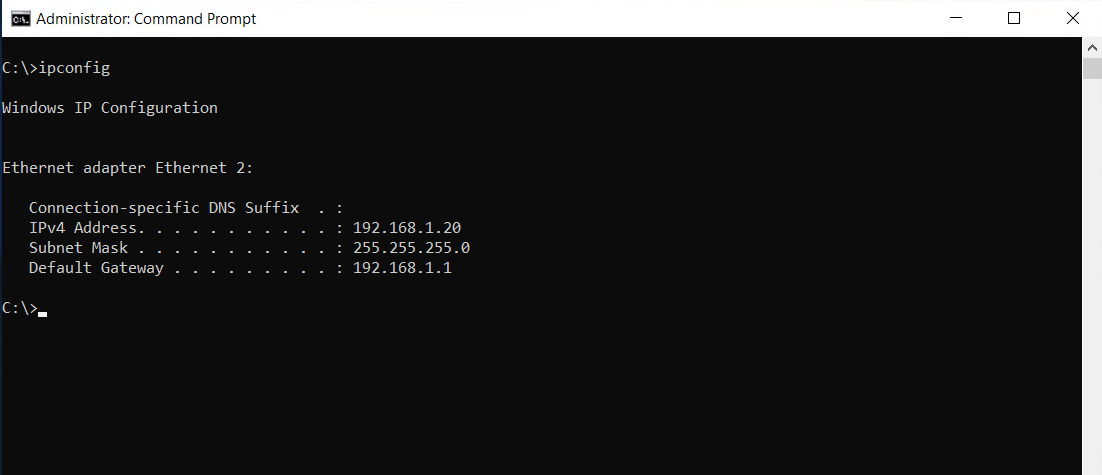
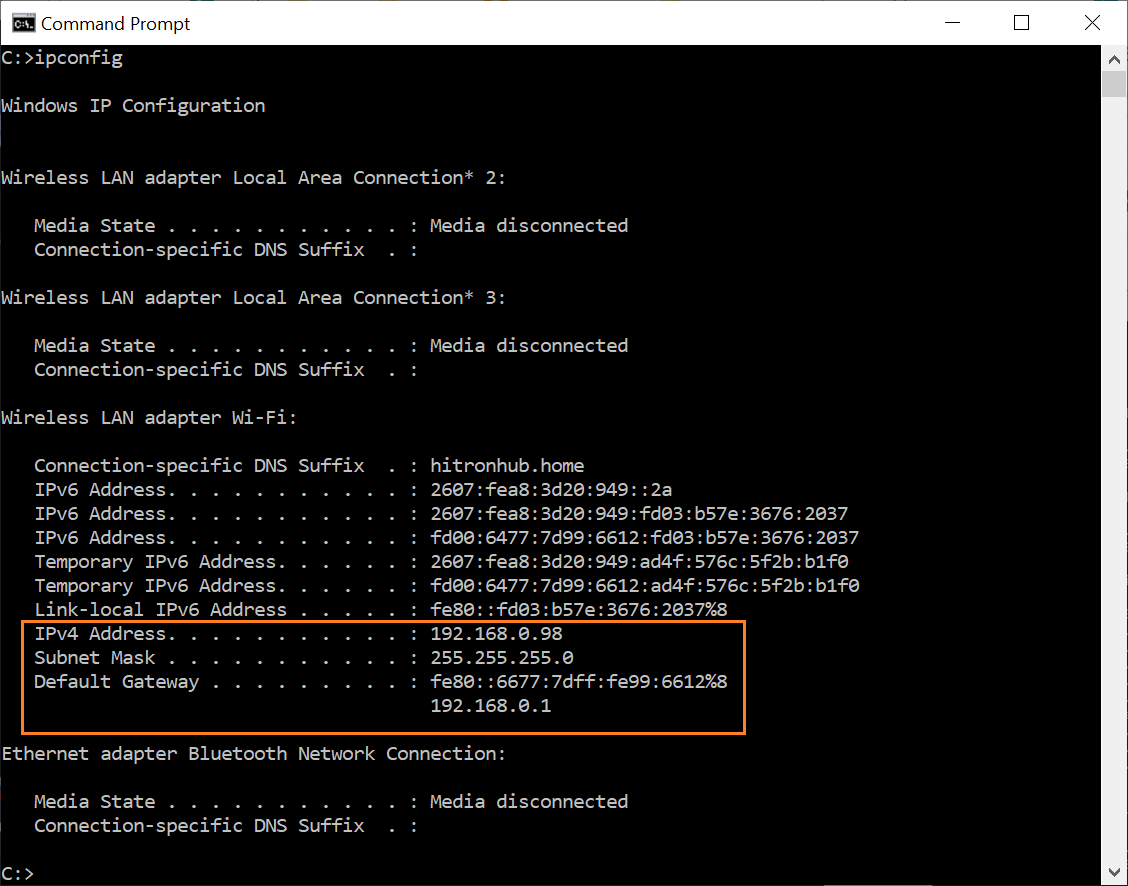
Think of this command as the check-engine light for your Wi-Fi. When your internet is being slow, or you can’t connect to the printer, or your video call keeps freezing, this command gives you the answers. It pulls back the curtain and shows you your computer’s IP address, your network mask, and the all-important default gateway—which is just the fancy name for your router’s front door.
Must Read
Imagine your house is your network. Your computer has a home address (the IP address), and the default gateway is the mailbox at the end of your driveway. If you want to send a letter to your friend across town (the internet), your computer needs to know where that mailbox is. This command finds it for you.
A story from my own chaos
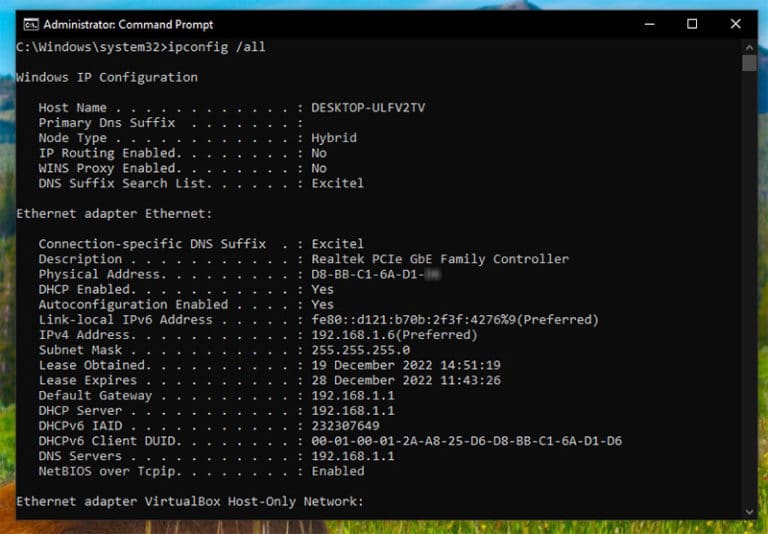
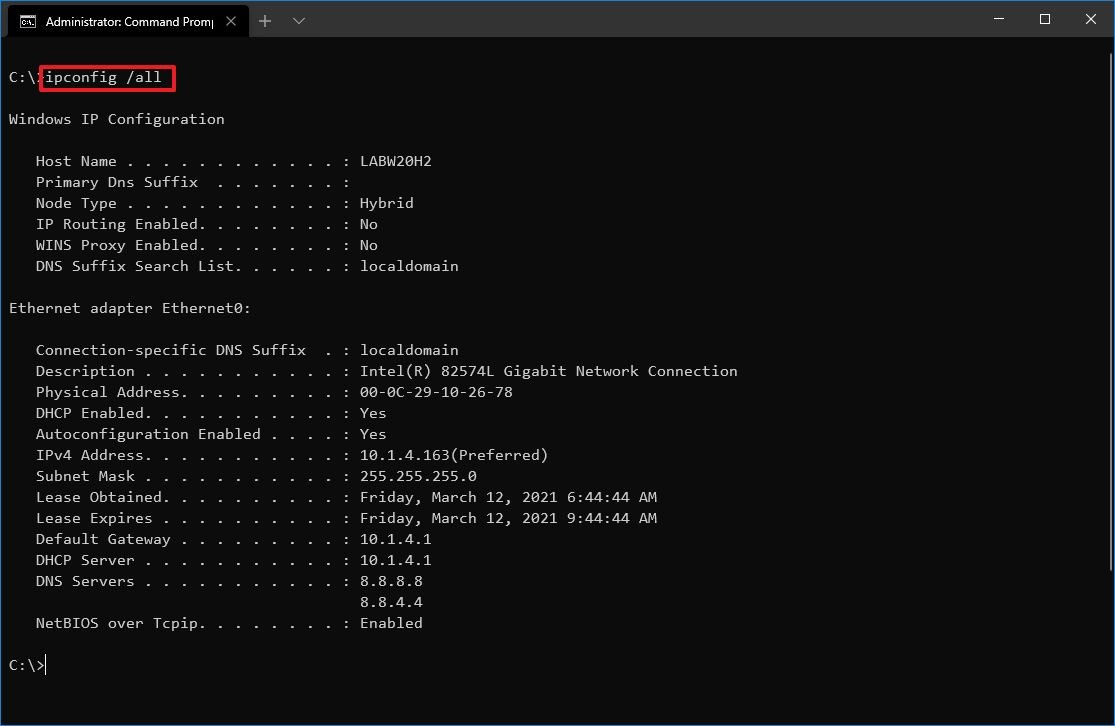
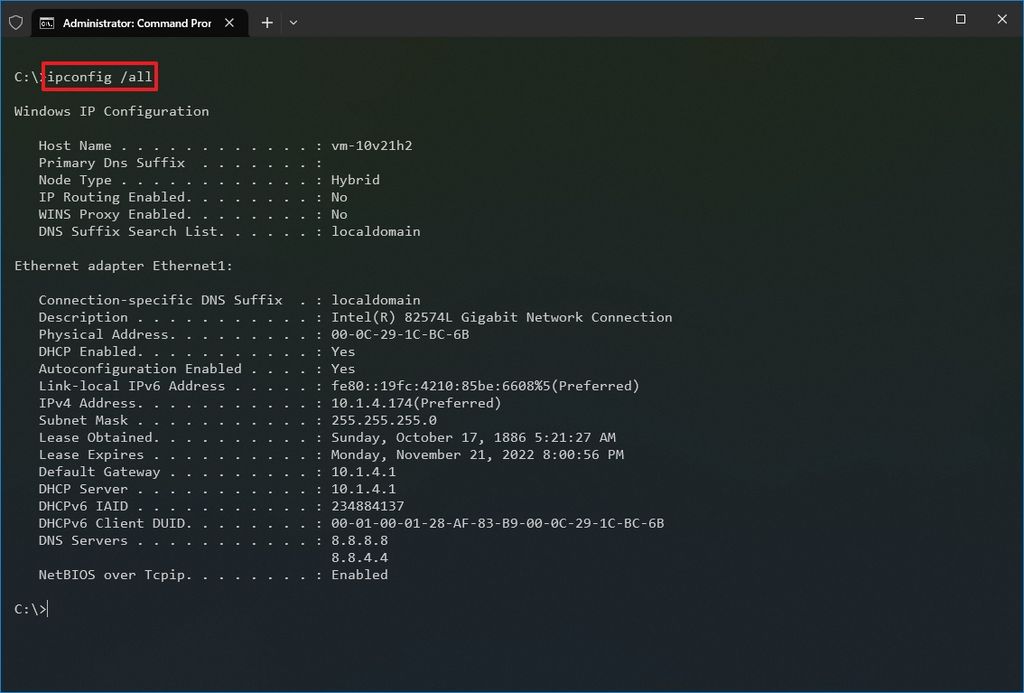
Last week, my mum called me in a panic because her new tablet wouldn’t connect to the internet. She was ready to throw it out the window. I walked her through typing one simple line: ipconfig /all (on Windows). Within seconds, we saw that her tablet had grabbed a “169.254.x.x” address—a little red flag that basically means, “I have no idea where I am!”

That single number told us the router was having a stubborn moment. We restarted the router, typed the command again, and boom—she got a proper address and was back to scrolling through cat videos. She thought I was a wizard. I was just using the command for network configuration.
It’s not just for fixing problems
You don’t need to be a tech genius to use it. It’s also great for figuring out a sneaky issue: when two devices on your network have the same IP address, chaos ensues. It’s like two people trying to use the same locker at the gym. The command helps you spot the conflict and assign a new, unique spot for your laptop.
And here’s a fun party trick: type the command to see your physical address (a unique code for your network card). If you ever need to filter devices on your router—like telling Netflix to buffer only on your TV and not on your kid’s gaming console—this is your ticket.
How to start
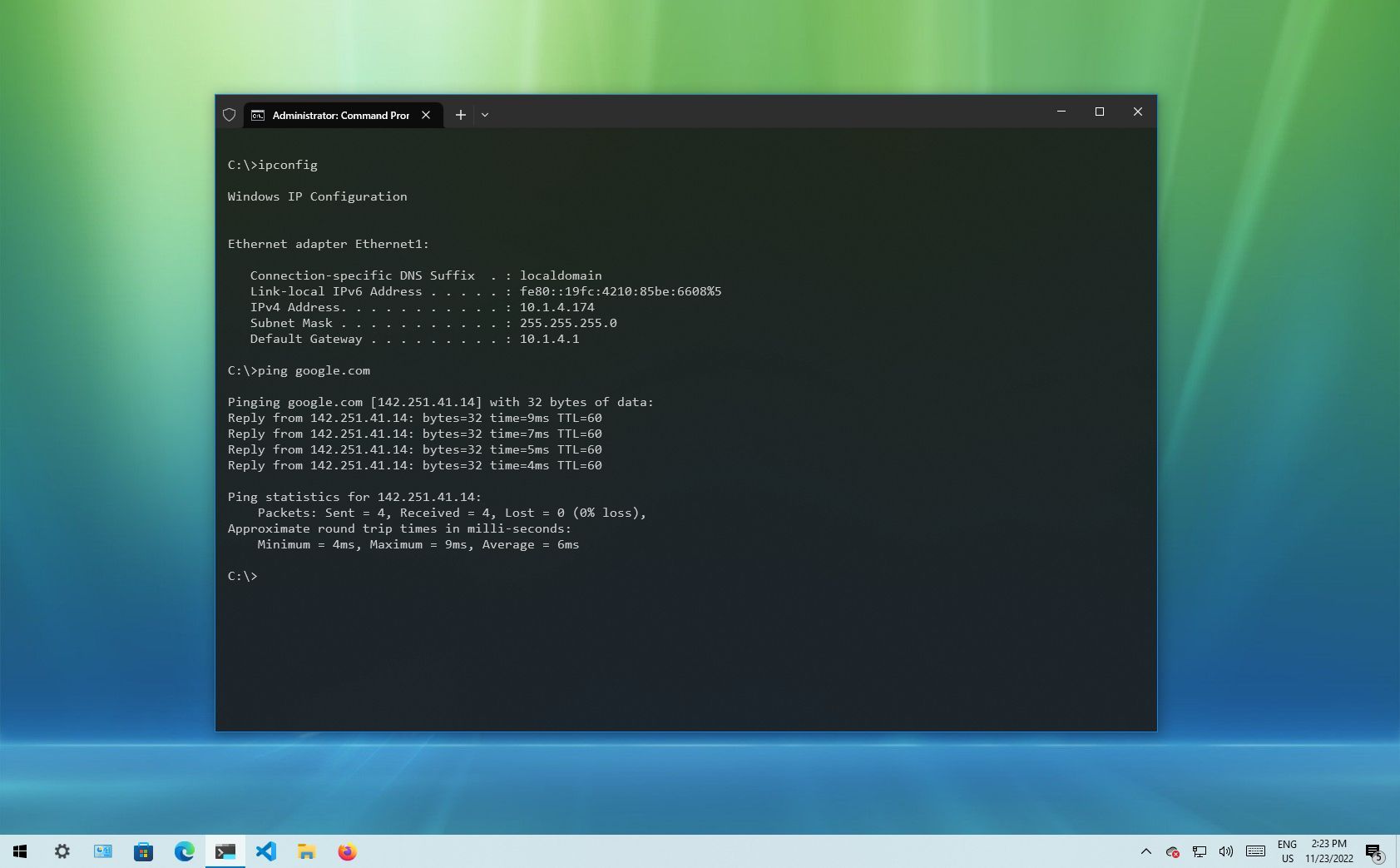
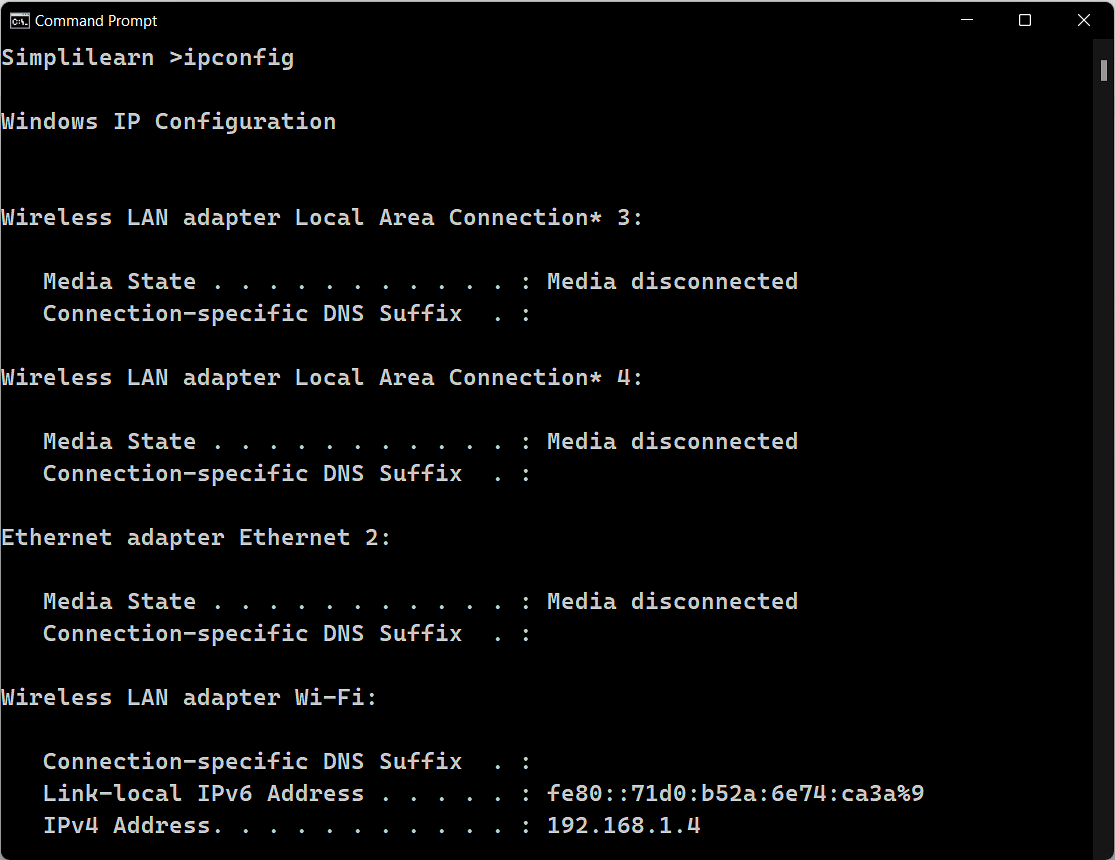
Don’t be shy. Open your command prompt (just search “cmd” on Windows, or open Terminal on a Mac). Type ipconfig and hit Enter. Go ahead, do it now. You’ll see a list of numbers that, for a moment, feel like a secret code. But once you connect the dots, it’s a story about your home network.
It’s like learning to read the labels on your food—suddenly, you understand why that yogurt has so much sugar. Once you get comfortable, you’ll start seeing your Wi-Fi as a friendly map instead of a black box of mystery. And the best part? You’ll never have to wait for a “tech guy” again.
So next time your internet decides to take a nap, remember your little command. It’s your pocket translator for the digital world—always there, ready to help, and it doesn’t even judge you for forgetting the password. Just give it a shot. You might even feel a little bit like a hacker—minus the black hoodie, of course.